Virtual Remote Gamepad Touch
Aggiornata
Versione corrente
16.0
Offerta da

Non devi più preoccuparti dei sovraccarichi durante l'utilizzo di Virtual Remote Gamepad Touch sul tuo cellulare, liberati dal piccolo schermo e goditi dell'App su uno schermo molto più grande. D'ora in poi, sperimenta la tua App a schermo intero con tastiera e mouse. MEmu ti offre tutte le sorprendenti funzioni che ti aspettavi: installazione rapida e impostazione semplice, controlli intuitivi, niente più limitazioni di batteria, dati mobili e chiamate fastidiose. Il MEmu 9 nuovo di zecca è la prima scelta per utilizzare Virtual Remote Gamepad Touch sul tuo computer. Codificato con il nostro assorbimento, il gestore multi-istanza consente di aprire 2 o più account contemporaneamente. E soprattutto, il nostro esclusivo motore di emulazione può sbloccare il pieno potenziale del tuo PC, rendendo tutto liscio e piacevole.
Mostra altro
Goditi un'esperienza straordinaria con Virtual Remote Gamepad Touch su PC con MEmu Play. È un potente emulatore Android gratuito che ti offre migliaia di app Android per la versione desktop. Divertiti a connetterti con gli amici e a perfezionare il tuo lavoro con maggiore efficienza! Transform Your Smartphone into a Wireless Console Controller.
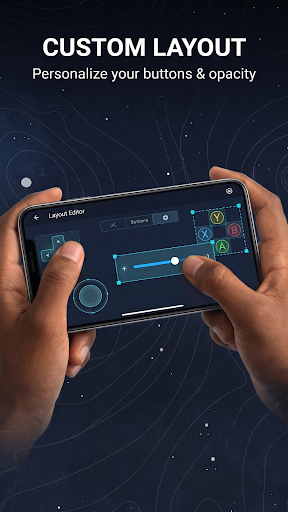
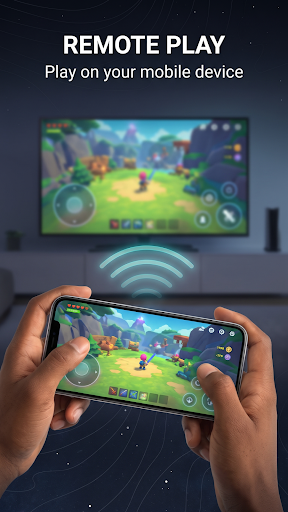
Transform Your Smartphone into a Wireless Console Controller
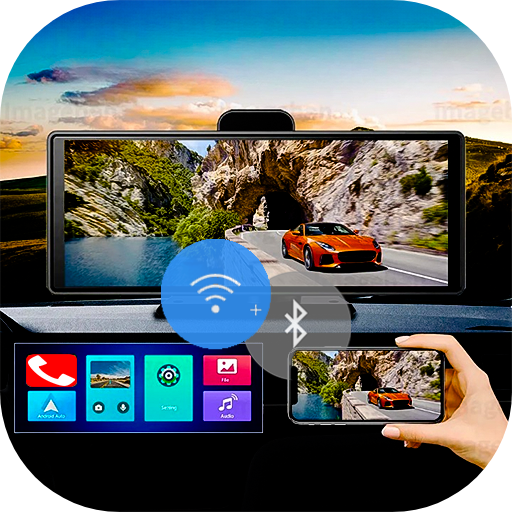
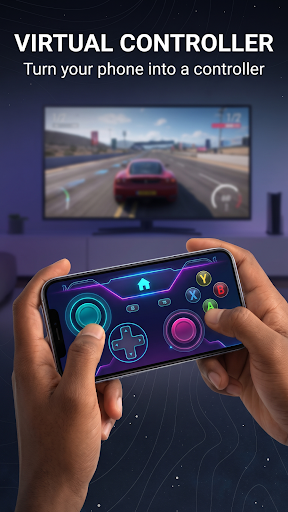
Turn your Android device into a responsive virtual gamepad and remote play screen. Whether your physical controller has a dead battery, you want to play co-op multiplayer with friends, or you prefer streaming console gameplay to another room, Remote Gamepad & Console Play gives you full wireless control over your home gaming system.
Seamless Remote Play & Screen Streaming
Stream your console screen directly to your phone in up-to-1080p resolution over your local Wi-Fi network or compatible mobile data connection. Navigate dashboard menus, launch media apps, and play your installed console library from anywhere in your home without being tied to your television.
Customizable On-Screen Touch Gamepad
Use your phone purely as a wireless controller in dedicated Gamepad Mode. The intuitive touch interface features dual analog thumbsticks, an 8-way directional pad, responsive shoulder triggers, and action buttons engineered for comfortable touch input.
Key Features:
- Dual Operating Modes: Switch effortlessly between full audio/video Remote Play streaming and touch-only Gamepad Mode.
- Custom Button Layouts: Adjust button opacity, size, dead zones, and short-trigger sensitivity to match your play style.
- Haptic Vibration Feedback: Feel in-game action with customizable rumble and vibration support.
- Local Multiplayer Ready: Connect multiple smartphones to the same console session so friends and family can join local co-op and party games without buying extra hardware.
- Voice & Audio Support: Route stereo game audio to your mobile device and optionally use your phone’s microphone for voice chat during active sessions.
- External Peripheral Support: Pair compatible Bluetooth headsets and keyboards for easier text input and private listening.
How It Works / Setup Requirements:
1. Ensure your home gaming console is powered on or set to instant-on standby mode with remote features enabled in system settings.
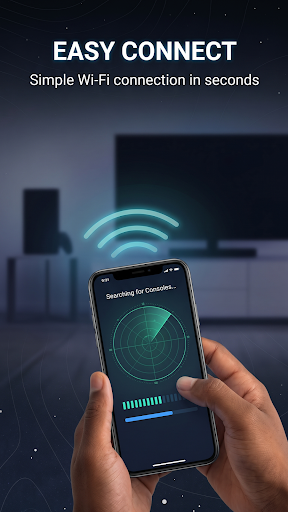
2. Connect both your Android smartphone and your console to the same high-speed Wi-Fi network (5GHz recommended for optimal streaming latency).
3. Launch the app and complete the secure pairing process using your console's official remote connection protocol.
4. Select either Remote Play (video stream + controls) or Gamepad Mode (controller input only) and start playing.
Compatible Devices & Systems:
- Designed for 8th-generation and 9th-generation home gaming consoles supporting network remote play and smart companion protocols (including Series X, Series S, and One generation hardware).
- Requires Android 8.0 or higher and a stable local network connection (minimum 15 Mbps recommended for 1080p streaming).
Safety, Permissions & Important Notes:
- Network & Performance: Streaming quality and input latency depend directly on your home router performance and Wi-Fi signal strength.
- Optional Microphone Permission: Microphone access is requested only if you enable in-app voice chat relay and can be revoked at any time in your device settings.
- Content & DRM Notice: This application streams video output directly from your personal hardware console. Certain third-party media streaming apps on your console may block remote video transmission due to Digital Rights Management (DRM) restrictions.
Trademark & Legal Disclaimer:
This application is an independent, third-party utility developed to interface with supported home gaming consoles via standard network protocols. It is not an official application and is not affiliated with, endorsed by, sponsored by, or produced by Microsoft Corporation or any of its subsidiaries. All third-party product names, console generation identifiers, and registered trademarks mentioned for compatibility reference remain the sole property of their respective owners.
Mostra altro

1. Scarica il programma di installazione di MEmu e completa l'installazione

2. Avvia il Memu e apri il Google Play sulla homepage

3. Cerca Virtual Remote Gamepad Touch in Google Play
Install
4. Scarica e installa Virtual Remote Gamepad Touch
5. Al termine dell'installazione, fai clic sull'icona per avviar

6. Divertiti giocando a Virtual Remote Gamepad Touch su PC con MEmu
MEmu App Player è il miglior emulatore Android gratuito, utilizzato da 50 milioni di persone per ottenere un'esperienza di gioco Android superba. La tecnilogia di virtualizzazione MEmu ti permette di giocare a migliaia di giochi Android con semplicità sul tuo computer, anche i giochi con la grafica più esigente.
Schermo più grande con una grafica migliore; Lunga durata, senza limitazione di batteria o dati mobili.
Supporto completo per mappa di tastiera per un controllo preciso di tastiera e mouse o gamepad.
Multipli account di gioco o attività su un singolo PC contemporaneamente con il gestore di multi istanza.
Use Virtual Remote Gamepad Touch on PC by following steps: