Epson iProjection
Mise à jour
Version actuelle
4.2.0
Proposée par

Ne vous inquiétez plus des surcharges lorsque vous utilisez Epson iProjection sur votre téléphone portable, libérez-vous de l'écran minuscule et profitez de l'application sur un écran beaucoup plus grand. Désormais, vous pouvez utiliser votre application en plein écran avec le clavier et la souris. MEmu vous offre toutes les fonctionnalités surprenantes que vous attendiez : installation rapide et configuration facile, commandes intuitives, plus de limitations de batterie, de données mobiles et d'appels dérangeants. Le tout nouveau MEmu 9 est le meilleur choix pour utiliser Epson iProjection sur votre ordinateur. Codé avec notre absorption, le gestionnaire multi-instance permet d'ouvrir 2 ou plusieurs comptes en même temps. Et le plus important, notre moteur d'émulation exclusif peut libérer tout le potentiel de votre PC, rendre tout cela fluide et agréable.
Afficher plus
Téléchargez Epson iProjection avec le simulateur d’Android MEmu sur votre PC. Profitez de jouer sur un grand écran. Epson iProjection est une application de projection sans fil pour les appareils Android & les Chromebooks.
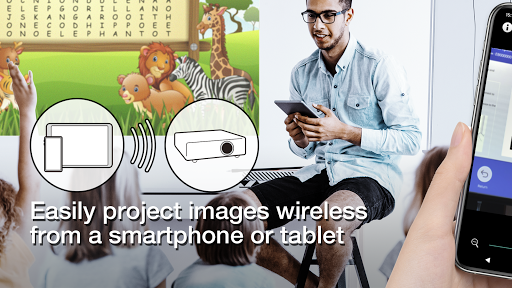
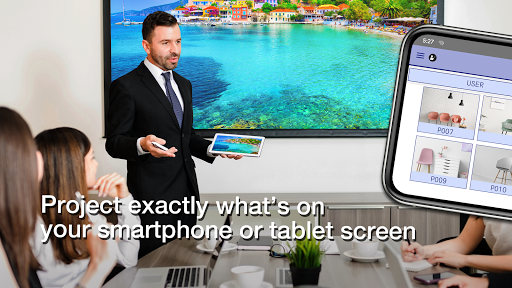
Epson iProjection est une application de projection sans fil pour les appareils Android & les Chromebooks. Cette application vous permet de dupliquer facilement l'écran de votre appareil et de projeter sans fil des fichiers PDF et des photos sur un projecteur Epson pris en charge.
[Caractéristiques principales]
1. Dupliquez l'écran de votre appareil et jouez le son de votre appareil avec le projecteur.
2. Projetez des photos et des fichiers PDF à partir de votre appareil, ainsi que des vidéos en temps réel à partir de la caméra de votre appareil.
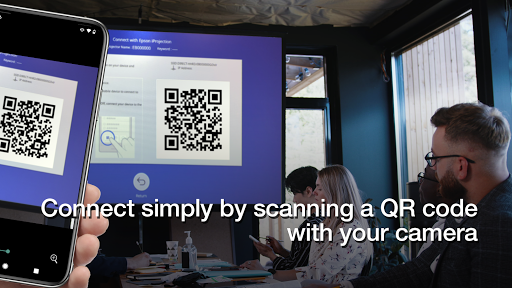
3. Connectez facilement votre appareil en scannant un Code QR projeté.
4. Connectez jusqu'à 50 appareils au projecteur, affichez jusqu'à quatre écrans simultanément et partagez l’image projetée avec les autres appareils connectés.
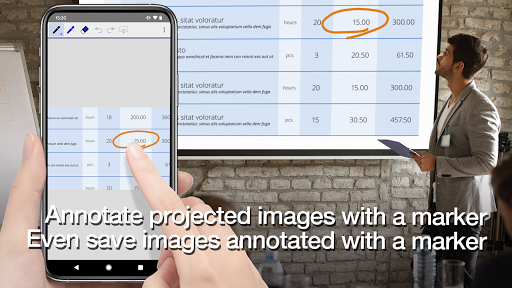
5. Annotez les images projetées avec un outil stylo et enregistrez les images modifiées sur votre appareil.
6. Contrôlez le projecteur comme avec une télécommande.
[Remarques]
• Pour voir les projecteurs pris en charge, visitez https://support.epson.net/projector_appinfo/iprojection/en/ . Vous pouvez également consulter la section « Projecteurs pris en charge » dans le menu Support de l'application.
• Les types de fichiers JPG/JPEG/PNG/PDF sont pris en charge lors d’une projection avec « Photos » et « PDF ».
• La connexion avec un Code QR n'est pas prise en charge par les Chromebooks.
[À propos de la fonction Miroir]
• L’extension pour Chrome « Epson iProjection Extension » est nécessaire pour dupliquer l'écran de votre appareil sur un Chromebook. Installez-la à partir du WebStore de Chrome.
https://chromewebstore.google.com/detail/epson-iprojection-extensi/odgomjlphohbhdniakcbaapgacpadaao
• Lors de la duplication de l'écran de votre appareil, la vidéo et l'audio peuvent avoir un lag en fonction des spécifications de l'appareil et du réseau. Seulement les contenus non protégés peuvent être projetés.
[Utilisation de l'application]
Assurez-vous que les paramètres réseau du projecteur ont été configurés.
1. Réglez la source d'entrée du projecteur sur « LAN ». Les informations du réseau s'affichent.
2. Connectez-vous au même réseau que le projecteur à partir de « Paramètres » > « Wi-Fi » sur votre appareil « Android » ou votre Chromebook*1.
3. Lancez Epson iProjection et connectez-vous au projecteur*2.
4. Sélectionnez et projetez à partir de « Miroir écran appareil », « Photos », « PDF », « Page web », ou « Caméra ».
*1 Pour les Chromebooks, connectez le projecteur en utilisant le mode infrastructure (PA simple est désactivé ou le mode de connexion est Avancé). De plus, si un serveur DHCP est utilisé sur le réseau et que l'adresse IP du Chromebook a été définie manuellement, le projecteur ne pourra pas être recherché automatiquement. Définissez l'adresse IP du Chromebook sur automatique.
*2 Si vous ne trouvez pas le projecteur auquel vous voulez vous connecter avec la recherche automatique, sélectionnez Adresse IP pour spécifier l'adresse IP.
Nous apprécions tous les commentaires qui pourraient nous aider à améliorer cette application. Vous pouvez nous contacter via « Coordonnées du développeur ». Veuillez noter que nous ne pouvons pas répondre aux demandes individuelles. Pour toute question sur les informations personnelles, veuillez contacter votre succursale régionale indiquée dans la Déclaration de confidentialité.
Toutes les images sont des exemples uniquement et peuvent différer des écrans réels.
Android et Chromebook sont des marques de Google LLC.
« QR code » est une marque déposée de DENSO WAVE INCORPORATED au Japon et dans d'autres pays.
Afficher plus

1. Téléchargez l'installateur MEmu et terminez l'installation

2. Démarrez MEmu puis ouvrez Google Play sur la page d'accueil

3. Recherchez Epson iProjection dans Google Play
Install
4. Téléchargez et installez Epson iProjection
5. Une fois l'installation terminée, cliquez sur l'icône pour démarrer

6. Utiliser MEmu pour utiliser Epson iProjection sur votre ordinateur
MEmu Play est actuellement le meilleur émulateur Android gratuit, avec 50 millions d'utilisateurs qui profitent d'une expérience Android exceptionnelle. La technologie de virtualisation de MEmu vous permet de jouer facilement à des milliers d'applications Android sur votre ordinateur, même les plus gourmandes en ressources.
L’écran plus grand avec de meilleurs graphismes; Une longue durée, sans limitation de batterie ou de données mobiles.
Soutien du Keymapping pour un contrôle précis du clavier et de la souris ou de la manette de jeu
Plusieurs comptes de jeu ou tâches sur un seul PC en même temps avec le gestionnaire de multi-instance.
Use Epson iProjection on PC by following steps: