Darker (Screen Filter)
Dikemas kini
Versi Semasa
1731895699
Ditawarkan Oleh

Berhentilah bimbang dengan bayaran berlebihan semasa menggunakan Darker (Screen Filter) di telefon bimbit anda, bebaskan diri anda dari layar kecil dan nikmati penggunaan aplikasi pada paparan yang jauh lebih besar. Mulai sekarang, dapatkan pengalaman skrin penuh aplikasi anda dengan papan kekunci dan tetikus. MEmu Play semua ciri mengejutkan yang anda harapkan: pemasangan cepat dan penyediaan mudah, kawalan intuitif, tidak ada batasan bateri, data mudah alih, dan panggilan yang mengganggu. MEmu 9 yang baru adalah pilihan terbaik untuk menggunakan Darker (Screen Filter) di komputer anda. Dikodkan dengan penyerapan kami, pengurus multi-instance menjadikan pembukaan 2 atau lebih akaun pada masa yang sama mungkin. Dan yang paling penting, mesin emulasi eksklusif kami dapat melepaskan potensi penuh PC anda, menjadikan semuanya lancar dan menyeronokkan.
Tunjukkan Lagi
Download Darker (Screen Filter) on PC with MEmu Android Emulator. Enjoy playing on big screen. Darker can lower your screen brightness to extremely low levels, to help prevent eyestrain during the night.
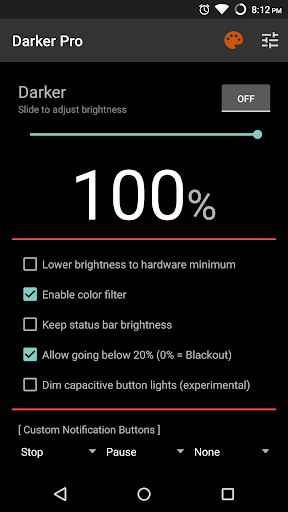
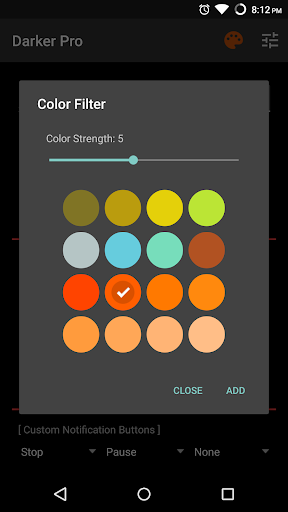
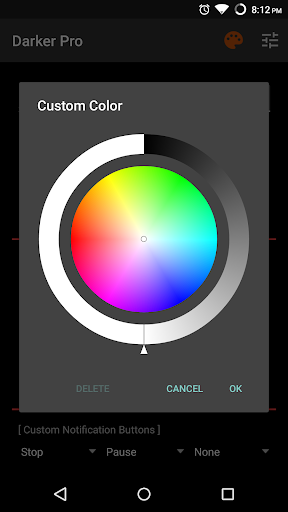
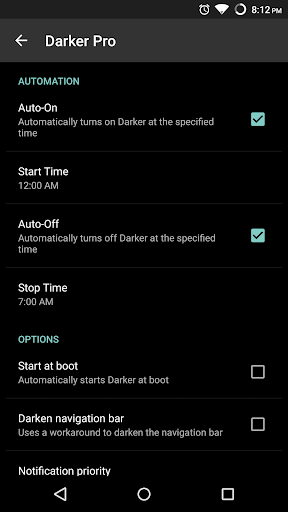
Darker can lower your screen brightness to extremely low levels, to help prevent eyestrain during the night. Use the built-in color filter* to adjust the color of your display, perfect for filtering out harsh white backgrounds during the night.
This app is fully functional and does not include advertisements. Additional paid features are unlockable through an In-app purchase.
Xiaomi device / MIUI users need to go to Settings → Installed apps → Darker → Other permissions, and enable "Display pop-up window" for Darker to work correctly.
Paid features include:
» Auto-On & Auto-Off
» Start at boot
» Lower brightness below 20%
» Darken navigation bar
» Custom filter colors
» Root mode
» Customizable notification buttons
• Up to three buttons can be added for quick access.
• Buttons to increase and decrease the brightness (+5%, -5%, +10%, -10%)
• Buttons to set a specific brightness (@0%, @10%, @20%, ... , @90%, @100%)
• Quick toggles (stop, pause, reset, color filter)
Note: When manually installing APK files, Android blocks the "Install" button from being pressed when Darker is running. This is NOT a bug. It's a protective measure to prevent malicious apps from camouflaging the install button. Pausing Darker will solve this.
Darker requires the use of accessibility services to darken the screen, no data will be accessed or shared via the AccessibilityService API.
*The color filter is similar to how the desktop version of f.lux works. Selecting a redder color will reduce more bluelight emitted from the display.
Tasker Support
Darker has Tasker support, use these intents to send commands to Darker:
darker.STOP
darker.PAUSE
darker.INCREASE_5
darker.INCREASE_10
darker.DECREASE_5
darker.DECREASE_10
darker.SET_10
darker.SET_20
darker.SET_30
darker.SET_40
darker.SET_50
darker.SET_60
darker.SET_70
darker.SET_80
darker.SET_90
darker.SET_100
darker.TOGGLE_COLOR
darker.ENABLE_COLOR
darker.DISABLE_COLOR
Add the above intents to Tasker by going to Action Category→System→Send Intent→Action, leave the other fields default, and note that the intents are case sensitive.
These two intents below need an additional parameter in the "Extra" field
darker.SETCOLOR "Extra" field: COLOR:1~16 (Colors are numbered left to right, top to bottom)
darker.COLORSTRENGTH "Extra" field: STRENGTH:1~10
The intent below needs the "Target" field set to "Service"
darker.START
FlickStart Support
Darker can work in conjunction with FlickStart, an app which can send commands to Darker by using the sensors on your phone or Android Wear device.
The command set for Darker is available for download on the FlickStart website. Simply download the command set and import it into FlickStart.
Tunjukkan Lagi

1. Muat turun pemasang MEmu dan selesaikan persediaan

2. Mulakan MEnu kemudian buka Google Play di desktop

3. Cari Darker (Screen Filter) di Google Play
Install
4. Muat turun dan Pasang Darker (Screen Filter)
5. Apabila selesai pemasangan, menekan ikon itu untuk memulakan

6. Gunakan MENu untuk mengalami Darker (Screen Filter) pada komputer anda
MEmu Play ialah emulator Android terbaik, dengan lebih 100 juta pengguna mengalami pengalaman aplikasi Android yang unggul. Teknologi virtualisasi MEmu membolehkan anda menjalankan beribu-ribu aplikasi Android dengan lancar pada komputer anda, walaupun yang paling mencabar.
Skrin lebih besar dengan grafik yang lebih baik; Tempoh yang panjang, tanpa had bateri atau data mudah alih.
Sokongan Keymapping penuh untuk kawalan tepat papan kekunci dan tetikus atau gamepad.
Pelbagai akaun permainan atau tugas pada satu PC sekaligus dengan pengurus pelbagai contoh.
Use Darker (Screen Filter) on PC by following steps: