Edge Volume: buttons Control
Bijgewerkt
Huidige Versie
1.5
Aangeboden door

Maak je geen zorgen meer over extra kosten bij het gebruik van Edge Volume: buttons Control op je mobiele telefoon, bevrijd jezelf van het kleine scherm en geniet van het gebruik van de app op een veel groter display. Vanaf nu, krijg een volledige schermervaring van je app met toetsenbord en muis. MEmu biedt je alle verrassende functies die je verwachtte: snelle installatie en eenvoudige configuratie, intuïtieve besturing, geen beperkingen meer van batterij, mobiele data en storende oproepen. De gloednieuwe MEmu 9 is de beste keuze voor het gebruik van Edge Volume: buttons Control op je computer. MEmu multi-instance manager maakt het mogelijk om tegelijkertijd 2 of meer accounts te openen. En het belangrijkste, onze exclusieve emulatiemotor kan het volledige potentieel van je PC benutten, waardoor alles soepel en plezierig wordt.
Meer tonen
Geniet van een fantastische ervaring met Edge Volume: buttons Control op je pc met MEmu Play. Het is een krachtige gratis Android-emulator die je duizenden Android-apps biedt voor de desktopversie. Geniet van contact met vrienden en verbeter je werk met hogere efficiëntie! Edge Volume: The Virtual Assistive Volume Control Buttons keys Overlay.
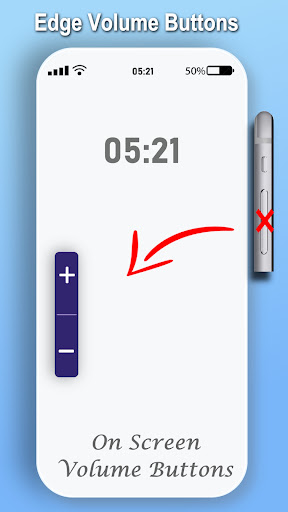
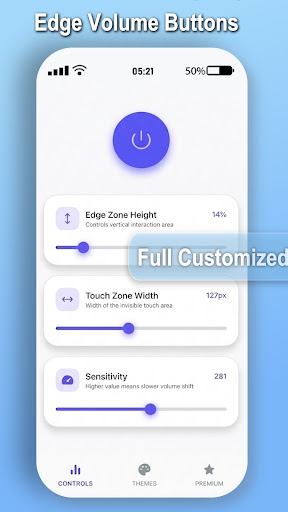
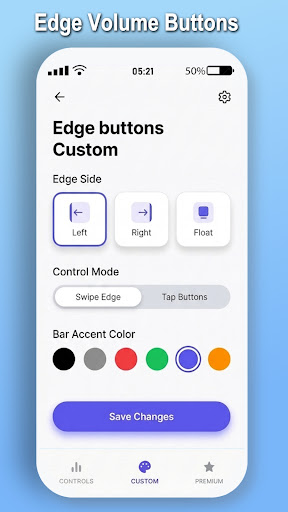
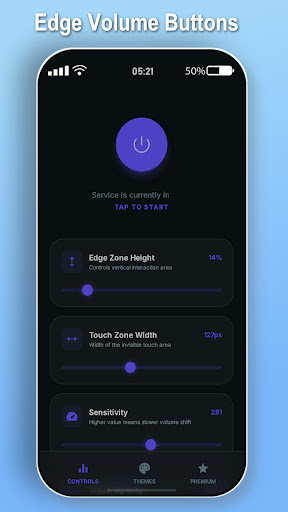
Edge Volume: The Virtual Assistive Volume Control Buttons keys Overlay
The Story Behind the App This app was born out of pure frustration. My old phone’s physical volume buttons completely broke, leaving me with no easy way to adjust the sound. Every time I wanted to change the volume, I had to dig through the system settings. It was a nightmare!
So, I built "Edge Volume" to give myself virtual volume control buttons floating right on the edge of the screen. It solved my broken hardware problem instantly.
Months later, I finally bought a brand new phone. I assumed I wouldn't need my "fix" anymore. But within a day, I found myself re-installing Edge Volume. Why? Because I realized that adjusting the volume with a simple thumb swipe on the screen edge is actually infinitely faster, easier, and more practical than reaching for physical buttons—especially when holding the phone with one hand!
I built it to replace broken buttons, but I kept it because it's simply a better way to control your phone's audio.
Why Choose Edge Volume? Whether your physical volume keys are damaged, unresponsive, or you just want a more modern, frictionless way to control your media, Edge Volume is the perfect solution.
Key Features:
Virtual Volume Control: Add a sleek, invisible (or colored!) volume slider or buttons directly to the edge of your screen.
Perfect for One-Handed Use: Never stretch your fingers awkwardly to reach the hardware keys again. Adjust the sound with a quick swipe of your thumb.
Prolong Hardware Life: Save your physical volume buttons from wear and tear by using our on-screen overlay instead.
Fully Customizable: Adjust the size, height, color, and transparency of the volume edge zone to perfectly match your phone's aesthetic. (Hide it completely if you want a purely invisible swipe zone!)
Non-Intrusive: Floats seamlessly over your other apps without getting in the way of your typing, scrolling, or gaming.
How it Works:
Open the app and grant the required "Display over other apps" permission.
Customize the edge zone position and appearance.
Simply swipe up or down on the edge of your screen to instantly control your volume!
Note: This app requires the "Display over other apps" (SYSTEM_ALERT_WINDOW) permission to draw the virtual volume controls on your screen. We do not collect any personal data or monitor your screen activity.
Meer tonen

1. Download de MEmu-installatie en voltooi de setup

2. Start MEmu en open vervolgens Google Play op het bureaublad

3. Zoek Edge Volume: buttons Control in Google Play
Install
4. Download en installeer Edge Volume: buttons Control
5. Klik op het icoon om te starten na het voltooien van de installatie

6. Ervaar Edge Volume: buttons Control op pc met MEmu
MEmu Play is de beste Android-emulator, met meer dan 100 miljoen gebruikers die genieten van de superieure Android-app-ervaring. Dankzij de virtualisatietechnologie van MEmu kun je duizenden Android-apps soepel op je computer draaien, zelfs de meest veeleisende.
Groter scherm met betere graphics; Lange duur, zonder beperking van batterij of mobiele data.
Volledige Keymapping-ondersteuning voor nauwkeurige besturing van toetsenbord en muis of gamepad.
Meerdere game-accounts of taken op één PC tegelijk met Multi-Instance manager.
Gebruik Edge Volume: buttons Control op PC door de volgende stappen te volgen: