Mouse AIO - PC Remote Control
Zaktualizowano
Aktualna wersja
version 8.0.0
Sprzedawca

Przestań martwić się nadmiernymi opłatami podczas korzystania z Mouse AIO - PC Remote Control na telefonie komórkowym, uwolnij się od małego ekranu i ciesz się korzystaniem z aplikacji na znacznie większym wyświetlaczu. Od teraz korzystaj z aplikacji na pełnym ekranie za pomocą klawiatury i myszy. MEmu oferuje wszystkie zaskakujące funkcje, których się spodziewałeś: szybką instalację i łatwą konfigurację, intuicyjne sterowanie, koniec z ograniczeniami baterii, danych mobilnych i niepokojących połączeń. Zupełnie nowy MEmu 9 to najlepszy wybór do używania Mouse AIO - PC Remote Control na twoim komputerze. Zakodowany przez naszą absorpcję, menedżer wielu instancji umożliwia otwarcie 2 lub więcej kont w tym samym czasie. A co najważniejsze, nasz ekskluzywny emulator może uwolnić pełny potencjał twojego komputera, sprawić, że wszystko będzie płynne i przyjemne.
Pokaż więcej
Ciesz się wspaniałym doświadczeniem podczas grania w Mouse AIO - PC Remote Control na komputerze z aplikacją MEMU App Player. Jest to potężny darmowy emulator Androida Umożliwia korzystanie z tysięcy aplikacji Androida. Mouse AIO - PC Remote Control lets you control your Windows PC from your Android phone using WiFi or USB tethering.
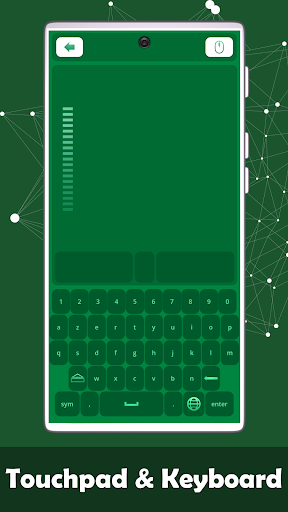
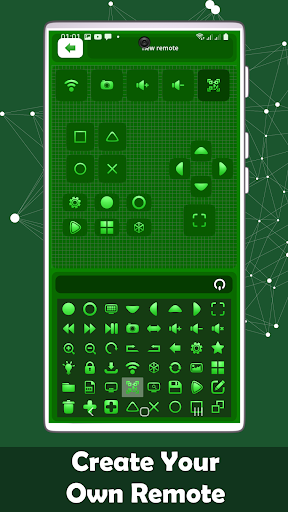
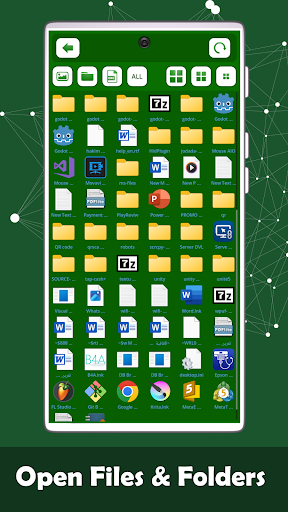
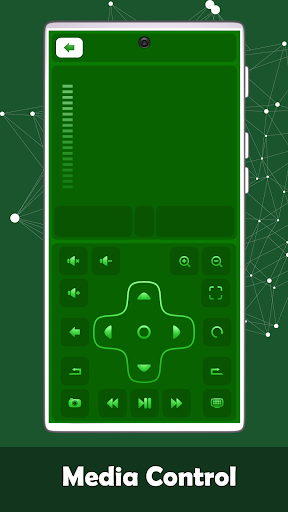
Mouse AIO - PC Remote Control lets you control your Windows PC from your Android phone using WiFi or USB tethering.
Turn your phone into a powerful PC remote with tools for work, study and everyday use.
Main features
Remote mouse and touchpad
PC keyboard with support for 18 languages
Presentation remote for PowerPoint and PDF slides
Desktop control
Screen mirror to view your desktop on your phone
Shortcuts remote for faster actions
Custom remotes
Numpad for quick numeric input
Easy connection
Use WiFi when your phone and PC are on the same local network, or use USB tethering for a stable offline connection.
Connect with:
Automatic discovery
QR code scan
Local network connection through Mouse AIO Server
How it works
To use the app, install and run Mouse AIO Server on your Windows PC, then connect your Android phone to the same network or through USB tethering.
Great for
Controlling your PC from bed or sofa
Office and productivity tasks
PowerPoint and PDF presentations
Media and desktop navigation
Fast text and number input
Using your phone as a wireless mouse and keyboard
Mirror screen tips
For better screen mirroring performance:
Use 5GHz WiFi when available
Or use USB tethering
Lower image quality if you want lower latency
Privacy
Local connection only
No cloud relay
No external servers
No personal data upload
Need the Windows app?
Install Mouse AIO Server on your PC and keep it running while using the mobile app.
Mouse AIO - PC Remote Control is designed to give you a simple way to use your phone as a remote mouse, remote keyboard, touchpad, presentation clicker, and desktop controller for your PC.
Pokaż więcej

1. Pobierz instalator MEmu i zakończ instalację

2. Uruchom MEmu, a następnie otwórz Google Play na pulpicie

3. Wyszukaj Mouse AIO - PC Remote Control w Google Play
Install
4. Pobierz i zainstaluj Mouse AIO - PC Remote Control
5. Po zakończeniu instalacji kliknij ikonę, aby rozpocząć

6. Użyj MEmu, aby doświadczyć Mouse AIO - PC Remote Control na swoim komputerze
MEmu Play to najlepszy emulator Androida, z którego korzysta ponad 100 milionów użytkowników, ciesząc się wyjątkowym doświadczeniem aplikacji na Androida. Technologia wirtualizacji MEmu pozwala na płynne uruchamianie tysięcy aplikacji Androida na komputerze, nawet tych najbardziej wymagających.
Większy ekran z lepszą grafiką; Długi czas, bez ograniczeń baterii lub danych mobilnych.
Pełna obsługa mapowania klawiszy dla precyzyjnego sterowania klawiaturą i myszą lub gamepadem.
Wiele kont gier lub zadań na jednym komputerze jednocześnie z menedżerem wielu instancji.
Use Mouse AIO - PC Remote Control on PC by following steps: