TV (Samsung) Remote Control
Обновлено
Текущая версия
2.9.9
Продавец

Перестаньте беспокоиться о быстром разряде батареи при использовании TV (Samsung) Remote Control на вашем телефоне. Освободитесь от крошечного экрана и наслаждайтесь приложением на гораздо большем экране. Теперь вы можете работать с приложением в полноэкранном режиме с удобством клавиатуры и мыши. MEmu предлагает вам все ожидаемые удивительные функции: быструю установку и простую настройку, интуитивно понятное управление и больше никаких забот о времени автономной работы, мобильном трафике или неожиданных звонках. Совершенно новый MEmu 9 — идеальный выбор для использования TV (Samsung) Remote Control на вашем компьютере. С помощью менеджера нескольких экземпляров MEmu вы можете одновременно использовать два или более аккаунтов. И самое главное, наш эксклюзивный движок эмуляции раскрывает весь потенциал вашего ПК, обеспечивая плавную и приятную работу.
Показать больше
Скачайте TV (Samsung) Remote Control на ПК с помощью Андроид эмулятора MEmu. Наслаждайтесь на большом экране. With the app "TV (Samsung) Remote Control" you can use your smartphone to control your Samsung TV over the local network and/or with IR (if your android has infrared port).
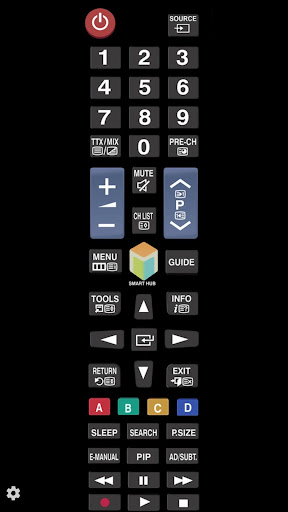
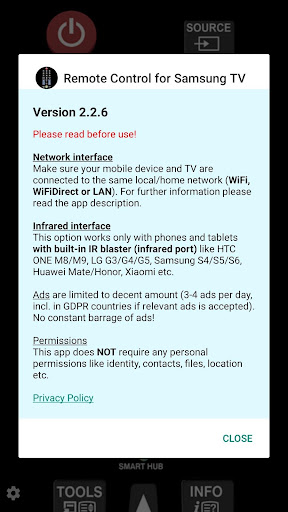
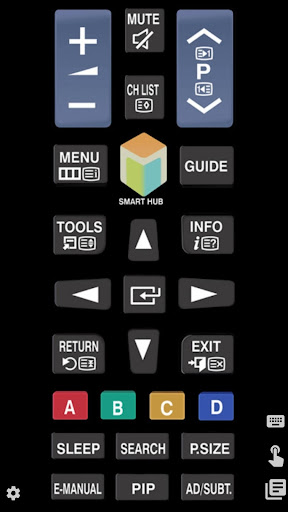
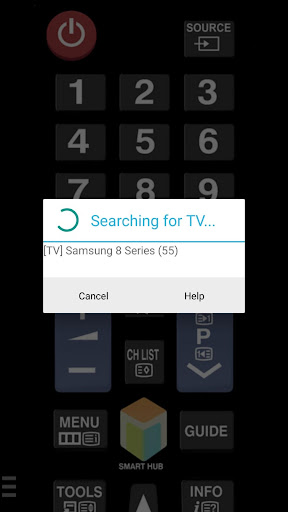
With the app "TV (Samsung) Remote Control" you can use your smartphone to control your Samsung TV over the local network and/or with IR (if your android has infrared port).
You have 2 options:
★ Network IP control (WiFi / WiFi Direct / LAN).
Works with C, D, E, F, K and M (2016+) models, but not with H and F models.
- Make sure the TV that you want to use is turned [On]
- Make sure your mobile device and TV are connected to the same home network. If your router supports a privacy separator function, make sure it is disabled.
- It is also possible to enter the TV's IP address manually. To find you TV's IP address go to TV: [Menu] → [Settings] → [Network] → [Network Status].
If TV was found but after selecting the TV:
- If you have refused the confirmation message on your TV ("accept device") you need to change your selection by going to:
[Menu] → [General Settings] → [External Device Manager] → [Device Connection Manager] → [Device List] or with older TV models [Menu] → [Network] → [Expert Settings] → [Mobile Device Manager] or [Menu] → [Network] → [AllShare Settings].
- You can disable the TV's ("accept device") screen by going to eg. [Menu] → [Settings General] → [External Device Manager] → [Device Connection Manager] and changing [Access Notification] -> "First Time Only".
- If a PIN code is requested on your TV screen - sorry, but with this TV this app won't work :(
★ Infrared (IR) control
- This option works on phones and tablets with built-in IR blaster such as Samsung Galaxy S, HTC ONE, LG G3/G4/G5, Xiaomi Mi / Redmi / Note, Huawei Mate / Honor etc).
- Tested with Samsung TV F and M models, but probably works also with others Samsung Smart TV-s build 2005 and later (if it does, then let us now and give feedback).
- Please note that you must point your phone’s IR blaster directly at the TV. Usual working range is 4-10ft (1-3 meters, max ~5 meters).
- With some phones in power saving mode or with almost empty battery the IR blaster might not work or range is less then 5ft (2 meters).
The purpose is not to replace the original TV remote, but this app is handy in emergency situations (original remote is lost, empty batteries etc). It's ready to use (no need for pairing with the TV).
If this app doesn't work with your phone or TV then feel free to e-mail me (your exact TV and phone model). Then I can try to add support for your phone or/and TV model.
Disclaimer/Trademarks:
This app is NOT affiliated with or endorsed by Samsung Group. Samsung is a trademark of Samsung Group.
Warranties:
This software is provided by author ''as is'' and any express or implied warranties, including, but not limited to, the implied warranties of merchantability and fitness for a particular purpose are disclaimed. In no event shall author be liable for any direct, indirect, incidental, special, exemplary, or consequential damages (including, but not limited to, procurement of substitute goods or services; loss of use, data, or profits; or business interruption) however caused and on any theory of liability, whether in contract, strict liability, or tort (including negligence or otherwise) arising in any way out of the use of this software, even if advised of the possibility of such damage.
Показать больше

1. Скачать инсталлятор MEmu и завершайте установку

2. Запускайте MEmu, затем откройте Google Play на главной странице

3. Ищите TV (Samsung) Remote Control в Google Play
Install
4. Скачайте и установите TV (Samsung) Remote Control
5. При завершении установки, нажмите на значок для старта

6. Наслаждайтесь TV (Samsung) Remote Control на своем компьютере с помощью MEmu.
MEmu Play — лучший бесплатный эмулятор Android, превосходный опыт работы с которым оценили 50 миллионов пользователей. Технология виртуализации MEmu позволяет без проблем запускать тысячи Android-приложений на вашем компьютере, даже самые требовательные.
Большой экран с лучшей графикой; Большая продолжительность, без ограничения батареи или мобильных данных.
Полная поддержка установки клавиш для точного управления клавиатурой и мышью или геймпадом.
Несколько игровых учетных записей или задач на одном компьютере одновременно с менеджером нескольких экземпляров.
Use TV (Samsung) Remote Control on PC by following steps: