How to AFK Farm in Royale Online (Royale2) 24/7 Without Lag or Turning On Your PC: MEmu Cloud Phone Guide
 |
|

Want to keep farming in Royale Online (Royale2) without leaving your PC running overnight? A cloud phone moves the Android game session to remote hardware, so your local device does not have to stay on to host it.
For players using the game's built-in Auto-Hunt (Otomatik Av), this offers a practical way to plan longer farming sessions. This guide explains how MEmu Cloud Phone works, how to set up Royale Online AFK farming, and what to check before leaving your character unattended.
Contents
How Does Royale Online AFK Farming Work on a Cloud Phone?
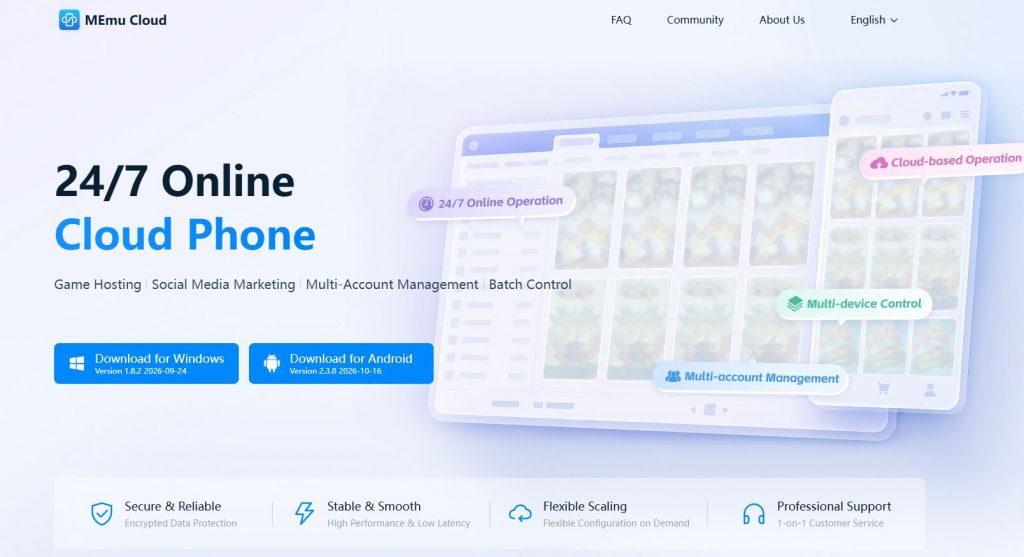
With a local Android emulator, the game runs on your computer. Shutting down that computer ends the session. With a cloud phone, the Android environment runs remotely; your PC or phone is used to view and control it.
MEmu Cloud Phone uses ARM-based hardware and supports Android apps in the cloud, with access from PC, Android, and iOS. The platform is designed for 24/7 cloud operation, including when you disconnect your local viewer.
For Royale Online, that means the cloud device must remain active, the game must stay connected, and Auto-Hunt must continue running. Cloud hosting does not prevent game maintenance, app crashes, or in-game interruptions.
Why Use MEmu Cloud Phone for Royale Online?

Keep Your PC Free During Long Farming Sessions
Moving the game off your computer removes the need to host an emulator throughout the night. You can shut down your PC or use it for other tasks while the cloud instance remains active.
Reduce Local Device Workload
The cloud device handles the game's processing and rendering. Your phone or computer still uses resources while streaming and controlling the session, but it no longer hosts the game itself.
You can also avoid keeping a local gaming setup powered solely for AFK farming. Cloud service charges still apply, so compare the available plans with your intended farming schedule.
Access Your Session from Different Devices
MEmu Cloud's multi-platform access lets you return to the cloud phone from a supported device to inspect your character and manage the session.
Its multi-instance tools can also help organize separate cloud phones. Test one game instance before expanding, and follow Royale Online's rules for multiple accounts.
How to Set Up Royale Online AFK Farming in 3 Steps
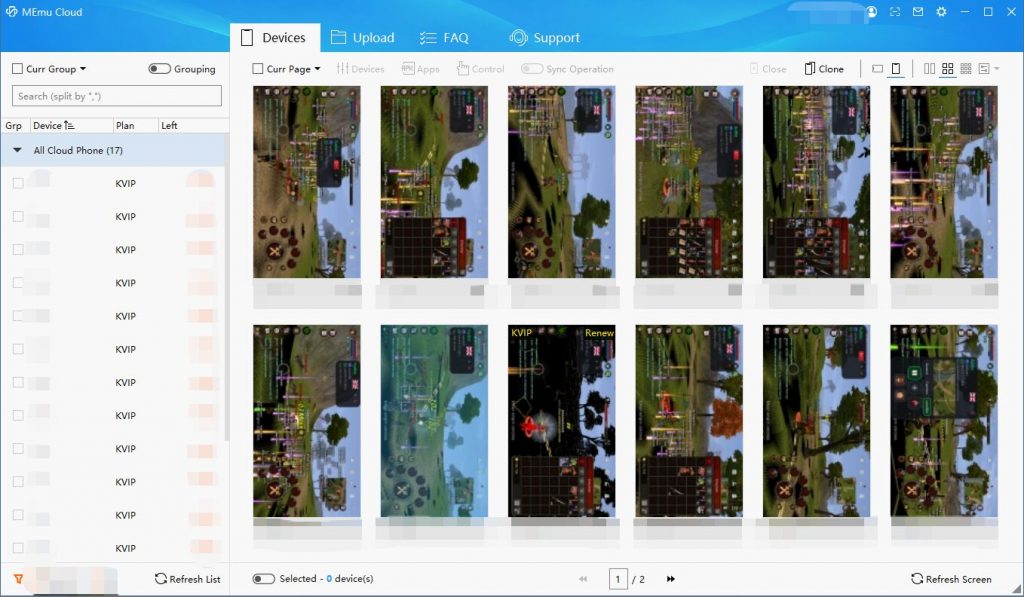
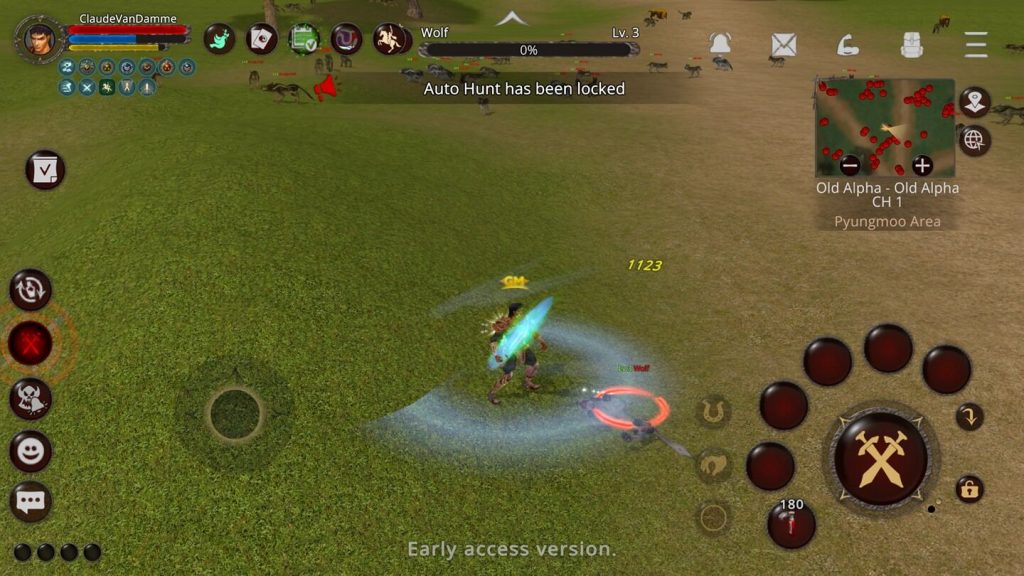
Start with one cloud phone to confirm that the current game version installs, logs in, and runs correctly on your selected configuration.
Step 1: Create Your MEmu Cloud Account
Visit the official MEmu Cloud website, register, and download the client for your device.
Sign in and open an available cloud phone. Check the configuration, service duration, and current pricing before planning a long session.
Step 2: Install Royale Online
Open the cloud phone's App Market and search for Royale Online. If Google Play is available in your instance, use the official Royale Online listing to verify the app. Its Android package name is net.f8games.royale.
Complete the download and any in-game updates, then sign in. If the game is unavailable or will not launch, check compatibility with MEmu Cloud support before extending your service.
Step 3: Enable and Test Auto-Hunt
Choose a farming area your character can handle and activate the game's built-in Auto-Hunt. Watch the session briefly to confirm your character can sustain combat.
Auto-Hunt tip: Royale Online's official v4.6 patch notes explain that holding the Auto-Hunt button activates locked mode, in which walking and attacking do not cancel Auto-Hunt. Check the controls in your current game version.
Close the local viewer, wait a few minutes, then reconnect to confirm the session is still active.
Keep the cloud phone running: exiting the viewer is different from shutting down the cloud device or closing the game.
Tips for More Reliable AFK Farming
- Choose survivable fights. Test a farming spot before committing to a longer session.
- Check inventory and supplies. Make sure you have room for loot and the resources your setup needs.
- Keep the game updated. Review maintenance notices before leaving it unattended.
- Monitor your cloud service duration. Keep the instance active for the time you intend to farm.
- Reconnect periodically. Check for disconnects, character deaths, or prompts that require attention.
Royale Online Cloud Farming FAQ
Can I Farm in Royale Online with My PC Turned Off?
Once you have confirmed the game works on your cloud phone, the cloud-hosted session can continue independently of your PC. The cloud device and game connection must remain active.
Does MEmu Cloud Phone Eliminate Lag?
No. Moving the game to cloud hardware can reduce local processing demands, but performance still depends on the cloud configuration, game servers, and network conditions. Your connection also affects how responsive the remote controls feel.
Is 24/7 AFK Farming Guaranteed?
No. A platform designed for continuous hosting cannot guarantee an uninterrupted game session. Maintenance, disconnects, gameplay conditions, and cloud service availability can interrupt farming.

Royale Online
Start Your Royale Online Cloud Farming Setup
If keeping your PC on overnight is the main obstacle to longer farming sessions, a cloud phone is an option worth testing. Begin with one instance, verify compatibility, and confirm Auto-Hunt continues after you close the viewer.
Explore MEmu Cloud Phone and Set Up Your Royale Online Session