PUBG MOBILE FLASH on PC: How to Download and Play with MEmu
 |
|
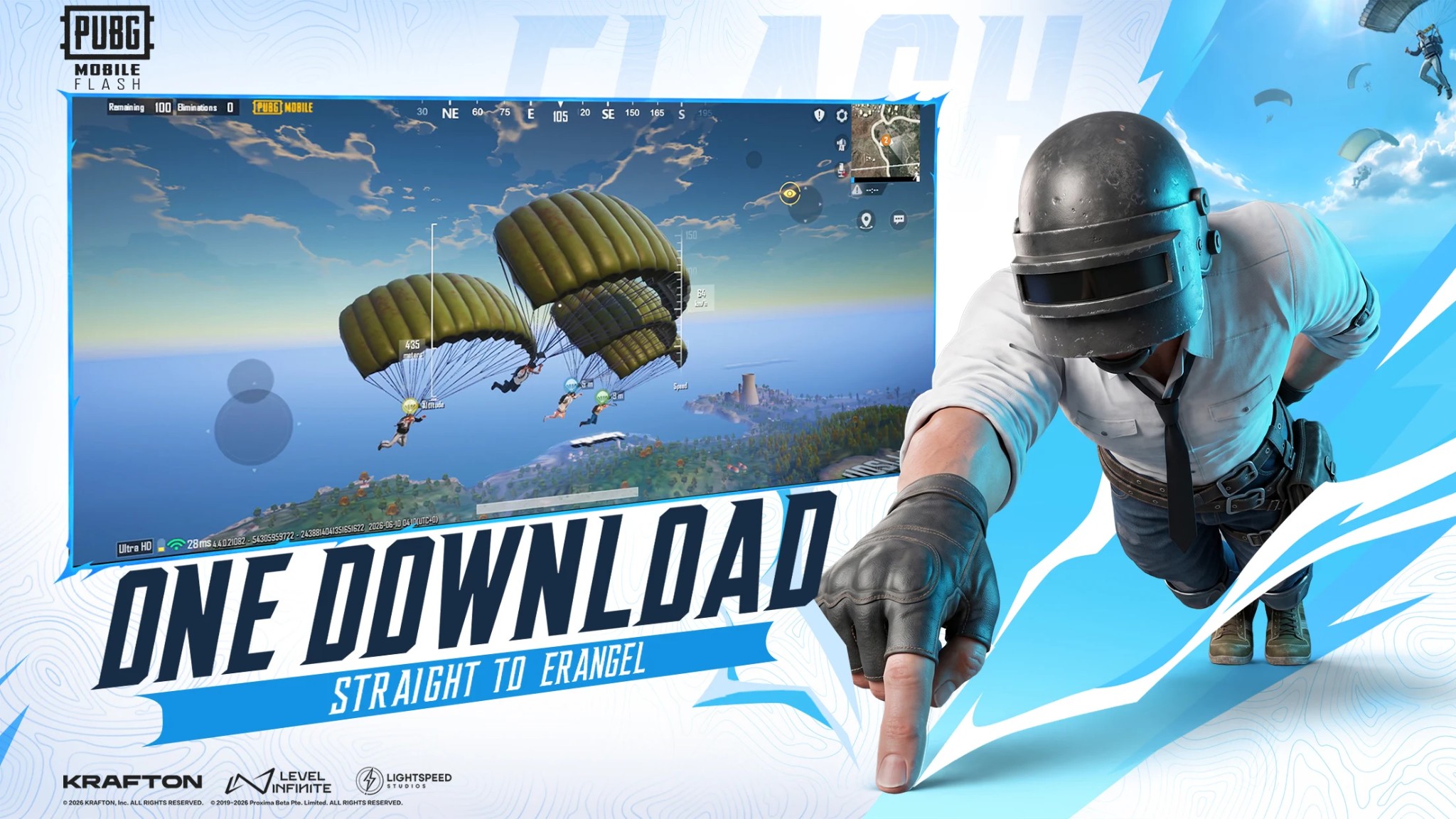
Looking for a lighter way to experience PUBG MOBILE? PUBG MOBILE FLASH brings the familiar battle royale experience to more Android devices with a smaller initial download and a more flexible approach to game content. With Erangel pre-installed, players can jump into their first battle without downloading additional maps beforehand.
PUBG MOBILE LIGHT
If you prefer playing on a larger screen, you can also try running PUBG MOBILE FLASH on your PC with MEmu Android Emulator. This guide covers the game's main features, its battle royale gameplay, and the steps to install and launch it on your computer.
Contents
What Is PUBG MOBILE FLASH?
PUBG MOBILE FLASH is a battle royale game published by Level Infinite. It aims to deliver the core PUBG MOBILE experience while reducing the initial download and giving players more control over storage usage.
Instead of requiring every map and mode from the beginning, the game lets players download additional content when they want to explore more. This makes it an option worth considering for players who want to manage their available storage more carefully.
Key features include:
- A lighter initial download: Get started without installing every available map and mode.
- Pre-installed Erangel: Enter your first battle on Erangel without waiting for an additional map download.
- Classic battle royale gameplay: Search for weapons, collect supplies, avoid the shrinking play zone, and fight to survive.
- Optional content downloads: Expand your selection of maps and modes whenever you need them.
- Multiplayer with friends: Team up and coordinate with friends within the PUBG MOBILE game ecosystem.
- A familiar PUBG MOBILE experience: Enjoy the recognizable battle royale formula with a more streamlined starting package.
Availability and compatibility may vary by region and device. Check the game's official store listing for the latest information.
PUBG MOBILE FLASH Gameplay: Survive and Become the Last Player Standing
PUBG MOBILE FLASH retains the central battle royale challenge: land on the battlefield, gather equipment, make smart decisions, and outlast your opponents.
1. Drop into Erangel and Start Fighting
Erangel comes pre-installed, allowing players to start their first battle without downloading another map first. Choose where to land, search nearby buildings for weapons and supplies, and prepare for encounters with other players.
Your landing location can shape the rest of the match. Popular areas may offer valuable loot but also attract more opponents, while quieter locations can give you extra time to prepare.
2. Loot Equipment and Manage Resources
Weapons, ammunition, healing items, and protective gear are essential for survival. Explore buildings and other locations to improve your loadout, but stay aware of your surroundings while searching for supplies.
As the match progresses, you will need to balance looting with moving toward safety. Spending too much time collecting equipment can leave you exposed when the play zone begins to shrink.
3. Stay Inside the Safe Zone
The safe zone gradually becomes smaller, pushing surviving players into increasingly close encounters. Pay attention to the map, plan your route, and avoid getting caught outside the zone.
Vehicles and careful positioning can help you rotate across the battlefield. In the final stages, choosing cover and anticipating enemy movement can be just as important as accurate shooting.
4. Download Additional Maps and Modes When Needed
One of PUBG MOBILE FLASH's main differences is its optional content system. You can begin with the available pre-installed content and download additional maps or modes as you want to expand your experience.
This approach gives players more control over storage, although extra content will still require additional downloads and space.
Why Play PUBG MOBILE FLASH on PC with MEmu?
MEmu Android Emulator lets you run compatible Android games on a Windows PC. Playing on a computer can offer a different way to experience PUBG MOBILE FLASH, especially if you prefer a larger display and keyboard-and-mouse controls.
Here are some potential benefits:
- A larger screen: View the battlefield, map, and surrounding environment on your PC monitor.
- Keyboard-and-mouse controls: Configure available key mappings for movement and other in-game actions.
- No phone battery concerns: Play without draining your mobile phone's battery.
- Flexible performance settings: Adjust emulator settings according to your computer's hardware and the game's requirements.
- Multi-instance support: MEmu's multi-instance manager lets you manage separate Android emulator instances when needed.
Performance depends on your PC specifications, graphics drivers, emulator configuration, and the game's compatibility. PUBG MOBILE FLASH may not run identically on every computer, so test it before relying on it for regular gameplay.
How to Download and Play PUBG MOBILE FLASH on PC with MEmu
Follow these steps to set up MEmu and try PUBG MOBILE FLASH on your computer.
Step 1: Download and Install MEmu
Visit the official MEmu website and download the installer:
Download MEmu Android Emulator
Run the installer and follow the on-screen instructions. Once installation is complete, launch MEmu.
Step 2: Open Google Play Store
Start the emulator and open Google Play Store. Sign in with your Google account if prompted.
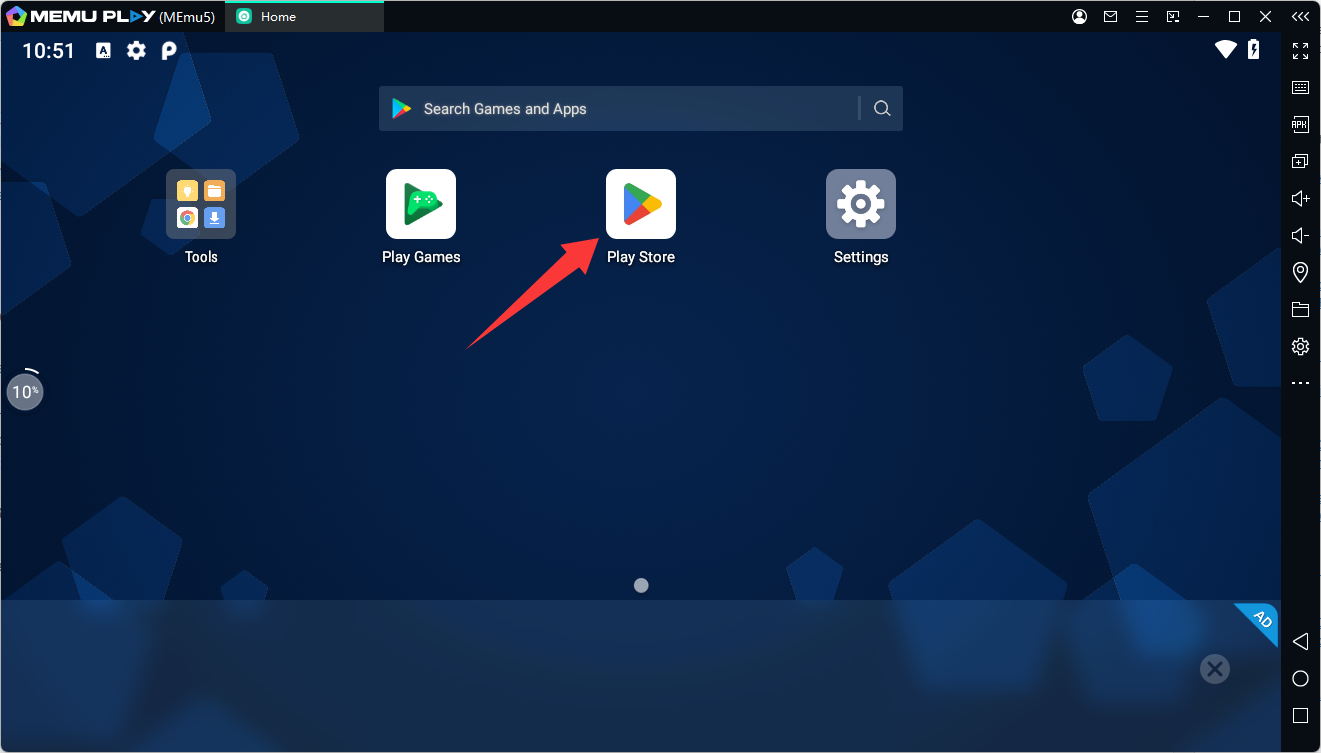
Search for PUBG MOBILE FLASH. If the game is available in your region and compatible with your emulator's Android environment, open its store page and install it.
You can also check the official listing here:
View PUBG MOBILE FLASH on Google Play
Step 3: Install the Game and Launch It
Wait for the installation to finish, then click the PUBG MOBILE FLASH icon on the MEmu home screen.
Follow the in-game instructions to sign in, configure your settings, and enter a match. If the game requires additional resources or updates, allow the necessary downloads to complete.
Step 4: If Google Play Does Not Show the Game
Game availability can vary by region and device compatibility. If PUBG MOBILE FLASH does not appear in Google Play, check the publisher's official channels for availability in your region.
Only install files from sources you trust. Do not use modified clients or tools designed to bypass the game's security or emulator detection.
Step 5: Configure Controls and Graphics
Once the game launches successfully, open MEmu's key-mapping panel and review the available controls. Adjust movement, aiming, firing, and other supported actions to suit your preferences.
If you encounter graphics issues or unstable performance, try adjusting the emulator's performance and rendering settings. Start with settings appropriate for your PC, then make small changes until you find a stable configuration.
Keep in mind that successful installation and gameplay are not guaranteed on every emulator configuration.
Tips for a Better PUBG MOBILE FLASH Experience
- Keep enough storage available: The initial package is designed to be lighter, but updates and optional content still need extra space.
- Use a stable internet connection: A reliable connection helps with online matches, updates, and additional downloads.
- Update the game carefully: Use official store updates whenever available to reduce the risk of installing an incompatible build.
- Customize your controls: Spend time in training or other low-pressure situations to get comfortable with keyboard-and-mouse input.
- Check compatibility first: If the game crashes or refuses to launch, verify the installed version and review your MEmu settings before troubleshooting further.
- Follow the game's rules: Use the original game client and avoid unauthorized modifications or unfair automation.
PUBG MOBILE FLASH FAQ
Is PUBG MOBILE FLASH different from PUBG MOBILE?
PUBG MOBILE FLASH is designed to provide the core PUBG MOBILE experience with a lighter initial download. Erangel is pre-installed, while additional maps and modes can be downloaded separately. Availability and features may differ by region or version.
Can I play PUBG MOBILE FLASH on PC?
You can try running the Android version through MEmu Android Emulator. However, compatibility may vary by game version, region, and PC configuration. Check whether the game is available through Google Play in your emulator before attempting installation through another method.
Is PUBG MOBILE FLASH free to play?
The game is listed as a free download with in-app purchases. Optional purchases may be available inside the game.
Do I need to download every map before playing?
No. Erangel is included for the initial experience, and additional maps and modes can be downloaded when you choose to access them.
What should I do if PUBG MOBILE FLASH will not install in MEmu?
First, check regional availability and Google Play compatibility. Make sure MEmu is updated and that your PC has enough free storage. If you are using an XAPK from a third-party source, confirm that the package is complete and that you are using a compatible installation method.
Can I use a keyboard and mouse?
MEmu provides key-mapping features for supported games. Once PUBG MOBILE FLASH launches, open the key-mapping panel to review and customize the available controls. Actual behavior depends on the game and emulator configuration.
Final Thoughts
PUBG MOBILE FLASH offers a more streamlined way to get into PUBG MOBILE's battle royale action, with Erangel ready from the start and additional content available as needed. Its lighter initial setup may appeal to players who want more control over storage without giving up the familiar survival gameplay.
If you prefer a larger screen and keyboard-and-mouse controls, download MEmu and see whether PUBG MOBILE FLASH works with your PC setup. Check regional availability, install the game through an appropriate source, and adjust your controls before heading into battle.
PUBG MOBILE LIGHT