Samsung Notes
Aktualizováno
Aktuální verze
4.9.06.8
Od vývojáře

Přestaňte se obávat přebíjení při používání Samsung Notes na mobilním telefonu, uvolněte se z malé obrazovky a užívejte si aplikace na mnohem větším displeji. „Společnost MEmu vám nabízí všechny překvapivé funkce, které jste očekávali: rychlá instalace a snadné nastavení, intuitivní ovládání, žádná omezení baterií, mobilní data a rušivá volání. Zcela nový přístroj MEmu 9 je nejlepší volbou použití Samsung Notes ve vašem počítači. díky naší absorpci umožňuje správce více instancí otevření 2 nebo více účtů současně. A co je nejdůležitější, náš exkluzivní emulační modul může uvolnit plný potenciál vašeho počítače, učinit vše plynulým a příjemným.
Show more
Vychutnejte si vynikající zážitek z přehrávání Samsung Notes na PC s MEMU App Player. Je to silný bezplatný emulátor pro Android, který vám umožní hrát tisíce her v systému Android. With Samsung Notes, .
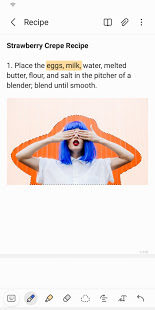
With Samsung Notes,
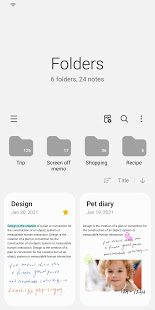
you can create notes containing texts, images with footnotes, voice recordings, and music. Moreover, you can share your notes easily to SNS.
Previously made any memos from S Note and Memo also can be imported into Samsung Notes.
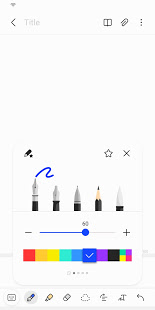
Samsung Notes provides various brush types and color mixers, so that you can draw fabulous paintings like professional painters.
You may also share your paintings at PEN.UP right away.
Samsung Notes is a hub for all your hand-written notes, sketches, drawings.
Creating notes
Tap + icon at the bottom of the main screen of Samsung Notes to create notes.
Locking notes
1.Tap the More options button on the main screen of Samsung Notes, select Settings,
then select Lock notes to create a password.
2.Create a password, then tap the note you want to lock.
3.Tap the More options button while viewing a note, then select Lock.
Adding text
Tap keyboard icon at the top of the screen to enter text using the keyboard.
Use the Rich text toolbar to edit the style of the text.
Adding handwriting
Tap Handwriting icon at the top of the screen to add handwriting.
Handwritten text can be recognised. You can also use handwriting to search for keywords in notes.
Adding drawings
Tap drawing icon at the top of the screen to create drawings.
Adding image and voice recordings
Tap image icon at the top of the screen to insert images.
Tap Voice recording icon at the top of the screen to insert voice recordings.
Using pen settings
Select from various pen types, sizes, and colours.
Erasing handwriting
Tap eraser icon at the bottom of the screen, then tap or swipe your finger over the handwriting you want to erase.
Using Selection mode
Tap selection icon at the bottom of the screen, then select an area of handwriting.
You can then move the selected area, adjust its size, and more.
Using brush settings
Select from various brush types and colours.
Tap the selected brush to view the brush settings again and change more settings such as the size and opacity.
Tap color icon, then select the colour you want to draw with.
Using Smart Switch.
Use Smart Switch to import S Note and Memo data from other devices.
Using Samsung account.
1.Tap the More options button while on the main screen of Samsung Notes, select Settings, then select Import data.
2.Select S Note or Memo data saved using your Samsung account, then tap the DONE button.
Syncing notes via Samsung Cloud
1.Tap the More options button while on the main screen of Samsung Notes, select Settings,
then select Sync with Samsung Cloud.
2.Register with or sign in to Samsung Cloud using your Samsung account.
Samsung Notes data will be synced automatically.
Creating notes while screen off
Detach the S Pen while the screen is turned off to create screen off memos.
----------------------------------------------------------------------
Notice : Regarding the App Access Privilege
The following permissions are required for the app service.
For optional permissions, the default functionality of the service is turned on, but not allowed.
Required permissions
• Storage: Used to save or load note files
Optional permissions
• Telephone: Used to check device-unique identification information for providing app update
• Microphone: Used to record the voice to be inserted into the note
• Camera: Used to take photos to be inserted into the note
• Contacts: Used to read account information to sync with your account
Show more

1. Stáhněte si instalační program MEmu a dokončete instalaci

2. Spusťte MEmu a poté otevřete Google Play na ploše

3. Vyhledejte Samsung Notes v Google Play
Install
4. Stáhněte a nainstalujte Samsung Notes
5. Po dokončení instalace klikněte na ikonu pro spuštění

6. Užívejte si používání Samsung Notes na PC s MEmu
MEmu je bezplatný a vynikající emulátor Androidu s 50 miliony uživatelů, který poskytuje vynikající zážitek z aplikací. Virtualizační technologie MEmu 9 vám umožňuje plynule spouštět aplikace pro Android na vašem počítači, a to i ty nejnáročnější.
Větší obrazovka s lepší grafikou; Dlouhá výdrž bez omezení baterie nebo mobilních dat.
Plná podpora mapování kláves pro přesné ovládání klávesnice a myši nebo gamepadu.
Více herních účtů nebo úkolů na jednom počítači najednou s Multi-Instance Managerem.
Use Samsung Notes on PC by following steps: