Geo Tracker - GPS tracker
Updated
Current Version
5.3.6.4132
Offered By

Stop worrying about high battery drain when using Geo Tracker - GPS tracker on your phone. Free yourself from the tiny screen and enjoy the app on a much larger display. From now on, get a full-screen experience of your app with the convenience of a keyboard and mouse. MEmu offers you all the surprising features you’d expect: quick installation and easy setup, intuitive controls, and no more worries about battery life, mobile data, or unexpected calls. The all-new MEmu 9 is the choice for using Geo Tracker - GPS tracker on your computer. With the MEmu multi-instance manager, you can run two or more accounts at the same time. Most importantly, our exclusive emulation engine unlocks your PC’s full potential, delivering smooth and enjoyable performance.
Show more
Enjoy superb experience of using Geo Tracker - GPS tracker on PC with MEMU App Player. It's a powerful free Android emulator which provides you with thousands of android apps for their desktop version. Enjoy connecting with friends and polishing your work with higher efficiency! If you are looking for an excellent GPS tracker, that can work with Open Street Maps or Google, love outdoor activities, or travel - this is the app for you!
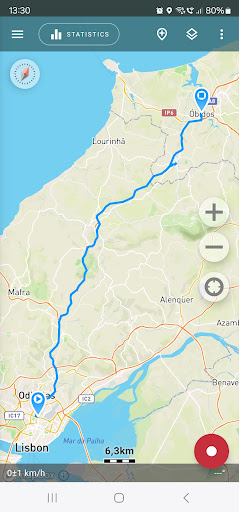
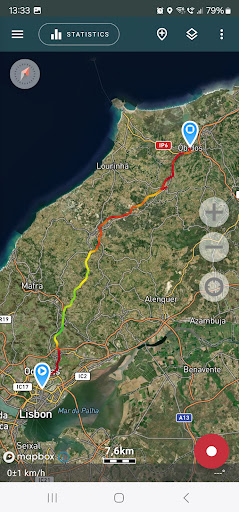
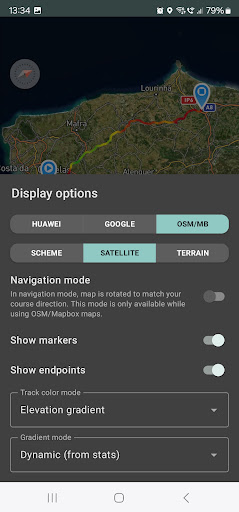
If you are looking for an excellent GPS tracker, that can work with Open Street Maps or Google, love outdoor activities, or travel - this is the app for you!
Record GPS tracks of your trips, analyze statistics, and share them with your friends!
Geo Tracker can help:
• Making the way back in an unfamiliar area without getting lost;
• Sharing your route with friends;
• Using someone else's route from GPX, KML or KMZ file;
• Marking important or interesting points on your way;
• Locating a point on the map, if you know its coordinates;
• Showing off colorful screenshots of your accomplishments on social networks.
You can view the tracks and the surrounding area in the application using a scheme from OSM or Google, as well as satellite images from Google or Mapbox - this way you will always have the most detailed map of the area anywhere worldwide. The map areas you view are saved to your phone and remain available offline for a while (this works best for OSM maps and Mapbox's satellite images). To record and calculate track statistics only a GPS signal is needed - the Internet is only required to download map images.
While driving, you can turn on the navigation mode, in which the map automatically rotates in the direction of travel, which greatly simplifies navigation.
The application can record tracks while being in the background (on many devices, this requires additional configuration in the system - be careful! The instructions for these settings are available in the application). Power consumption in background mode is greatly optimized - on average, the phone's charge is enough for a whole day of recording. There's also an economy mode - you can turn it on in the app settings.
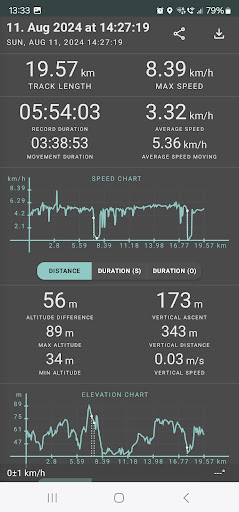
Geo Tracker calculates the following statistics:
• Distance traveled and recording time;
• Max and average speed on the track;
• Time and average speed in motion;
• Min and max altitude on the track, altitude difference;
• Vertical distance, ascent and speed;
• Min, max, and average slope.
Also, there are detailed charts of speed and elevation data available.
Recorded tracks can be stored as GPX, KML, and KMZ files, so they can be used in other well-known applications like Google Earth or Ozi Explorer. Tracks are stored locally on your device and are not transferred to any servers.
The app does not make money from ads or your personal data. To support the development of the project, a voluntary donation can be made in the application.
Useful tips & tricks to solve common GPS issues with your smartphone:
• If you start the tracking please wait a bit until the GPS signal is found.
• Restart your smartphone and make sure that you have a "clear view" of the sky before you start (no disturbing objects like high buildings, forests, etc.).
• The reception conditions are permanently changing because they are influenced by the following factors: weather, season, positioning of satellites, areas with bad GPS coverage, high buildings, forests, etc.).
• Go to phone settings, choose "Location" and activate it.
• Go to phone settings, choose "Date & time" and activate the following options: "Automatic date & time" and "Automatic time zone". It may occur that it takes longer until the GPS signal is found if your smartphone is set to the wrong time zone.
• Deactivate the airplane mode in your phone settings.
If none of these tips & tricks helped to solve your issues, deinstall the app and reinstall it again.
Be aware that Google uses in their Google Maps app not only the GPS data but also additional data of the current location from surrounding WLAN networks and/or mobile networks.
More answers to frequent questions and solutions for popular issues can be found on the website: https://geo-tracker.org/faq/?lang=en
Show more

1. Download MEmu installer and finish the setup

2. Start MEmu then open Google Play on the desktop

3. Search Geo Tracker - GPS tracker in Google Play
Install
4. Download and Install Geo Tracker - GPS tracker
5. On install completion click the icon to start

6. Enjoy using Geo Tracker - GPS tracker on PC with MEmu
MEmu Play is the best Android emulator, and 100 million users already enjoy its superb Android app experience. Powered by advanced virtualization technology, it lets you enjoy thousands of Android apps smoothly on your PC—including the most graphics-intensive ones.
Bigger screen with better graphics; Long duration, without limitation of battery or mobile data.
Full Keymapping support for precise control of keyboard and mouse or gamepad.
Multiple game accounts or tasks on single PC at one time with Multi-Instance manager.
Use Geo Tracker - GPS tracker on PC by following steps:




















![[3D Platformer] Super Bear Adventure PC](https://dl.memuplay.com/new_market/img/com.Earthkwak.Platformer.icon.2024-09-08-15-16-43.png)