WakeBox
Updated
Current Version
1.2.6
Offered By

Stop worrying about high battery drain when using WakeBox on your phone. Free yourself from the tiny screen and enjoy the app on a much larger display. From now on, get a full-screen experience of your app with the convenience of a keyboard and mouse. MEmu offers you all the surprising features you’d expect: quick installation and easy setup, intuitive controls, and no more worries about battery life, mobile data, or unexpected calls. The all-new MEmu 9 is the choice for using WakeBox on your computer. With the MEmu multi-instance manager, you can run two or more accounts at the same time. Most importantly, our exclusive emulation engine unlocks your PC’s full potential, delivering smooth and enjoyable performance.
Show more
Enjoy superb experience of using WakeBox on PC with MEMU App Player. It's a powerful free Android emulator which provides you with thousands of android apps for their desktop version. Enjoy connecting with friends and polishing your work with higher efficiency! WakeBox is a simple and reliable alarm clock designed to help you wake up on time and stay on schedule.
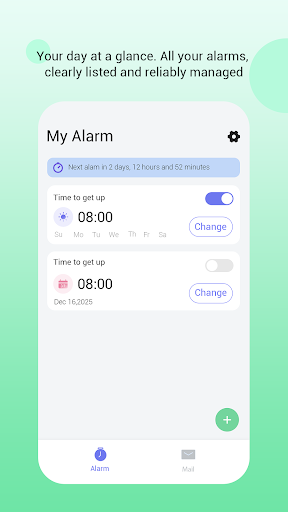
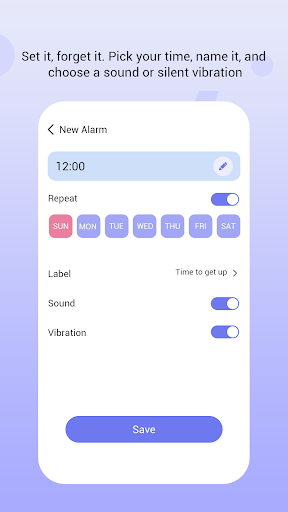
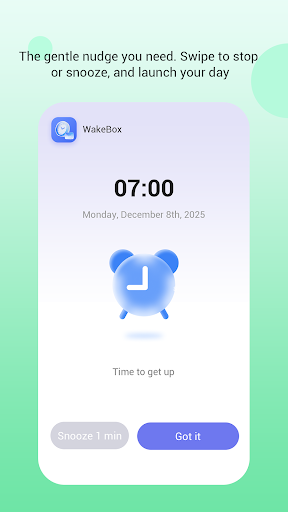
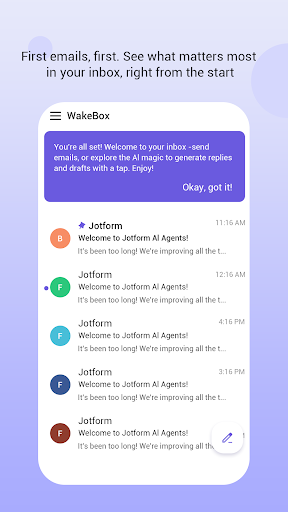
WakeBox is a simple and reliable alarm clock designed to help you wake up on time and stay on schedule.
WakeBox focuses on core alarm functionality, offering clear, full-screen alerts when your alarm goes off, even when your device is locked. With sound and vibration support, WakeBox ensures you never miss an important wake-up moment.
You can create alarms for specific times, choose repeating schedules, and manage them easily from a clean and intuitive interface. All alarms are user-configured and triggered only at the scheduled time.
In addition to alarms, WakeBox provides optional access to email features through a built-in web view. Email functionality is secondary and does not affect alarm behavior. Alarms work independently and reliably, whether or not email features are used.
Key Features
Full-screen alarm alerts on the lock screen
Custom alarm time and repeat schedules
Sound and vibration support
Simple and clean alarm management
Optional email access via secure web authentication
WakeBox is built for users who want a dependable alarm experience with minimal distractions and optional productivity tools.
Show more

1. Download MEmu installer and finish the setup

2. Start MEmu then open Google Play on the desktop

3. Search WakeBox in Google Play
Install
4. Download and Install WakeBox
5. On install completion click the icon to start

6. Enjoy using WakeBox on PC with MEmu
MEmu Play is the best Android emulator, and 100 million users already enjoy its superb Android app experience. Powered by advanced virtualization technology, it lets you enjoy thousands of Android apps smoothly on your PC—including the most graphics-intensive ones.
Bigger screen with better graphics; Long duration, without limitation of battery or mobile data.
Full Keymapping support for precise control of keyboard and mouse or gamepad.
Multiple game accounts or tasks on single PC at one time with Multi-Instance manager.
Use WakeBox on PC by following steps: