Google Indic Keyboard
更新日
現在のバージョン
デバイスにより異なります
提供元

スマートフォンは不要!パソコンと同じようにキーボードとマウスで操作できます。MEmu Playは、あなたが待ち望んでいたすべての楽しみをお届けします。バッテリー残量や小さな画面を気にすることなく、Google Indic Keyboardをご利用ください。最新のMEmu 9は、Google Indic KeyboardをPCで体験するのに最適です!完璧なキーマッピングシステムにより、PCのようなスムーズな操作性を実現します。マルチインスタンス機能により、複数のアプリケーションを同時に実行できます。独自の仮想化エンジンがPCのパフォーマンスを最大限に引き出します。アプリを使用するだけでなく、高品質な体験を得ることができます。
もっと見る
Google Indic KeyboardをPCでダウンロード!大画面でより楽しむ。電源が落ちてしまうとか通信料が足りないとかの問題を心配する必要がなく、PCの大画面でより快適にゲームを楽しましょう! Google Indic Keyboard allows you to type messages, update on social networks or compose emails in your own native language on your Android phone.
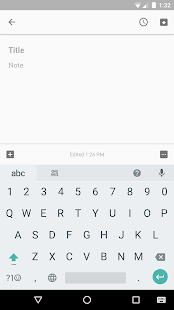
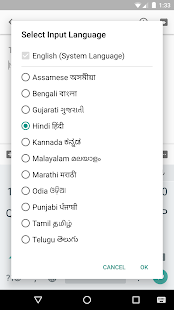
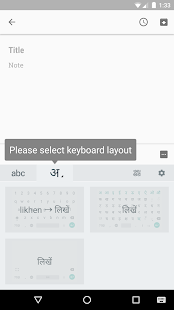
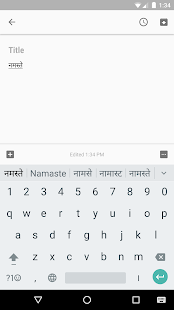
Google Indic Keyboard allows you to type messages, update on social networks or compose emails in your own native language on your Android phone. Currently it includes the following keyboards:
- English keyboard
- Assamese keyboard (অসমীয়া)
- Bengali keyboard (বাংলা)
- Gujarati keyboard (ગુજરાતી)
- Hindi keyboard (हिंदी)
- Kannada keyboard (ಕನ್ನಡ)
- Malayalam keyboard (മലയാളം)
- Marathi keyboard (मराठी)
- Odia keyboard (ଓଡ଼ିଆ)
- Punjabi keyboard (ਪੰਜਾਬੀ)
- Tamil keyboard (தமிழ்)
- Telugu keyboard (తెలుగు)
On your phone, if you can read your language in its native script above, you may install and use Google Indic Keyboard to input your language; otherwise your phone may not support your language.
Google Indic Keyboard supports different modes of input:
- Transliteration mode - Get output in your native language by spelling out the pronunciation using English letters (For example, “namaste“ -> “नमस्ते“.)
- Native keyboard mode - Type directly in native script.
- Handwriting mode (currently available for Hindi only) - Write directly on your phone screen.
- Hinglish mode - If you choose “Hindi” as an input language, the English keyboard will suggest both English and Hinglish terms.
How can I enable it and set it as the default keyboard?
- On Android 5.x and newer versions:
Open Settings -> Language & Input, under “KEYBOARD & INPUT METHODS” section, go to Current Keyboard -> Choose Keyboards -> Check “Google Indic Keyboard” -> back to “Language & input” -> Current Keyboard -> Select “English & Indic Languages (Google Indic Keyboard)”When typing in an input box, you can also change the default input method by clicking the keyboard icon on the bottom right corner of the screen.
- On Android 4.x:
Open Settings -> Language & Input, under “KEYBOARD & INPUT METHODS” section, check Google Indic Keyboard, then click Default and select “Google Indic Keyboard” in the “Choose input method” dialog.
When typing in an input box, you can also change the default input method by selecting “Choose input method” in the Notification area.
もっと見る

1. MEmuインストーラーをダウンロードしてセットアップを完了する

2. MEmuを起動し、デスクトップでのPlayストアを開く

3. PlayストアでGoogle Indic Keyboardを検索する
Install
4. Google Indic Keyboardをダウンロードしてインストールする
5. インストールが完了したら、アイコンをクリックしてスタート

6. MEmuを使ってパソコンでGoogle Indic Keyboardを体験する
MEmu Playは現在、最高の無料Androidエミュレーターであり、5,000万人のユーザーが優れたAndroidアプリ体験を楽しんでいます。MEmuの仮想化テクノロジーにより、数千ものAndroidアプリをコンピューターでスムーズに実行できます。
大画面でより精細;無限の待機、電池とドラフィックの極限を超え
キーボード・マウス・コントローラーを全力でサポート、より快適
マルチインスタンスで複数のゲームを同時に実行
Use Google Indic Keyboard on PC by following steps: