VRTV VR Video Player Lite
更新日
現在のバージョン
3.6.1
提供元

スマートフォンは不要!パソコンと同じようにキーボードとマウスで操作できます。MEmu Playは、あなたが待ち望んでいたすべての楽しみをお届けします。バッテリー残量や小さな画面を気にすることなく、VRTV VR Video Player Liteをご利用ください。最新のMEmu 9は、VRTV VR Video Player LiteをPCで体験するのに最適です!完璧なキーマッピングシステムにより、PCのようなスムーズな操作性を実現します。マルチインスタンス機能により、複数のアプリケーションを同時に実行できます。独自の仮想化エンジンがPCのパフォーマンスを最大限に引き出します。アプリを使用するだけでなく、高品質な体験を得ることができます。
もっと見る
VRTV VR Video Player LiteをPCでダウンロード!大画面でより楽しむ。電源が落ちてしまうとか通信料が足りないとかの問題を心配する必要がなく、PCの大画面でより快適にゲームを楽しましょう! Watch your favorite 2D and 3D videos in VR with VRTV VR Video Player and a Cardboard compatible headset!
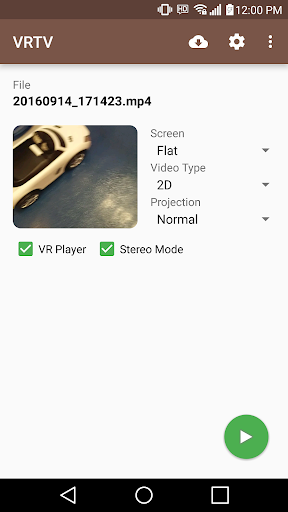
Watch your favorite 2D and 3D videos in VR with VRTV VR Video Player and a Cardboard compatible headset! VRTV features beautiful virtual environments and is the ONLY VR video player that supports watching together with a friend in full synchronised play.
VTRV VR Video Player has great support for all common 3D/2D formats and modes including 180, 220, 270 and 360 panoramas and fisheye objective projection.
If you enjoy the free version, why not try the full version? It features:
- An additional virtual environment: a cozy living room!
- Next/previous buttons, skip between files in the same directory without leaving VR.
- No ads!
VRTV VR Video Player features:
- Synchronization feature! Enjoy watching a movie together with another Cardboard friend!
- Subtitles in SRT format, with full support for RTL languages, Unicode characters and automatic encoding detection.
- Configurable subtitle size.
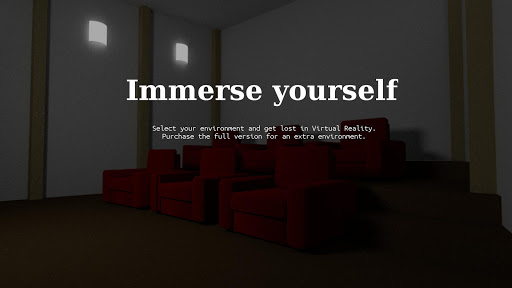
- Immersive virtual environments. Watch in your own home theater, or in a crafty cave.
- Player controls in a great VR UI.
- Fully configurable gamepad and keyboard controls.
- Supports 3D and 2D movies in a variety of formats: Side by side (SBS), Over and Under (OU, Top and Bottom), Panoramic video in 180 (Dome), 220, 270 and 360 degrees. Also supports fisheye projection videos.
- Simple material design.
- Uses the latest Cardboard SDK with less drift.
- Headset configuration from within the app. Supports several different head trackers, find the one that works best with your phone and eliminate drift.
- Streaming files over a network. Open a stream from VRTV or use your favourite browser of file explorer to open streams in VRTV VR Video Player.
- Static video mode. For long movies, lock the video in place right in front of you.
VR Button guide:
- Below screen: Open file browser (Full version only) and Play controls
- Left of screen: Subtitle on/off, text size, Sync on/off and Screen lock. Read more about Sync below!
- Top of screen: Re-center with timer, SDK re-center (keep horizon level), Screen-type switch, Video type switch (2D/3D Side By Side, 3D Over/Under), and fisheye projection toggle.
- Right of screen: Screen size and volume
Synchronization instructions:
- Synchronization is a feature that keeps a movie in sync between two devices. To enable sync, first set up the IP of the device you wish to sync with in Settings/General, where you can also find the IP of your own device. Do this on both phones so they have each others IP configured.
- Select a video to play. If it's a local video it must be present on both devices.
- In the VR UI, click the "sync" button on both devices to enable synchronization.
- On one of the devices, start the video by pressing the play button. After a small delay, the movie will start playing synchronized on both devices.
Seeking and network play is supported!
This application is supported by ads, but will not interrupt or otherwise limit your viewing experience. If you'd like to support the development, please rate the application and write a review, or purchase the full version! Feature suggestions and bug reports are always welcome!
Permission usage:
NFC, WRITE_EXTERNAL_STORAGE : Used by the Cardboard SDK to set up and save your headset configuration.
ACCESS_WIFI_STATE: Used for finding the IP of your device and displaying it in the Sync settings, to help set up synchronized play with another device.
INTERNET, READ_EXTERNAL_STORAGE: Required for accessing media on the device and for streaming.
Note: The VIBRATE permission is not used and will be removed in the next release.
もっと見る

1. MEmuインストーラーをダウンロードしてセットアップを完了する

2. MEmuを起動し、デスクトップでのPlayストアを開く

3. PlayストアでVRTV VR Video Player Liteを検索する
Install
4. VRTV VR Video Player Liteをダウンロードしてインストールする
5. インストールが完了したら、アイコンをクリックしてスタート

6. MEmuを使ってパソコンでVRTV VR Video Player Liteを体験する
MEmu Playは現在、最高の無料Androidエミュレーターであり、5,000万人のユーザーが優れたAndroidアプリ体験を楽しんでいます。MEmuの仮想化テクノロジーにより、数千ものAndroidアプリをコンピューターでスムーズに実行できます。
大画面でより精細;無限の待機、電池とドラフィックの極限を超え
キーボード・マウス・コントローラーを全力でサポート、より快適
マルチインスタンスで複数のゲームを同時に実行
Use VRTV VR Video Player Lite on PC by following steps: