Secure Camera
Güncellendi
Mevcut Sürüm
75
Sunan

Cep telefonunda Secure Camera kullanırken fazla şarjlardan endişelenme, kendini küçük ekrandan kurtar ve uygulamayı çok daha büyük bir ekranda kullanmanın tadını çıkar. Şu andan itibaren, klavye ve fare ile uygulamayı tam ekran da kullanmayı dene. MEmu, beklediğin tüm şaşırtıcı özellikleri sunar: hızlı ve kolay kurulum, sezgisel kontroller, bunun dışında pil sınırı, mobil veri ve rahatsız edici aramalar artık yok. Yepyeni MEmu 9, bilgisayarında Secure Camera kullanmanın en iyi seçimidir. Emilimimizle kodlanan çok örnekli yönetici, aynı anda 2 veya daha fazla hesap açmayı mümkün kılar. Ve en önemlisi, özel emülasyon motorumuz PC'nin tüm potansiyelini serbest bırakabilir, her şeyi pürüzsüz ve eğlenceli hale getirebilir.
Daha fazla göster
Secure Camera’i MEmu Android Emülatör ile PC’ye indirin. Büyük ekranda oynamanın keyfini çıkarın. This is a modern camera app focused on privacy and security.
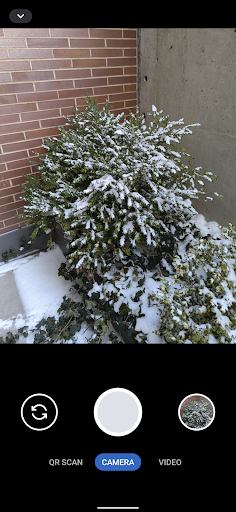
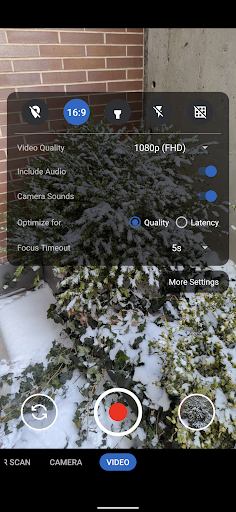
This is a modern camera app focused on privacy and security. It includes modes for capturing images, videos and QR / barcode scanning along with additional modes based on CameraX vendor extensions (Portrait, HDR, Night, Face Retouch and Auto) on devices where they're available.
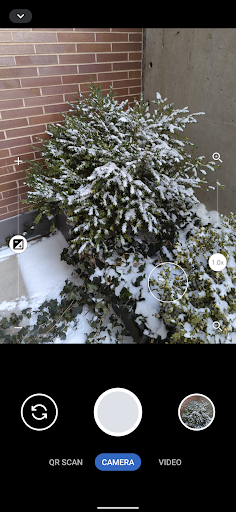
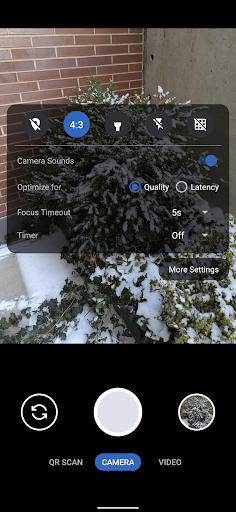
Modes are displayed as tabs at the bottom of the screen. You can switch between modes using the tab interface or by swiping left/right anywhere on the screen. The arrow button at the top opens the settings panel and you can close it by pressing anywhere outside the settings panel. You can also swipe down to open the settings and swipe up to close it. Outside of the QR scanning mode, there's a row of large buttons above the tab bar for switching between the cameras (left), capturing images and starting/stopping video recording (middle) and opening the gallery (right). The volume keys can also be used as an equivalent to pressing the capture button. While recording a video, the gallery button becomes an image capture button for capturing images.
The app has an in-app gallery and video player for images/videos taken with it. It currently opens an external editor activity for the edit action.
Zooming via pinch to zoom or the zoom slider will automatically make use of the wide angle and telephoto cameras on Pixels and other devices supporting it. It will become more broadly supported over time.
By default, continuous auto focus, auto exposure and auto white balance are used across the whole scene. Tapping to focus will switch to auto focus, auto exposure and auto white balance based on that location. The focus timeout setting determines the timeout before it switches back the default mode. The exposure compensation slider on the left allows manually tuning exposure and will automatically adjust shutter speed, aperture and ISO. Further configuration / tuning will be provided in the future.
The QR scanning mode only scans within the scanning square marked on the screen. The QR code should be aligned with the edges of the square but can have any 90 degree orientation. Non-standard inverted QR codes are fully supported. It's a very quick and high quality QR scanner able to easily scan very high density QR codes from Pixels. Every 2 seconds, it will refresh auto focus, auto exposure and auto white balance on the scanning square. It has full support for zooming in and out. The torch can be toggled with the button at the bottom center. The auto toggle at the bottom left can be used to toggle scanning for all supported barcode types. Alternatively, you can select which barcode types it should scan via the menu at the top. It only scans QR codes by default since that provides quick and reliable scanning. Most other types of barcodes can result in false positives. Each enabled type will slow down the scanning and will make it more prone to false positives especially with difficult to scan barcodes such as a dense QR code.
Camera permission is the only one that's required. Images and videos are stored via the Media Store API so media/storage permissions aren't required. The Microphone permission is needed for video recording by default but not when including audio is disabled. Location permission is only needed if you explicitly enabling location tagging, which is an experimental feature.
By default, EXIF metadata is stripped for captured images and only includes the orientation. Stripping metadata for videos is planned but not supported yet. Orientation metadata isn't stripped since it's fully visible from how the image is displayed so it doesn't count as hidden metadata and is needed for proper display. You can toggle off stripping EXIF metadata in the More Settings menu opened from the settings dialog. Disabling metadata stripping will leave timestamp, phone model, exposure configuration and other metadata. Location tagging is disabled by default and won't be stripped if you enable it.
Daha fazla göster

1. MEmu yükleyicisini indirin ve kurulumu tamamlayın

2. MEmu'yu başlatın ve ana sayfada Google Play'i açın

3. Google Play'de Secure Camera arayın
Install
4. Secure Camera indirin ve yükleyin
5. Kurulum tamamlandığında başlamak için simgeye tıklayın

6. Secure Camera'i PC'de için MEmu'yu kullanın
MEmu Play, 50 milyon kullanıcısıyla en iyi ücretsiz Android emülatörüdür ve en üst düzey Android uygulama deneyiminin keyfini çıkarır. MEmu'nun sanallaştırma teknolojisi, en zorlu uygulamalar da dahil olmak üzere binlerce uygulamayı bilgisayarınızda sorunsuz bir şekilde çalıştırmanızı sağlar.
Daha büyük ekranla daha iyi grafiklere sahip; Pil veya mobil veri sınırlaması olmaksızın uzun süre.
Keymapping klavye ve fare veya gamepad'in hassas kontrolü için destek verir.
Multi-Instance yöneticisi ile tek bir bilgisayarda aynı anda birden fazla oyun hesabı veya görev gerçekleşilebilir.
Use Secure Camera on PC by following steps: