How to Play DIGIMON ALYSION on PC with MEmu
 |
Tamers, your next card battle deserves a bigger stage! DIGIMON ALYSION brings the strategy of the Digimon Card Game to mobile, with deck building, digivolution, and an original story set in the world of DIGIMON LIBERATOR. Whether you enjoy collecting cards or testing your decisions against other players, there is plenty to explore.
Want to bring those battles to your desktop? MEmu provides an Android environment on Windows, letting you approach the game with a larger display and mouse controls. This guide explains how to set up DIGIMON ALYSION on PC with MEmu and what to check before your first match.
Contents
What Awaits You in DIGIMON ALYSION
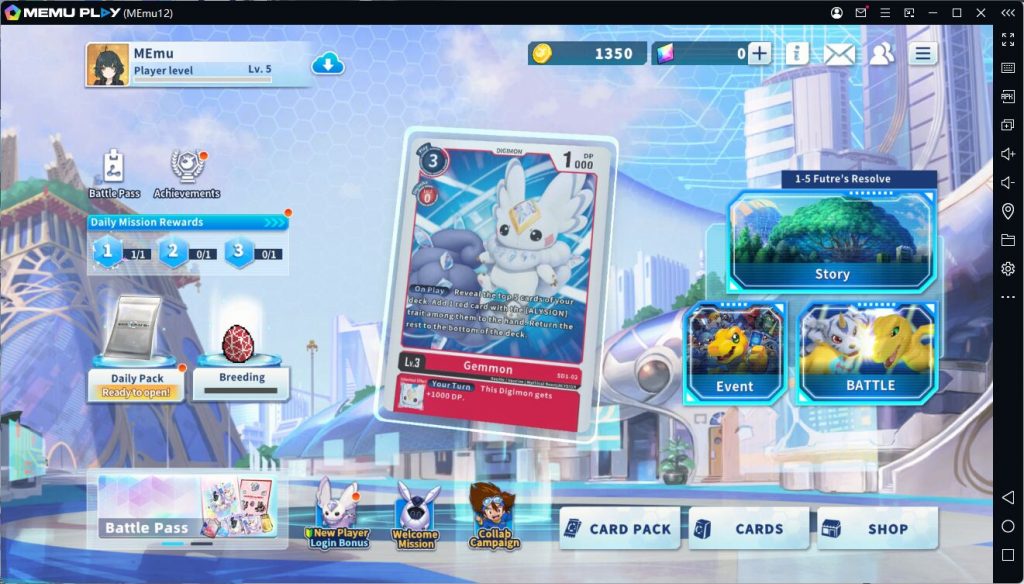
DIGIMON ALYSION combines card battles with the appeal of discovering, collecting, and raising Digimon. Highlights include:
- An original adventure: Meet a new cast of characters and explore a fresh Digimon story.
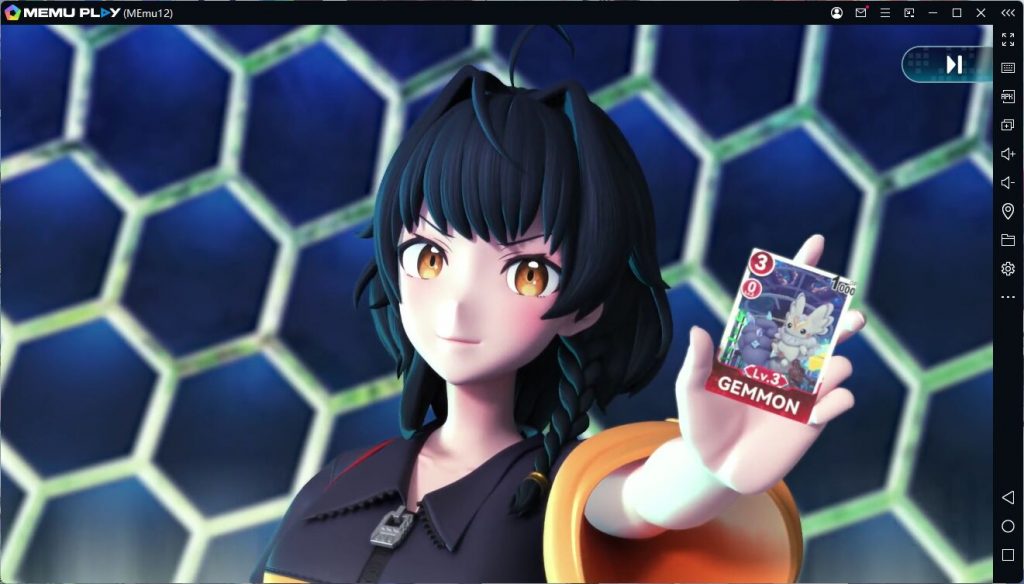
- Guided learning: Tutorials introduce card information and battle basics, helping newcomers learn as they progress.
- A free daily pack: Expand your collection and experiment with cards that suit your preferred strategy.
- Different ways to battle: Challenge players around the world, compete for rankings, or practice against friends and story characters.
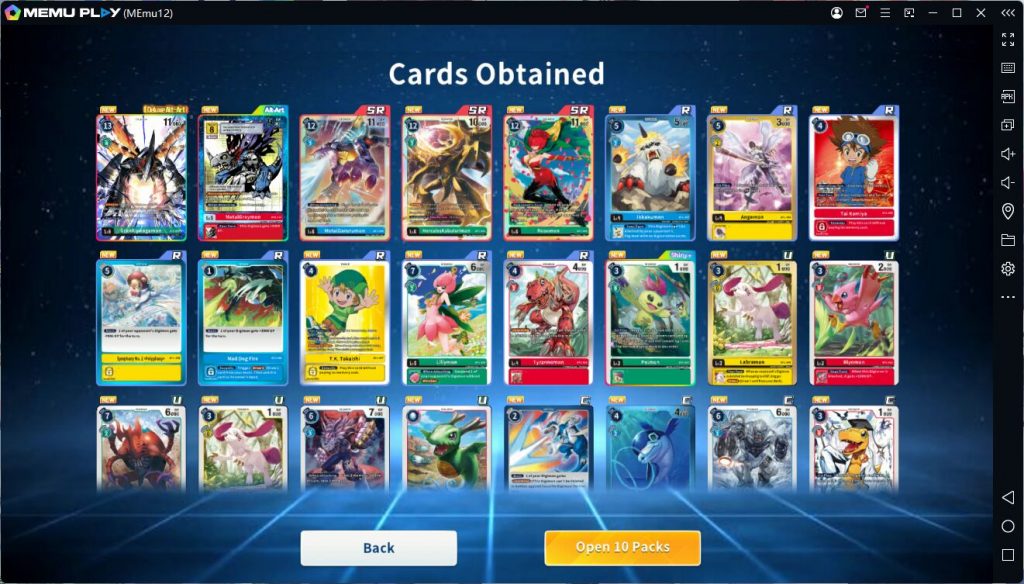
- Collectible card treatments: Discover Shiny, Alt-Art, and animated Premium Alt-Art cards alongside familiar and game-exclusive cards.
- Digimon breeding: Raise Digimon, digivolve them toward Mega, and work toward filling a Digidex with more than 100 entries.
Why Play DIGIMON ALYSION on PC with MEmu?
1. Give Your Cards More Room
Card battles involve plenty of reading and comparison. A larger display can make it more comfortable to inspect card details, review your hand, and follow the board before committing to a move.
2. Navigate with Your Mouse
Use mouse input to navigate menus and interact with the game. MEmu also supports custom keymapping, so you can configure shortcuts for suitable touch controls if you prefer.
3. Keep Your Phone Available
Playing through your PC leaves your phone available for calls and messages. You can settle into a longer session without using your phone's battery to run the game.
4. Keep Your Research Nearby
Place a deck guide or your own notes beside the emulator window. It is a convenient way to compare ideas while planning changes to your deck.
Get Started in 3 Simple Steps
Step 1: Install MEmu and Create an Android 12 Instance
Download the latest installer from the official MEmu website and complete installation on your Windows PC. Open Multi-MEmu, choose the option to create a new instance, and select Android 12.
The game's published minimum is Android 11 with at least 4GB RAM. Android 12 therefore meets the stated OS requirement; older Android 7 or Android 9 instances do not. Meeting the listed requirements alone does not guarantee compatibility with every emulator configuration.
Step 2: Find DIGIMON ALYSION on Google Play
Start your Android 12 instance, open Google Play, and sign in to your Google account. Search for DIGIMON ALYSION, confirm that the publisher is BANDAI CO., LTD., and install the game. Launch it and allow any additional game data to download.
Step 3: Set Up Your Session
Choose a window size that makes card text comfortable to read, then complete the tutorial. If performance is uneven, start with lower in-game graphics settings and close unnecessary PC applications before increasing visual quality.
For existing players, link your original game data to a Bandai Namco ID before switching devices, then follow the game's transfer process. Signing into Google Play alone does not replace this step.
FAQ
Can I play DIGIMON ALYSION on PC?
MEmu provides a way to run the Android version on Windows. Install it through Google Play in an Android 12 instance. Availability and compatibility depend on the current game version and your setup; this guide does not describe a native Windows release.
Is DIGIMON ALYSION free to play?
Yes. The game is free to download and play, with optional in-app purchases.
Which Android version should I use in MEmu?
Choose Android 12. The official mobile requirements list Android 11, with a minimum of 4GB RAM and 8GB recommended. These are game requirements, rather than total Windows PC specifications; your computer also needs resources for Windows and MEmu.
Can I keep my progress when switching from mobile to PC?
Use the game's Data Linking feature to associate your progress with a Bandai Namco ID before switching. Follow the official transfer instructions and keep the original installation until you confirm your progress is available.
What should I do if the game will not launch?
Update MEmu and the game, confirm you are using Android 12, and restart the instance. Check your connection, available storage, and official maintenance notices. If problems continue, consult MEmu support with your configuration details.
Does DIGIMON ALYSION require an internet connection?
Yes. An internet connection is required to play, including when running the Android app through MEmu.

DIGIMON ALYSION
Conclusion
DIGIMON ALYSION brings card collecting, strategic battles, and a new Digimon adventure together. Playing through MEmu gives you a desktop setup with more room to view the game and keep your deck notes close at hand.
Install MEmu, prepare an Android 12 instance, and download DIGIMON ALYSION through Google Play. Once your game is ready, build your deck and take your next battle to the bigger screen!