Samsung Email
Updated
Current Version
6.2.00.4
Offered By

Stop worrying about high battery drain when using Samsung Email on your phone. Free yourself from the tiny screen and enjoy the app on a much larger display. From now on, get a full-screen experience of your app with the convenience of a keyboard and mouse. MEmu offers you all the surprising features you’d expect: quick installation and easy setup, intuitive controls, and no more worries about battery life, mobile data, or unexpected calls. The all-new MEmu 9 is the choice for using Samsung Email on your computer. With the MEmu multi-instance manager, you can run two or more accounts at the same time. Most importantly, our exclusive emulation engine unlocks your PC’s full potential, delivering smooth and enjoyable performance.
Show more
Enjoy superb experience of using Samsung Email on PC with MEMU App Player. It's a powerful free Android emulator which provides you with thousands of android apps for their desktop version. Enjoy connecting with friends and polishing your work with higher efficiency! This update is available for Samsung Mobile with Android OS.
This update is available for Samsung Mobile with Android OS.
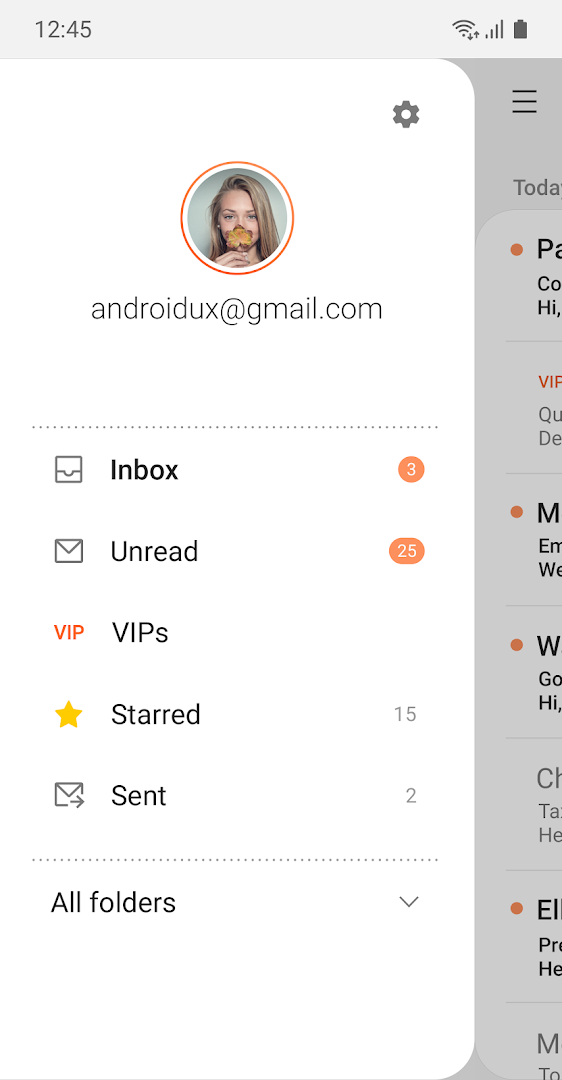
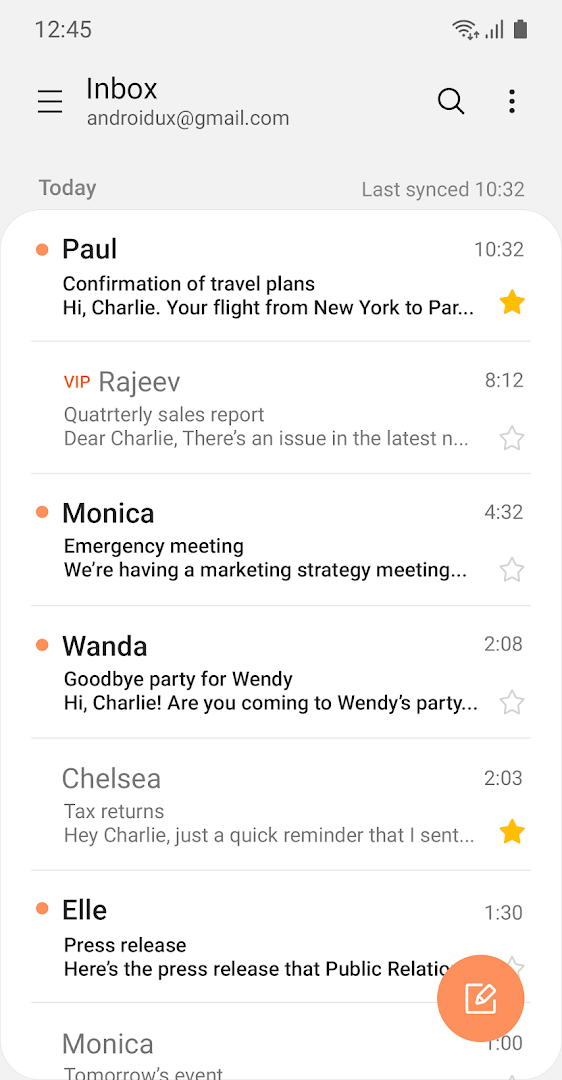
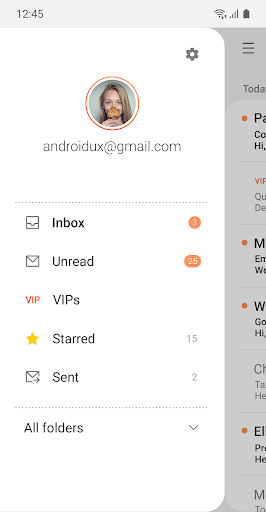
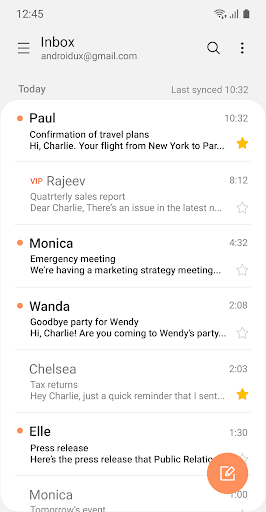
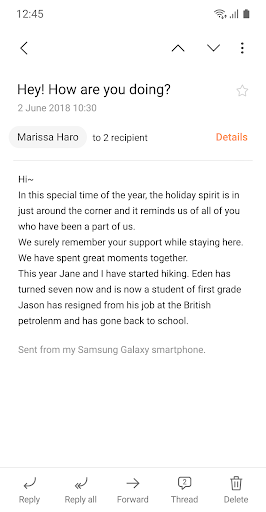
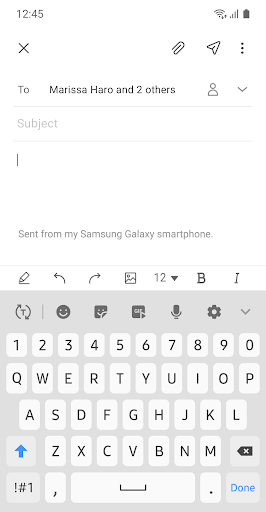
Samsung Email enables users to manage multiple personal and business email accounts seamlessly. Samsung Email also offers EAS integration for business, encryption using S/MIME to safeguard data and ease-of-use features such as insightful notifications, SPAM management. Furthermore, organizations can administer various policies as needed.
Key features
· POP3 and IMAP support for managing personal email accounts
· Exchange ActiveSync (EAS) integration for synchronizing Exchange Server based business email, calendars, contacts and tasks
· Encryption using S/MIME for secure email communication
Additional features
· Customizable user experience with notifications, schedule synchronization, SPAM management, and combined mailboxes
· Policy administration with comprehensive, built-in EAS support
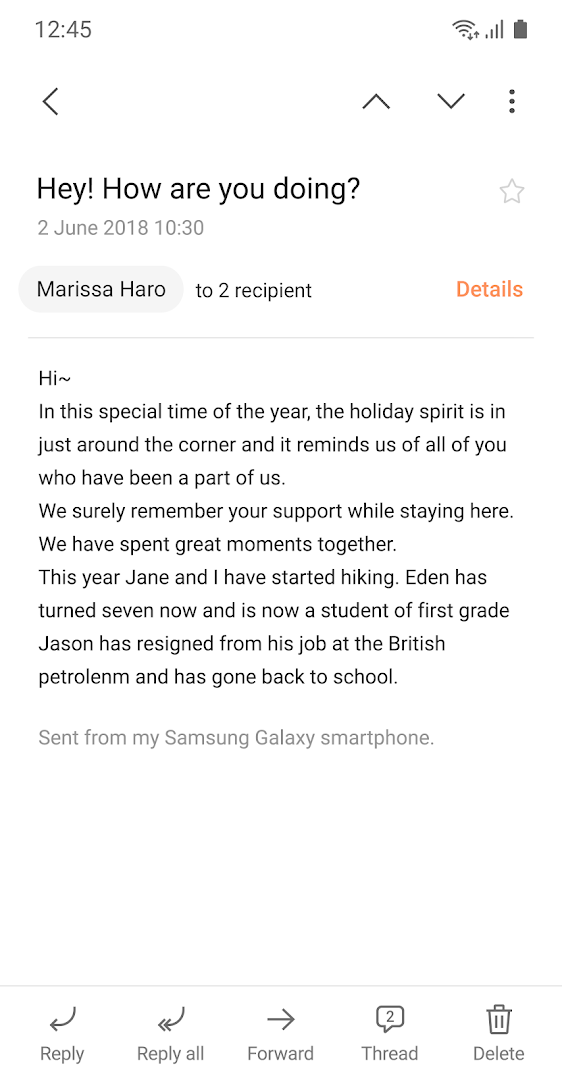
· Conversation and thread view to read related mail
--- Regarding the App Access Permission ---
The following permissions are required for the app service. For optional permissions, the default functionality of the service is turned on, but not allowed.
[Required permissions]
- None
[Optional permissions]
- Camera: Used to attach photos to email
- Location: Used to attach current location information to email
- Contacts: Used to link email recipients/senders with contacts and synchronize contact information when using Microsoft Exchange account
- Calendar: Used to synchronize calendar infomation when using Microsoft Exchange account
- Notification : Used to display notification when sending or receiving emails
- Music and audio (Android 13 or higher) : Used to attach or save files such as music and audio
- File and Media (Android 12) : Used to attach(insert) or save files and media.
- Storage (Android 11 or less) : Used to attach(insert) or save files
[Privacy Policy]
https://v3.account.samsung.com/policies/privacy-notices/latest
[Supported E-mail]
b2b.sec@samsung.com
Show more

1. Download MEmu installer and finish the setup

2. Start MEmu then open Google Play on the desktop

3. Search Samsung Email in Google Play
Install
4. Download and Install Samsung Email
5. On install completion click the icon to start

6. Enjoy using Samsung Email on PC with MEmu
MEmu Play is the best Android emulator, and 100 million users already enjoy its superb Android app experience. Powered by advanced virtualization technology, it lets you enjoy thousands of Android apps smoothly on your PC—including the most graphics-intensive ones.
Bigger screen with better graphics; Long duration, without limitation of battery or mobile data.
Full Keymapping support for precise control of keyboard and mouse or gamepad.
Multiple game accounts or tasks on single PC at one time with Multi-Instance manager.
Use Samsung Email on PC by following steps: