Game Reaper - Game Utility
Updated
Current Version
2.0.2
Offered By

Stop worrying about high battery drain when using Game Reaper - Game Utility on your phone. Free yourself from the tiny screen and enjoy the app on a much larger display. From now on, get a full-screen experience of your app with the convenience of a keyboard and mouse. MEmu offers you all the surprising features you’d expect: quick installation and easy setup, intuitive controls, and no more worries about battery life, mobile data, or unexpected calls. The all-new MEmu 9 is the choice for using Game Reaper - Game Utility on your computer. With the MEmu multi-instance manager, you can run two or more accounts at the same time. Most importantly, our exclusive emulation engine unlocks your PC’s full potential, delivering smooth and enjoyable performance.
Show more
Enjoy superb experience of using Game Reaper - Game Utility on PC with MEMU App Player. It's a powerful free Android emulator which provides you with thousands of android apps for their desktop version. Enjoy connecting with friends and polishing your work with higher efficiency! Bring your mobile gaming library together with Game Reaper, a dedicated game space and launcher application for Android.
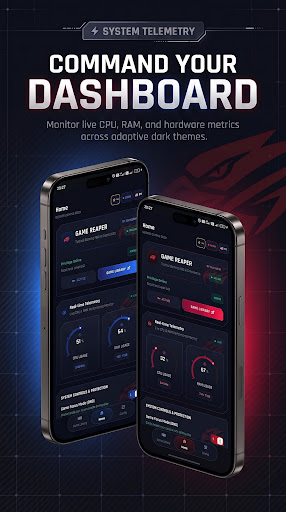
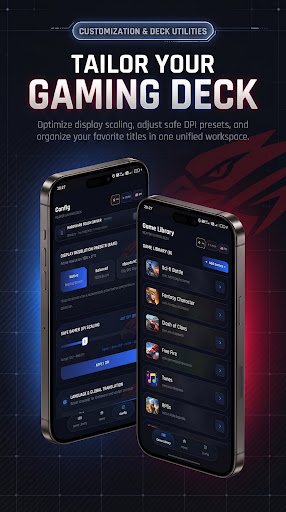
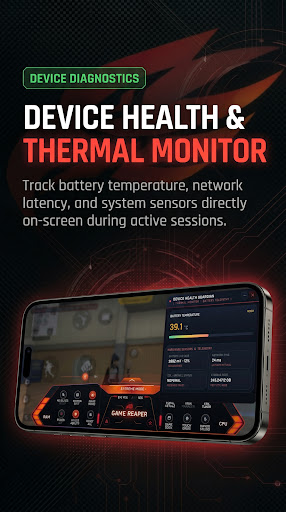
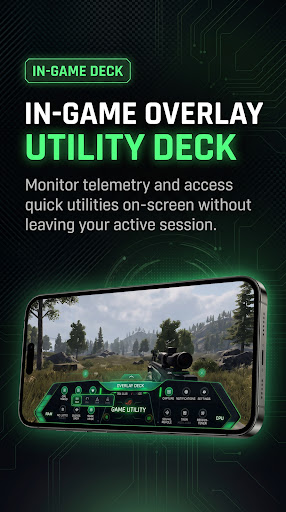
Bring your mobile gaming library together with Game Reaper, a dedicated game space and launcher application for Android. Game Reaper helps you organize your installed games in one structured hub so you can access and launch them directly from within the app.
Game Hub:
Keep your collection neatly arranged in a single dashboard. Game Reaper gathers your installed titles in one place, making it simple to browse your library and start any game with a quick tap.
Custom Toolkit:
Tailor your gaming sessions with built-in companion utilities designed to fit your personal preferences. Adjust your workspace, set up convenient shortcuts, and enjoy a comfortable in-app environment with Game Reaper's integrated toolkit.
Show more

1. Download MEmu installer and finish the setup

2. Start MEmu then open Google Play on the desktop

3. Search Game Reaper - Game Utility in Google Play
Install
4. Download and Install Game Reaper - Game Utility
5. On install completion click the icon to start

6. Enjoy using Game Reaper - Game Utility on PC with MEmu
MEmu Play is the best Android emulator, and 100 million users already enjoy its superb Android app experience. Powered by advanced virtualization technology, it lets you enjoy thousands of Android apps smoothly on your PC—including the most graphics-intensive ones.
Bigger screen with better graphics; Long duration, without limitation of battery or mobile data.
Full Keymapping support for precise control of keyboard and mouse or gamepad.
Multiple game accounts or tasks on single PC at one time with Multi-Instance manager.
Use Game Reaper - Game Utility on PC by following steps: