
Ivanti Secure Access Client
Updated
Current Version
22.8.8.18981
Offered By

Stop worrying about high battery drain when using Ivanti Secure Access Client on your phone. Free yourself from the tiny screen and enjoy the app on a much larger display. From now on, get a full-screen experience of your app with the convenience of a keyboard and mouse. MEmu offers you all the surprising features you’d expect: quick installation and easy setup, intuitive controls, and no more worries about battery life, mobile data, or unexpected calls. The all-new MEmu 9 is the choice for using Ivanti Secure Access Client on your computer. With the MEmu multi-instance manager, you can run two or more accounts at the same time. Most importantly, our exclusive emulation engine unlocks your PC’s full potential, delivering smooth and enjoyable performance.
Show more
Enjoy superb experience of using Ivanti Secure Access Client on PC with MEMU App Player. It's a powerful free Android emulator which provides you with thousands of android apps for their desktop version. Enjoy connecting with friends and polishing your work with higher efficiency! IVANTI SECURE ACCESS FOR ANDROID.
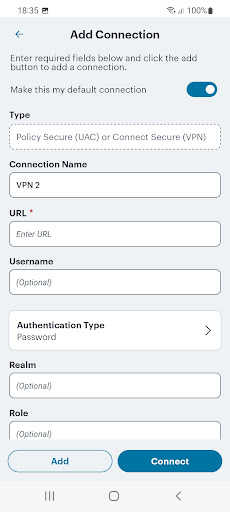
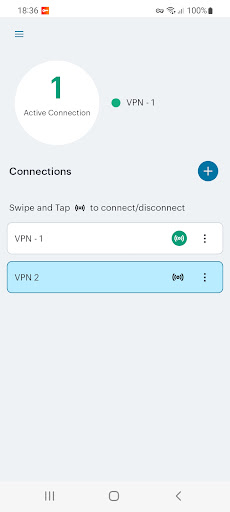
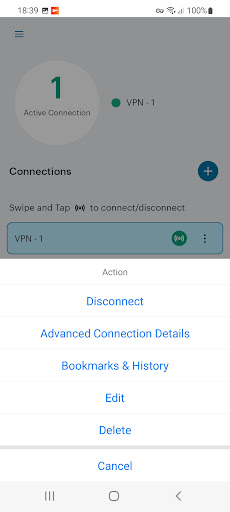
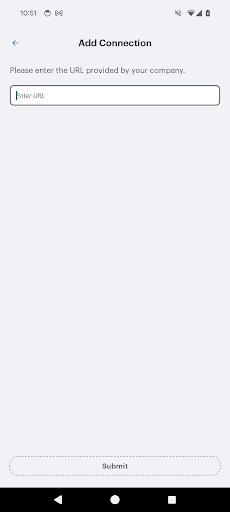
IVANTI SECURE ACCESS FOR ANDROID
Ivanti recommends to deploy Ivanti Secure Access Client (formerly Pulse Mobile Client) through MDM solutions for better management. This helps administrator to control the clients deployed on the endpoints. Administrators can test latest Ivanti Secure Access Client releases for all the relevant use cases before upgrading the endpoints to prevent any environment specific issues.
Ivanti Secure Access client for Android makes it easy to use your personal device for work. It is an all-in-one client that securely connects your device to work and provides a work space to do your job.
With Ivanti Secure Access Client for Android you can connect to your corporate VPN with just the touch of a button that provides easy and secure mobile access to information stored on corporate servers or in the cloud.
Ivanti Secure Access for Android provides an integrated Workspace that lets you use the latest business apps for email, collaboration, and productivity. The Workspace keeps corporate apps and data on your mobile device separate from your personal apps and information. That means everything stays private and your employer can only wipe the Workspace.
REQUIREMENTS:
Check with your IT team to ensure that your VPN is ready for Ivanti Secure Access Client for Android.
FEATURES:
• Get connected! Safe, secure access to web-based applications, enterprise networks, and bookmarks through an encrypted VPN tunnel.
• Your pictures are safe! Privacy controls ensure that your company cannot see your information and can only wipe the work space.
• Your work is secured! Protects corporate information by encrypting all stored information, controlling data sharing between enterprise applications and connecting directly to the corporate VPN.
Special Consideration for Workspace Customers:
The Ivanti Secure Access Android application uses the Android BIND-DEVICE-ADMIN, QUERY_ALL_PACKAGES permission. This allows your company's administrator to create a Managed Work Profile which is separate and independent from your Personal Profile on your device or smart phone. In the Managed Work Profile the BIND-DEVICE-ADMIN and QUERY_ALL_PACKAGES permission is used by your company's administrator to provision and control enterprise applications to your Android device and to enforce various application policies defined by your company, which might include configuring passcodes, erasing data, configuring WiFi or other profile specific settings. Typically, no personally identifiable data is collected within the Managed Work Profile. The Ivanti Secure Access Android application does not access information found in your Personal Profile.
The application uses the permission USE_EXACT_ALARM in onDemand VPN usecase only. We plan to replace with SCHEDULE_EXACT_ALARM in future release, which requires user acceptance.
Privacy Policy:
https://www.ivanti.com/company/legal/privacy-policy
Client Software EULA:
https://www.ivanti.com/company/legal/eula
SUPPORT:
https://forums.ivanti.com/s/welcome-pulse-secure
Documentation and Release Notes:
https://www.ivanti.com/support/product-documentation#96
Show more

1. Download MEmu installer and finish the setup

2. Start MEmu then open Google Play on the desktop

3. Search Ivanti Secure Access Client in Google Play
Install
4. Download and Install Ivanti Secure Access Client
5. On install completion click the icon to start

6. Enjoy using Ivanti Secure Access Client on PC with MEmu
MEmu Play is the best Android emulator, and 100 million users already enjoy its superb Android app experience. Powered by advanced virtualization technology, it lets you enjoy thousands of Android apps smoothly on your PC—including the most graphics-intensive ones.
Bigger screen with better graphics; Long duration, without limitation of battery or mobile data.
Full Keymapping support for precise control of keyboard and mouse or gamepad.
Multiple game accounts or tasks on single PC at one time with Multi-Instance manager.
Use Ivanti Secure Access Client on PC by following steps: