
Parental Control Avosmart
更新日
現在のバージョン
2.2
提供元

スマートフォンは不要!パソコンと同じようにキーボードとマウスで操作できます。MEmu Playは、あなたが待ち望んでいたすべての楽しみをお届けします。バッテリー残量や小さな画面を気にすることなく、Parental Control Avosmartをご利用ください。最新のMEmu 9は、Parental Control AvosmartをPCで体験するのに最適です!完璧なキーマッピングシステムにより、PCのようなスムーズな操作性を実現します。マルチインスタンス機能により、複数のアプリケーションを同時に実行できます。独自の仮想化エンジンがPCのパフォーマンスを最大限に引き出します。アプリを使用するだけでなく、高品質な体験を得ることができます。
もっと見る
Parental Control AvosmartをPCでダウンロード!大画面でより楽しむ。電源が落ちてしまうとか通信料が足りないとかの問題を心配する必要がなく、PCの大画面でより快適にゲームを楽しましょう! Avosmart is an extremely efficient parental control app that allows parents to monitor how much time their children spend in front of a computer or on their smartphone or tablet.
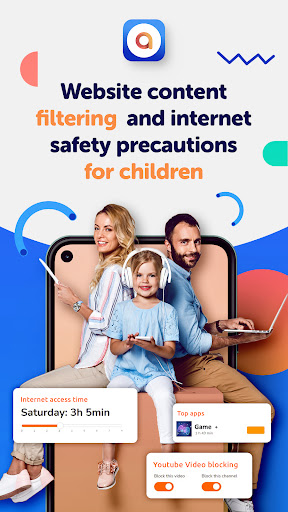
Avosmart is an extremely efficient parental control app that allows parents to monitor how much time their children spend in front of a computer or on their smartphone or tablet. Furthermore, the parental control app provides reliable website content filtering, location tracking, social media monitoring, and user’s YouTube activity.
Device time management
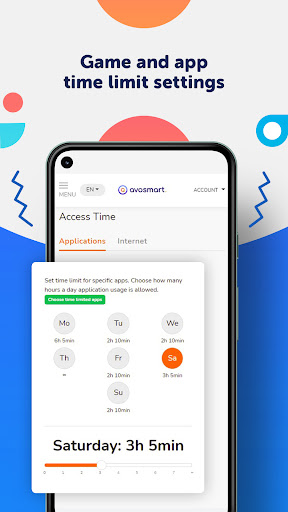
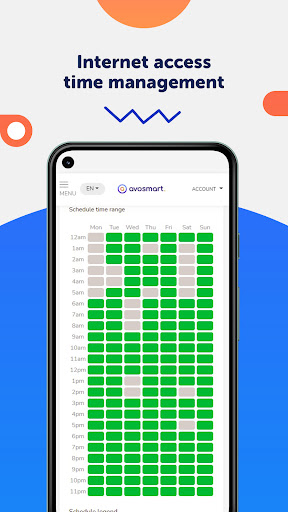
Log into avosmart.com to set daily time limits (how many hours allowed), and set a time schedule (which hours of the day allowed) for internet and app usage. Block specific apps, block new apps from being downloaded, and reward good behavior and good grades with extra access time! Protect your child’s development by limiting their social media access.
Website filtering
Block content inappropriate for your children With the app, parents can block access to inappropriate websites using the “web filtering” function, ensuring a safe experience. Website filtering is also available in the 'incognito mode'. Additionally, we provide safe searches for Google, YouTube, and Bing.
Child location
Check where your child is. Our location tracking function provides peace of mind for parents. They can see exactly where their children are, and how they got there. It shows a child's precise location on any given day, easily checkable by parents.
YouTube Videos Analysis
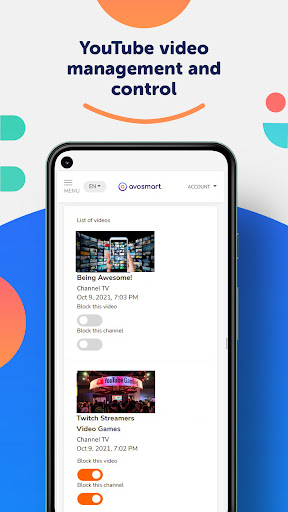
In the parent panel, see all the YouTube videos that your child has watched and verify if they are appropriate or not. Additionally, block videos or channels at any time.
Reports and statistics
Browse your child's activity reports and change internet and app settings remotely via browser. Check where your child is or was at any given time.
Check out Avosmart’s functions:
✓ Protect all of your child’s devices, using different monitoring functions.
✓ Set time limits for each device.
✓ Monitor web activity and search results.
✓ Block adult-only content.
✓ Monitor YouTube activity.
✓ See all of your child’s activity on this device and others.
✓ Remote access from anywhere.
✓ Set limits for games and apps.
✓ Track phone calls.
✓ Monitor messages.
✓ Tracker: Locate your child on the map and see exactly where they are or were.
To protect your child:
1 - Install the Avosmart parental control app on the device that you want to monitor.
2 - Log in or sign up at https://avosmart.com, choose “Child Profile” and follow the quick configuration guide.
3 Once the configuration is finished, inappropriate websites will be blocked automatically.
4 - Log in to the Internet Avosmart Parental Control dashboard avosmart.com to monitor activity and set limits.
Why Avosmart?
For more than 10 years, we’ve been providing internet child protection software for parents. As experts in this field, we help families of young children and teenagers make responsible and healthy decisions regarding internet usage. This allows them to live balanced lives, free from internet addiction. Furthermore, we help parents protect their children by allowing them to monitor their children’s conversations.
Important
This app uses the Device Administrator permission. This will prevent a user from uninstalling children App Avosmart without your knowledge and acceptance.
This application uses accessibility services to build the best protection for children online. The app monitors children's media activity and helps healthy development by controlling access time to the web & apps and filtering sites and media forbidden to children.
もっと見る

1. MEmuインストーラーをダウンロードしてセットアップを完了する

2. MEmuを起動し、デスクトップでのPlayストアを開く

3. PlayストアでParental Control Avosmartを検索する
Install
4. Parental Control Avosmartをダウンロードしてインストールする
5. インストールが完了したら、アイコンをクリックしてスタート

6. MEmuを使ってパソコンでParental Control Avosmartを体験する
MEmu Playは現在、最高の無料Androidエミュレーターであり、5,000万人のユーザーが優れたAndroidアプリ体験を楽しんでいます。MEmuの仮想化テクノロジーにより、数千ものAndroidアプリをコンピューターでスムーズに実行できます。
大画面でより精細;無限の待機、電池とドラフィックの極限を超え
キーボード・マウス・コントローラーを全力でサポート、より快適
マルチインスタンスで複数のゲームを同時に実行
Use Parental Control Avosmart on PC by following steps: