Juggluco ПК

Скачать Juggluco на ПК

Juggluco ПК
  • Обновлено

  • Текущая версия

    1735231200

  • Продавец

    Juggluco ПК

Скачать Juggluco на ПК Скачать
Поделитесь с нами:

Juggluco Особенности на ПК

Перестаньте беспокоиться о быстром разряде батареи при использовании Juggluco на вашем телефоне. Освободитесь от крошечного экрана и наслаждайтесь приложением на гораздо большем экране. Теперь вы можете работать с приложением в полноэкранном режиме с удобством клавиатуры и мыши. MEmu предлагает вам все ожидаемые удивительные функции: быструю установку и простую настройку, интуитивно понятное управление и больше никаких забот о времени автономной работы, мобильном трафике или неожиданных звонках. Совершенно новый MEmu 9 — идеальный выбор для использования Juggluco на вашем компьютере. С помощью менеджера нескольких экземпляров MEmu вы можете одновременно использовать два или более аккаунтов. И самое главное, наш эксклюзивный движок эмуляции раскрывает весь потенциал вашего ПК, обеспечивая плавную и приятную работу.

Показать больше

Скриншоты и Видео Juggluco на ПК

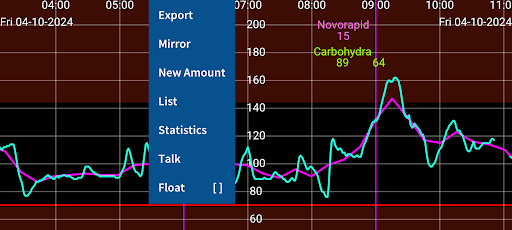
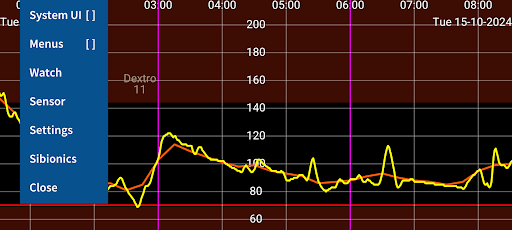
Скачайте Juggluco на ПК с помощью Андроид эмулятора MEmu. Наслаждайтесь на большом экране. Juggluco is an app that receives glucose values via Bluetooth from Freestyle Libre 2 and 3 and Dexcom g7 sensors.
Информация о приложении

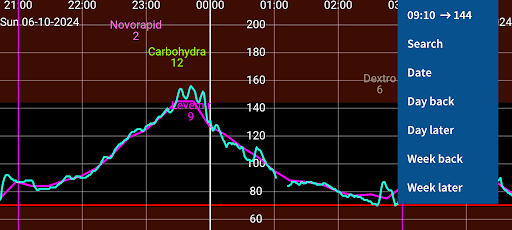
Juggluco is an app that receives glucose values via Bluetooth from Freestyle Libre 2 and 3 and Dexcom g7 sensors. Juggluco can scan NovoPen® 6 and NovoPen Echo® Plus.
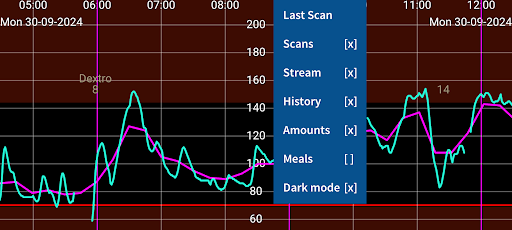
Juggluco can send glucose values to all kinds of smartwatches, see left menu→Watch→Help.
The phone version of Juggluco can talk out incoming glucose values, display it in a widget on the home screen and in floating glucose above other apps. Juggluco can display the usual glucose statistics. Other apps can receive data from Juggluco via glucose broadcasts and the web server in Juggluco. Juggluco can send data to Health Connect, Libreview and Nightscout. Data can also be exported to a file or send to another exemplar of Juggluco on another phone, tablet, emulator or watch. It has the option to set low and high glucose alarms and medication reminders.

Start

To use a Libre 2 sensor, scan it with Juggluco. To take over a Libre 3 sensor, you need to enter in left menu→Settings→Exchange data→Libreview the same account as when activating the sensor and press Get account ID, to receive a number from Libreview. When you now scan the sensor this number will be send to the sensor. A Libreview account is not needed when the Libre 3 sensor is activated with Juggluco: enter an arbitrary number before scanning the sensor. To use a Dexcom g7 sensor, scan the data matrix on the applicator with left menu→Photo. The first time it takes 2 to 10 minutes before Juggluco receives a glucose value via Bluetooth from the sensor. To prevent interference, force stop apps and turn off devices previously used with the sensor. To keep Juggluco running in the background, allow background activity and turn off battery optimizations for Juggluco. Don’t hide Juggluco’s notification.
After scanning a Libre 2 sensor with Juggluco, Abbott’s Libre 2 app can only scan the sensor. When two apps are on the same phone they can both receive glucose values from European Libre 2 sensors, but this can give connection problems. Libre 3 sensors can still be used with Abbott’s Libre 3 app after using it with Juggluco: stop Juggluco and scan the sensor with Abbott’s Libre 3 app, agreeing that you stop the current sensor and start a new one. When going back to Juggluco you have to scan again.
WARNING: Glucose sensors are not always accurate. When a glucose reading disagrees with your feelings, use a blood glucose test strip.

Wear OS

The phone version of Juggluco scans the sensor and sends this data to the WearOS version of Juggluco. Bluetooth on both phone and watch needs to be turn on. For fast transmission, also WIFI. To directly connect the sensor with the watch, set left menu→Watch→Wear OS config→Direct sensor-watch connection. The Bluetooth signal does not reach far through water and your body contains a lot of water. Probably because of that, the connection between sensor and watch is better when you wear your watch on the same arm as the sensor. Wear OS version contains a watch face and glucose complications.

https://www.juggluco.nl/Jugglucohelp/introhelp.html

Показать больше

Скачать Juggluco на ПК

  • Juggluco ПК

    1. Скачать инсталлятор MEmu и завершайте установку

  • Juggluco ПК

    2. Запускайте MEmu, затем откройте Google Play на главной странице

  • Juggluco ПК

    3. Ищите Juggluco в Google Play

  • Juggluco ПК Install

    4. Скачайте и установите Juggluco

  • Juggluco ПК

    5. При завершении установки, нажмите на значок для старта

  • Juggluco ПК
    Juggluco ПК Juggluco ПК

    6. Наслаждайтесь Juggluco на своем компьютере с помощью MEmu.

Почему стоит выбрать MEmu, чтобы испытать Juggluco

MEmu Play — лучший бесплатный эмулятор Android, превосходный опыт работы с которым оценили 50 миллионов пользователей. Технология виртуализации MEmu позволяет без проблем запускать тысячи Android-приложений на вашем компьютере, даже самые требовательные.

  • Большой экран с лучшей графикой; Большая продолжительность, без ограничения батареи или мобильных данных.

  • Полная поддержка установки клавиш для точного управления клавиатурой и мышью или геймпадом.

  • Несколько игровых учетных записей или задач на одном компьютере одновременно с менеджером нескольких экземпляров.

Готовы начать использовать?

Juggluco - FAQs

  • How to use Juggluco on PC?

    Use Juggluco on PC by following steps:

    • Download MEmu, then install and launch it
    • Login to Google Play Store, install the app
    • Enjoy using the app on PC with MEmu
  • What are the minimum system requirements to run Juggluco on PC?
    • Intel or AMD Processor
    • Microsoft Windows 7 and above
    • 2GB of memory
    • 5GB of free disk space
    • Hardware Virtualization Technology