Juggluco PC

Pobierz Juggluco na PC

Juggluco PC
  • Zaktualizowano

  • Aktualna wersja

    1749496566

  • Sprzedawca

    Juggluco PC

Funkcje Juggluco na PC

Przestań martwić się nadmiernymi opłatami podczas korzystania z Juggluco na telefonie komórkowym, uwolnij się od małego ekranu i ciesz się korzystaniem z aplikacji na znacznie większym wyświetlaczu. Od teraz korzystaj z aplikacji na pełnym ekranie za pomocą klawiatury i myszy. MEmu oferuje wszystkie zaskakujące funkcje, których się spodziewałeś: szybką instalację i łatwą konfigurację, intuicyjne sterowanie, koniec z ograniczeniami baterii, danych mobilnych i niepokojących połączeń. Zupełnie nowy MEmu 9 to najlepszy wybór do używania Juggluco na twoim komputerze. Zakodowany przez naszą absorpcję, menedżer wielu instancji umożliwia otwarcie 2 lub więcej kont w tym samym czasie. A co najważniejsze, nasz ekskluzywny emulator może uwolnić pełny potencjał twojego komputera, sprawić, że wszystko będzie płynne i przyjemne.

Pokaż więcej

Zrzuty ekranu i wideo z Juggluco PC

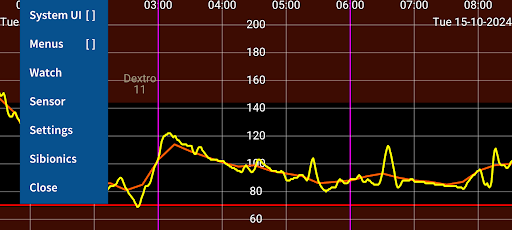
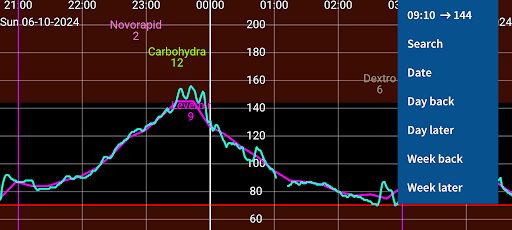
Ciesz się wspaniałym doświadczeniem podczas grania w Juggluco na komputerze z aplikacją MEMU App Player. Jest to potężny darmowy emulator Androida pozwalający grać w tysiące gier na Androida. Juggluco is an app that receives glucose values via Bluetooth from Freestyle Libre 2, 2+, 3 and 3+, Sibionics GS1Sb and Dexcom G7 and ONE+ sensors.
Informacje o aplikacji

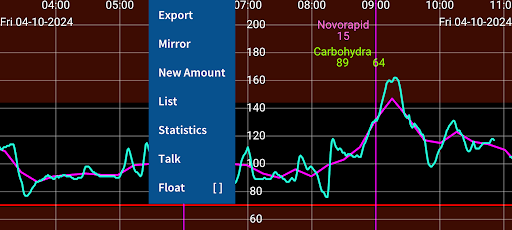
Juggluco is an app that receives glucose values via Bluetooth from Freestyle Libre 2, 2+, 3 and 3+, Sibionics GS1Sb and Dexcom G7 and ONE+ sensors. Juggluco can scan NovoPen® 6 and NovoPen Echo® Plus.
Juggluco can send glucose values to all kinds of smartwatches, see left menu→Watch→Help.
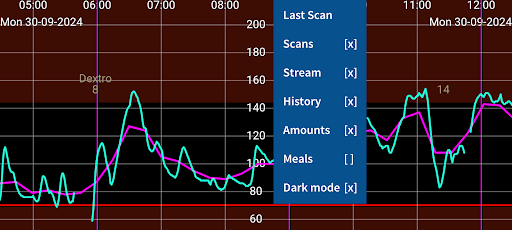
The phone version of Juggluco can talk out incoming glucose values, display it in a widget on the home screen and in floating glucose above other apps. Juggluco can display the usual glucose statistics. Other apps can receive data from Juggluco via glucose broadcasts and the web server in Juggluco. Juggluco can send data to Health Connect, Libreview and Nightscout. Data can also be exported to a file or send to another exemplar of Juggluco on another phone, tablet, emulator or watch. It has the option to set low and high glucose alarms and medication reminders.

Start

To use a Libre 2 sensor, scan it with Juggluco. To take over a Libre 3 sensor, you need to enter in left menu→Settings→Exchange data→Libreview the same account as when activating the sensor and press Get account ID, to receive a number from Libreview. When you now scan the sensor this number will be send to the sensor. A Libreview account is not needed when the Libre 3 sensor is activated with Juggluco: enter an arbitrary number before scanning the sensor. The first time it takes 2 to 10 minutes before Juggluco receives a glucose value via Bluetooth from the sensor. To prevent interference, force stop apps and turn off devices previously used with the sensor. To keep Juggluco running in the background, allow background activity and turn off battery optimizations for Juggluco. Don’t hide Juggluco’s notification.
After scanning a Libre 2 sensor with Juggluco, Abbott’s Libre 2 app can only scan the sensor. When two apps are on the same phone they can both receive glucose values from European Libre 2 sensors, but this can give connection problems. Libre 3 sensors can still be used with Abbott’s Libre 3 app after using it with Juggluco: stop Juggluco and scan the sensor with Abbott’s Libre 3 app, agreeing that you stop the current sensor and start a new one. When going back to Juggluco you have to scan again. To use a Dexcom G7 or ONE+ sensor, scan the data matrix on the applicator with left menu→Photo. Do the same with the data matrix on the package, to start a Sibionics GS1Sb sensor.
WARNING: Glucose sensors are not always accurate. When a glucose reading disagrees with your feelings, use a blood glucose test strip.

Wear OS

The phone version of Juggluco scans the sensor and sends this data to the WearOS version of Juggluco. Bluetooth on both phone and watch needs to be turn on. For fast transmission, also WIFI. After initialization, you can turn on and off directly connecting the sensor with the watch, with left menu→Watch→Wear OS config→Direct sensor-watch connection. Of the Samsung Galaxy watches, directly connecting to the sensor works very well with Watch4 as long as the watch is on the same arm as the sensor. Watch 5 to 7 only receive a glucose reading every 2 minutes and drain the battery quickly because they disconnect after each reading and are busy reconnecting. With Libre2 (only) TicWatch Pro works as well as Watch4, but Bluetooth is switched off if the watch isn’t moved for a long time and not on the charger. Wear OS version contains a watch face and glucose complications.

https://www.juggluco.nl/Jugglucohelp/introhelp.html

Pokaż więcej

Jak pobrać Juggluco na PC

  • Juggluco PC

    1. Pobierz instalator MEmu i zakończ instalację

  • Juggluco PC

    2. Uruchom MEmu, a następnie otwórz Google Play na pulpicie

  • Juggluco PC

    3. Wyszukaj Juggluco w Google Play

  • Juggluco PC Install

    4. Pobierz i zainstaluj Juggluco

  • Juggluco PC

    5. Po zakończeniu instalacji kliknij ikonę, aby rozpocząć

  • Juggluco PC
    Juggluco PC Juggluco PC

    6. Użyj MEmu, aby doświadczyć Juggluco na swoim komputerze

Dlaczego warto używać MEmu do korzystania z Juggluco

MEmu Play to najlepszy emulator Androida, z którego korzysta ponad 100 milionów użytkowników, ciesząc się wyjątkowym doświadczeniem aplikacji na Androida. Technologia wirtualizacji MEmu pozwala na płynne uruchamianie tysięcy aplikacji Androida na komputerze, nawet tych najbardziej wymagających.

  • Większy ekran z lepszą grafiką; Długi czas, bez ograniczeń baterii lub danych mobilnych.

  • Pełna obsługa mapowania klawiszy dla precyzyjnego sterowania klawiaturą i myszą lub gamepadem.

  • Wiele kont gier lub zadań na jednym komputerze jednocześnie z menedżerem wielu instancji.

Gotowy, żeby tego doświadczyć?

Gorące tematy

Juggluco - FAQs

  • Jak korzystać z Juggluco na PC?

    Use Juggluco on PC by following steps:

    • Download MEmu, then install and launch it
    • Login to Google Play Store, install the app
    • Enjoy using the app on PC with MEmu
  • Jakie są minimalne wymagania systemowe, aby uruchomić Juggluco na PC?
    • Intel or AMD Processor
    • Microsoft Windows 7 and above
    • 2GB of memory
    • 5GB of free disk space
    • Hardware Virtualization Technology