Juggluco PC

Download Juggluco on PC

Juggluco PC
  • Updated

  • Current Version

    1734878458

  • Offered By

    Juggluco PC

Features of Juggluco on PC

Stop worrying about high battery drain when using Juggluco on your phone. Free yourself from the tiny screen and enjoy the app on a much larger display. From now on, get a full-screen experience of your app with the convenience of a keyboard and mouse. MEmu offers you all the surprising features you’d expect: quick installation and easy setup, intuitive controls, and no more worries about battery life, mobile data, or unexpected calls. The all-new MEmu 9 is the choice for using Juggluco on your computer. With the MEmu multi-instance manager, you can run two or more accounts at the same time. Most importantly, our exclusive emulation engine unlocks your PC’s full potential, delivering smooth and enjoyable performance.

Show more

Screenshots & Video of Juggluco PC

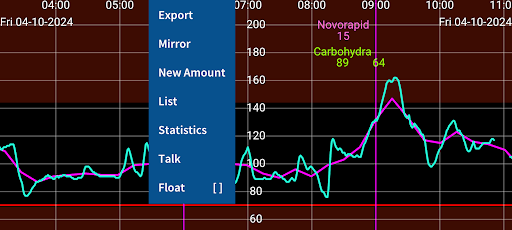
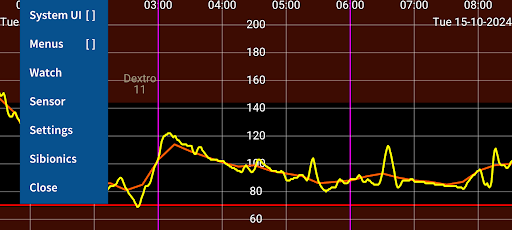
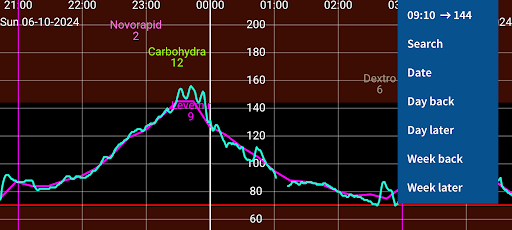
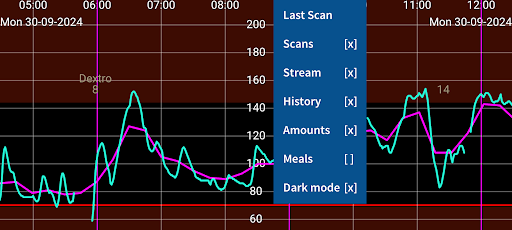
Enjoy superb experience of using Juggluco on PC with MEMU App Player. It's a powerful free Android emulator which provides you with thousands of android apps for their desktop version. Enjoy connecting with friends and polishing your work with higher efficiency! Juggluco is an app that receives glucose values via Bluetooth from Freestyle Libre 2 and 3 and Dexcom g7 sensors.
APP Info

Juggluco is an app that receives glucose values via Bluetooth from Freestyle Libre 2 and 3 and Dexcom g7 sensors. Juggluco can scan NovoPen® 6 and NovoPen Echo® Plus.
Juggluco can send glucose values to all kinds of smartwatches, see left menu→Watch→Help.
The phone version of Juggluco can talk out incoming glucose values, display it in a widget on the home screen and in floating glucose above other apps. Juggluco can display the usual glucose statistics. Other apps can receive data from Juggluco via glucose broadcasts and the web server in Juggluco. Juggluco can send data to Health Connect, Libreview and Nightscout. Data can also be exported to a file or send to another exemplar of Juggluco on another phone, tablet, emulator or watch. It has the option to set low and high glucose alarms and medication reminders.

Start

To use a Libre 2 sensor, scan it with Juggluco. To take over a Libre 3 sensor, you need to enter in left menu→Settings→Exchange data→Libreview the same account as when activating the sensor and press Get account ID, to receive a number from Libreview. When you now scan the sensor this number will be send to the sensor. A Libreview account is not needed when the Libre 3 sensor is activated with Juggluco: enter an arbitrary number before scanning the sensor. To use a Dexcom g7 sensor, scan the data matrix on the applicator with left menu→Photo. The first time it takes 2 to 10 minutes before Juggluco receives a glucose value via Bluetooth from the sensor. To prevent interference, force stop apps and turn off devices previously used with the sensor. To keep Juggluco running in the background, allow background activity and turn off battery optimizations for Juggluco. Don’t hide Juggluco’s notification.
After scanning a Libre 2 sensor with Juggluco, Abbott’s Libre 2 app can only scan the sensor. When two apps are on the same phone they can both receive glucose values from European Libre 2 sensors, but this can give connection problems. Libre 3 sensors can still be used with Abbott’s Libre 3 app after using it with Juggluco: stop Juggluco and scan the sensor with Abbott’s Libre 3 app, agreeing that you stop the current sensor and start a new one. When going back to Juggluco you have to scan again.
WARNING: Glucose sensors are not always accurate. When a glucose reading disagrees with your feelings, use a blood glucose test strip.

Wear OS

The phone version of Juggluco scans the sensor and sends this data to the WearOS version of Juggluco. Bluetooth on both phone and watch needs to be turn on. For fast transmission, also WIFI. To directly connect the sensor with the watch, set left menu→Watch→Wear OS config→Direct sensor-watch connection. The Bluetooth signal does not reach far through water and your body contains a lot of water. Probably because of that, the connection between sensor and watch is better when you wear your watch on the same arm as the sensor. Wear OS version contains a watch face and glucose complications.

https://www.juggluco.nl/Jugglucohelp/introhelp.html

Show more

How to Download Juggluco on PC

  • Juggluco PC

    1. Download MEmu installer and finish the setup

  • Juggluco PC

    2. Start MEmu then open Google Play on the desktop

  • Juggluco PC

    3. Search Juggluco in Google Play

  • Juggluco PC Install

    4. Download and Install Juggluco

  • Juggluco PC

    5. On install completion click the icon to start

  • Juggluco PC
    Juggluco PC Juggluco PC

    6. Enjoy using Juggluco on PC with MEmu

Why Use MEmu for Juggluco

MEmu Play is the best Android emulator, and 100 million users already enjoy its superb Android app experience. Powered by advanced virtualization technology, it lets you enjoy thousands of Android apps smoothly on your PC—including the most graphics-intensive ones.

  • Bigger screen with better graphics; Long duration, without limitation of battery or mobile data.

  • Full Keymapping support for precise control of keyboard and mouse or gamepad.

  • Multiple game accounts or tasks on single PC at one time with Multi-Instance manager.

Ready to Use?

Juggluco - FAQs

  • How to use Juggluco on PC?

    Use Juggluco on PC by following steps:

    • Download MEmu, then install and launch it
    • Login to Google Play Store, install the app
    • Enjoy using the app on PC with MEmu
  • What are the minimum system requirements to run Juggluco on PC?
    • Intel or AMD Processor
    • Microsoft Windows 7 and above
    • 2GB of memory
    • 5GB of free disk space
    • Hardware Virtualization Technology