Winlator
更新日期
当前版本
11.0
提供者

爱玩Winlator的你,双手不应该被束缚在手机的小屏幕上。像职业选手一样用键盘和滑鼠来全面控制你的游戏吧。在电脑上下载、安装Winlator并尽情游玩。再也不用担心剩余电量、流量消耗和烦人的来电。全新的逍遥模拟器8是你在电脑上游玩Winlator的好选择!我们用心准备,完美的按键映射系统让Winlator宛如电脑游戏;
更多
透过逍遥模拟器,在电脑上下载Winlator,享受大荧屏的畅快体验。 Winlator helps when you want to open Windows software or play classic PC games on a phone or tablet without a computer nearby.
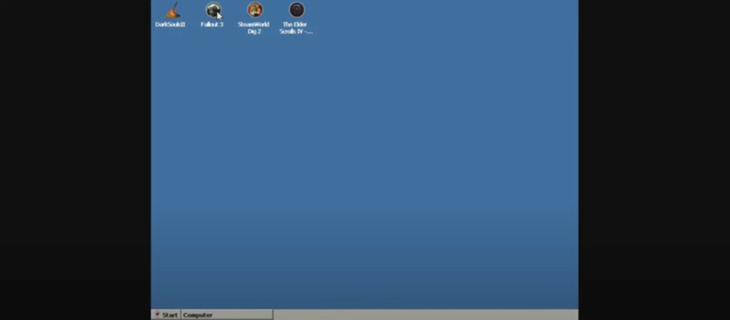
Winlator helps when you want to open Windows software or play classic PC games on a phone or tablet without a computer nearby. It creates a Windows-like environment so you can launch desktop titles and adjust settings to match your hardware. As a result, you can keep your library in one place and tailor how each title behaves. If you need a flexible way to test different settings until a game feels right, Winlator APK offers that control in a mobile-friendly workflow.Winlator featuresRun Windows apps and gamesWinlator uses Wine along with Box86 or Box64 to translate Windows calls and CPU instructions for Android. This approach lets many Windows programs start on mobile hardware. Actual performance and compatibility vary by device and settings, so results can differ between titles. Popular PC games can run, but expect to tune options per game for smooth play.Container profiles per gameYou can create a separate container for each title. Winlator saves presets and shortcuts inside each container so settings stay organized. You can also map a Windows drive letter to your games folder to keep files easy to find. This structure keeps one game’s tweaks from affecting another and makes it simple to return to a known working setup.Graphics backends and DirectX wrappersChoose Turnip or VirGL as the graphics backend based on what works best on your device.Use DXVK for games that rely on DirectX 9 to DirectX 11.Pick VKD3D for titles that require DirectX 12 features.Select D8VK for games built on DirectX 8.Try CNC DDraw for older titles that use DirectDraw.If a game shows a black screen or artifacts, switch the backend or wrapper and test again. Small changes here often resolve visual issues.Control options and mappingWinlator supports an editable on screen gamepad, full keyboard and mouse input, and external controllers. You can customize button layouts and sensitivity to match each title. For external pads, map buttons to actions and save that map with a shortcut. You can then toggle layouts per game so controls feel consistent every time you launch.Performance tools and setup helpersYou can adjust resolution, pick an emulated GPU or driver, select a DirectX wrapper, and set CPU core usage. The built in FPS counter helps you gauge changes while you tinker. A DirectX test cube is available to validate that your graphics choices are working. On first run, Winlator extracts required files, and it may prompt you to install Wine Mono and Gecko for better app compatibility.Graphics guide for WinlatorChoosing the right graphics path is often the key to stable play. Start with Turnip as the backend if your device supports it. If a game crashes on launch or shows a blank screen, switch to VirGL and test again. For most games that use DirectX 9 to DirectX 11, try DXVK first and confirm with the DirectX test cube. If a newer game needs DirectX 12 features, move to VKD3D. For older titles on DirectX 8, pick D8VK, and for classic DirectDraw games, select CNC DDraw. These choices can be changed per container so you can keep working setups saved.Controls setup tips in WinlatorPlan controls before you dive into a demanding title. Start with the on screen layout and edit button size and position for comfort, then save that layout to the game’s shortcut. If you use an external controller, bind each button or trigger to the actions the game expects and test in a menu first. For pointer heavy titles, switch to keyboard and mouse mode for precise input. You can keep multiple layouts and toggle them per shortcut when a title needs a different scheme.First run and troubleshooting checklistBefore you download Winlator and start configuring games, review these quick checks to save time during setup.Expect a short extraction process on the first launch and let it complete.Install Wine Mono and Gecko if prompted so apps that depend on them can load.Enable the FPS counter while you tune settings to see real time impact.Run the DirectX test cube after changing a wrapper or backend to confirm stability.If you notice stutter, reduce resolution or try a different wrapper. For a black screen, switch between Turnip and VirGL. If input fails, rebind controls or use keyboard and mouse mode.How to use Winlator on AndroidTo begin, set up one game at a time and confirm each step before moving on. For a quick start, create a clean container, launch the test tool, then add your game and fine tune. If you plan to share tips, note the exact backend and wrapper so others using Winlator APK can replicate your results.Install and open Winlator, then wait for the initial extraction to complete without interruption.When the prompt appears, install Wine Mono and Gecko to improve app compatibility inside the Windows layer.Create a new container for your game and, if needed, map a Windows drive letter to your games folder so the installer can find files.Pick a graphics backend, choose the appropriate DirectX wrapper for the title, set resolution, and enable the FPS counter. Run the DirectX test cube to confirm your choices.Map your controls, save a shortcut, and launch the game. If you see stutter, lower the resolution or switch wrappers. If visuals fail, try the other backend. Rebind controls or switch input mode if the game does not respond as expected.Get started with WinlatorWinlator brings Windows apps and PC games to Android with container profiles, graphics options, and flexible controls. For the most consistent results, tune each title and save its working setup, then return to refine as needed. To stay current, look for the Winlator latest version when you plan an update.
更多

1. 下载逍遥安装器并完成设置

2. 启动逍遥后打开位于桌面上的谷歌商店

3. 在谷歌商店中搜索Winlator
Install
4. 下载并安装Winlator
5. 下载完成后点击图标来启动

6. 通过逍遥在电脑上享受Winlator
逍遥安卓是优秀的安卓模拟器,全球超过5000万用户的优先选择。逍遥安卓以虚拟化技术为核心,为用户打造突破手机配置局限的游戏平台!
大屏精细展示;无限待机,超越电池和流量限制
键鼠、手把操作全面支持,操作更精准
用逍遥多开同时运行多个游戏、应用。
Play Winlator on PC by following steps: