Winlator
Mise à jour
Version actuelle
11.0
Proposée par

Avec toute la passion que vous avez à jouer Winlator, vos mains ne sont pas sensées se limiter à l’infime écran de votre téléphone. Jouez comme un pro et ayez le contrôle total de votre jeu à l’aide du clavier et de la souris. MEmu satisfait toutes vos attentes. Téléchargez et jouez Winlator sur PC. Jouez aussi longtemps que vous souhaitez sans aucune limitation de batterie, de données mobiles et d’appels embêtants. La toute nouvelle version de MEmu 9 est la meilleure option de jouer Winlator sur PC. Réalisé par nos experts, l’e magnifique système d’affectation de touches prédéfini fait de Winlator un jeu réaliste sur PC. Le gestionnaire multi-instances de MEmu permet 2 ou plusieurs comptes de jeu sur le même appareil. Et le plus important, le moteur d’émulation exclusif peut libérer le plein potentiel de votre PC, ce qui facilite tout.
Afficher plus
Téléchargez Winlator avec le simulateur d’Android MEmu sur votre PC. Profitez de jouer sur un grand écran. Winlator helps when you want to open Windows software or play classic PC games on a phone or tablet without a computer nearby.
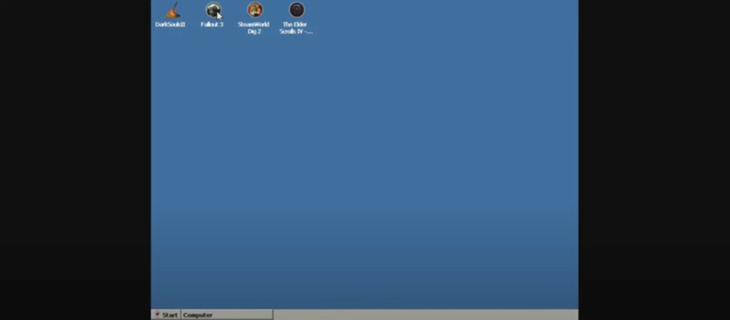
Winlator helps when you want to open Windows software or play classic PC games on a phone or tablet without a computer nearby. It creates a Windows-like environment so you can launch desktop titles and adjust settings to match your hardware. As a result, you can keep your library in one place and tailor how each title behaves. If you need a flexible way to test different settings until a game feels right, Winlator APK offers that control in a mobile-friendly workflow.Winlator featuresRun Windows apps and gamesWinlator uses Wine along with Box86 or Box64 to translate Windows calls and CPU instructions for Android. This approach lets many Windows programs start on mobile hardware. Actual performance and compatibility vary by device and settings, so results can differ between titles. Popular PC games can run, but expect to tune options per game for smooth play.Container profiles per gameYou can create a separate container for each title. Winlator saves presets and shortcuts inside each container so settings stay organized. You can also map a Windows drive letter to your games folder to keep files easy to find. This structure keeps one gameâs tweaks from affecting another and makes it simple to return to a known working setup.Graphics backends and DirectX wrappersChoose Turnip or VirGL as the graphics backend based on what works best on your device.Use DXVK for games that rely on DirectX 9 to DirectX 11.Pick VKD3D for titles that require DirectX 12 features.Select D8VK for games built on DirectX 8.Try CNC DDraw for older titles that use DirectDraw.If a game shows a black screen or artifacts, switch the backend or wrapper and test again. Small changes here often resolve visual issues.Control options and mappingWinlator supports an editable on screen gamepad, full keyboard and mouse input, and external controllers. You can customize button layouts and sensitivity to match each title. For external pads, map buttons to actions and save that map with a shortcut. You can then toggle layouts per game so controls feel consistent every time you launch.Performance tools and setup helpersYou can adjust resolution, pick an emulated GPU or driver, select a DirectX wrapper, and set CPU core usage. The built in FPS counter helps you gauge changes while you tinker. A DirectX test cube is available to validate that your graphics choices are working. On first run, Winlator extracts required files, and it may prompt you to install Wine Mono and Gecko for better app compatibility.Graphics guide for WinlatorChoosing the right graphics path is often the key to stable play. Start with Turnip as the backend if your device supports it. If a game crashes on launch or shows a blank screen, switch to VirGL and test again. For most games that use DirectX 9 to DirectX 11, try DXVK first and confirm with the DirectX test cube. If a newer game needs DirectX 12 features, move to VKD3D. For older titles on DirectX 8, pick D8VK, and for classic DirectDraw games, select CNC DDraw. These choices can be changed per container so you can keep working setups saved.Controls setup tips in WinlatorPlan controls before you dive into a demanding title. Start with the on screen layout and edit button size and position for comfort, then save that layout to the gameâs shortcut. If you use an external controller, bind each button or trigger to the actions the game expects and test in a menu first. For pointer heavy titles, switch to keyboard and mouse mode for precise input. You can keep multiple layouts and toggle them per shortcut when a title needs a different scheme.First run and troubleshooting checklistBefore you download Winlator and start configuring games, review these quick checks to save time during setup.Expect a short extraction process on the first launch and let it complete.Install Wine Mono and Gecko if prompted so apps that depend on them can load.Enable the FPS counter while you tune settings to see real time impact.Run the DirectX test cube after changing a wrapper or backend to confirm stability.If you notice stutter, reduce resolution or try a different wrapper. For a black screen, switch between Turnip and VirGL. If input fails, rebind controls or use keyboard and mouse mode.How to use Winlator on AndroidTo begin, set up one game at a time and confirm each step before moving on. For a quick start, create a clean container, launch the test tool, then add your game and fine tune. If you plan to share tips, note the exact backend and wrapper so others using Winlator APK can replicate your results.Install and open Winlator, then wait for the initial extraction to complete without interruption.When the prompt appears, install Wine Mono and Gecko to improve app compatibility inside the Windows layer.Create a new container for your game and, if needed, map a Windows drive letter to your games folder so the installer can find files.Pick a graphics backend, choose the appropriate DirectX wrapper for the title, set resolution, and enable the FPS counter. Run the DirectX test cube to confirm your choices.Map your controls, save a shortcut, and launch the game. If you see stutter, lower the resolution or switch wrappers. If visuals fail, try the other backend. Rebind controls or switch input mode if the game does not respond as expected.Get started with WinlatorWinlator brings Windows apps and PC games to Android with container profiles, graphics options, and flexible controls. For the most consistent results, tune each title and save its working setup, then return to refine as needed. To stay current, look for the Winlator latest version when you plan an update.
Afficher plus

1. Téléchargez l'installateur MEmu et terminez l'installation

2. Démarrez MEmu puis ouvrez Google Play sur la page d'accueil

3. Recherchez Winlator dans Google Play
Install
4. Téléchargez et installez Winlator
5. Une fois l'installation terminée, cliquez sur l'icône pour démarrer

6. Profitez de jouer Winlator sur PC avec MEmu
Le lecteur d'application MEmu est le meilleur émulateur Android gratuit, et 50 millions de personnes profitent déjà de sa fantastique expérience de jeu Android. La technologie de virtualisation MEmu vous donne la possibilité de jouer à des milliers de jeux Android sur votre PC sans aucune difficulté, même aux plus gourmands.
L’écran plus grand avec de meilleurs graphismes; Une longue durée, sans limitation de batterie ou de données mobiles.
Soutien du Keymapping pour un contrôle précis du clavier et de la souris ou de la manette de jeu
Plusieurs comptes de jeu ou tâches sur un seul PC en même temps avec le gestionnaire de multi-instance.
Play Winlator on PC by following steps: