Winlator
Đã cập nhật
Phiên bản hiện tại
11.0
Cung cấp bởi

Với tất cả niềm đam mê chơi Winlator, đôi tay của bạn sẽ không còn bị giới hạn trên một màn hình nhỏ của điện thoại. Trải nghiệm chơi như một người chuyên nghiệp và kiểm soát hoàn toàn trò chơi của bạn bằng bàn phím và chuột. MEmu cung cấp cho bạn tất cả những điều mà bạn đang mong đợi. Tải xuống và chơi Winlator trên PC. Miễn là bạn muốn chơi, bởi nó không còn giới hạn về pin, dữ liệu di động và các cuộc gọi làm phiền. MEmu 9 hoàn toàn là sự lựa chọn tốt nhất để chơi Winlator trên PC. Với sự chuẩn bị về chuyên môn của chúng tôi, hệ thống sơ đồ bàn phím tinh tế làm cho Winlator trở thành một trò chơi thực sự trên PC. Trình Quản lý đa năng, đã được chăm chút bởi sự tiếp thu của chúng tôi, có thể phát 2 hoặc nhiều tài khoản trên cùng một thiết bị. Và điều quan trọng nhất, công cụ mô phỏng độc quyền của chúng tôi có thể phát huy toàn bộ tiềm năng PC của bạn, giúp mọi thứ hoạt động trơn tru nhất có thể. Chúng tôi biết rằng quá trình tận hưởng hạnh phúc ở mỗi trò chơi cũng là mong muốn của mỗi game thủ, vì vậy các bạn chỉ cần chơi thôi hãy để chúng tôi quan tâm đến tất cả trải nghiệm đó.
Nhiều hơn
Tải Winlator trên PC với Trình giả lập Android MEmu. Tận hưởng trải nghiệm chơi game trên màn hình lớn Winlator helps when you want to open Windows software or play classic PC games on a phone or tablet without a computer nearby.
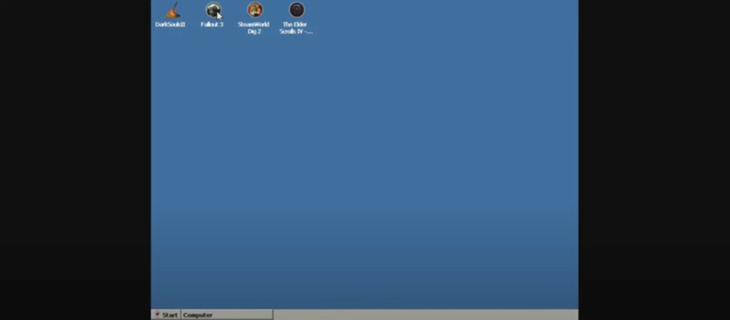
Winlator helps when you want to open Windows software or play classic PC games on a phone or tablet without a computer nearby. It creates a Windows-like environment so you can launch desktop titles and adjust settings to match your hardware. As a result, you can keep your library in one place and tailor how each title behaves. If you need a flexible way to test different settings until a game feels right, Winlator APK offers that control in a mobile-friendly workflow.Winlator featuresRun Windows apps and gamesWinlator uses Wine along with Box86 or Box64 to translate Windows calls and CPU instructions for Android. This approach lets many Windows programs start on mobile hardware. Actual performance and compatibility vary by device and settings, so results can differ between titles. Popular PC games can run, but expect to tune options per game for smooth play.Container profiles per gameYou can create a separate container for each title. Winlator saves presets and shortcuts inside each container so settings stay organized. You can also map a Windows drive letter to your games folder to keep files easy to find. This structure keeps one game’s tweaks from affecting another and makes it simple to return to a known working setup.Graphics backends and DirectX wrappersChoose Turnip or VirGL as the graphics backend based on what works best on your device.Use DXVK for games that rely on DirectX 9 to DirectX 11.Pick VKD3D for titles that require DirectX 12 features.Select D8VK for games built on DirectX 8.Try CNC DDraw for older titles that use DirectDraw.If a game shows a black screen or artifacts, switch the backend or wrapper and test again. Small changes here often resolve visual issues.Control options and mappingWinlator supports an editable on screen gamepad, full keyboard and mouse input, and external controllers. You can customize button layouts and sensitivity to match each title. For external pads, map buttons to actions and save that map with a shortcut. You can then toggle layouts per game so controls feel consistent every time you launch.Performance tools and setup helpersYou can adjust resolution, pick an emulated GPU or driver, select a DirectX wrapper, and set CPU core usage. The built in FPS counter helps you gauge changes while you tinker. A DirectX test cube is available to validate that your graphics choices are working. On first run, Winlator extracts required files, and it may prompt you to install Wine Mono and Gecko for better app compatibility.Graphics guide for WinlatorChoosing the right graphics path is often the key to stable play. Start with Turnip as the backend if your device supports it. If a game crashes on launch or shows a blank screen, switch to VirGL and test again. For most games that use DirectX 9 to DirectX 11, try DXVK first and confirm with the DirectX test cube. If a newer game needs DirectX 12 features, move to VKD3D. For older titles on DirectX 8, pick D8VK, and for classic DirectDraw games, select CNC DDraw. These choices can be changed per container so you can keep working setups saved.Controls setup tips in WinlatorPlan controls before you dive into a demanding title. Start with the on screen layout and edit button size and position for comfort, then save that layout to the game’s shortcut. If you use an external controller, bind each button or trigger to the actions the game expects and test in a menu first. For pointer heavy titles, switch to keyboard and mouse mode for precise input. You can keep multiple layouts and toggle them per shortcut when a title needs a different scheme.First run and troubleshooting checklistBefore you download Winlator and start configuring games, review these quick checks to save time during setup.Expect a short extraction process on the first launch and let it complete.Install Wine Mono and Gecko if prompted so apps that depend on them can load.Enable the FPS counter while you tune settings to see real time impact.Run the DirectX test cube after changing a wrapper or backend to confirm stability.If you notice stutter, reduce resolution or try a different wrapper. For a black screen, switch between Turnip and VirGL. If input fails, rebind controls or use keyboard and mouse mode.How to use Winlator on AndroidTo begin, set up one game at a time and confirm each step before moving on. For a quick start, create a clean container, launch the test tool, then add your game and fine tune. If you plan to share tips, note the exact backend and wrapper so others using Winlator APK can replicate your results.Install and open Winlator, then wait for the initial extraction to complete without interruption.When the prompt appears, install Wine Mono and Gecko to improve app compatibility inside the Windows layer.Create a new container for your game and, if needed, map a Windows drive letter to your games folder so the installer can find files.Pick a graphics backend, choose the appropriate DirectX wrapper for the title, set resolution, and enable the FPS counter. Run the DirectX test cube to confirm your choices.Map your controls, save a shortcut, and launch the game. If you see stutter, lower the resolution or switch wrappers. If visuals fail, try the other backend. Rebind controls or switch input mode if the game does not respond as expected.Get started with WinlatorWinlator brings Windows apps and PC games to Android with container profiles, graphics options, and flexible controls. For the most consistent results, tune each title and save its working setup, then return to refine as needed. To stay current, look for the Winlator latest version when you plan an update.
Nhiều hơn

1. Tải trình cài đặt MEmu và hoàn tất cài đặt

2. Khởi động MEmu, sau đó mở Google Play trên trang chủ

3. Tìm kiếm Winlator trong Google Play
Install
4. Tải và Cài Đặt Winlator
5. Khi cài đặt hoàn tất, nhấp vào biểu tượng để bắt đầu

6. Tận hưởng chơi Winlator trên PC với MEmu
MEmu App Player là trình mô phỏng Android miễn phí tốt nhất và 50 triệu người đã tận hưởng trải nghiệm chơi trò chơi tuyệt vời trên Android của mình. Công nghệ ảo hóa MEmu trao quyền cho bạn để chơi hàng ngàn trò chơi Android mượt mà trên PC của bạn, ngay cả những trò chơi chuyên sâu nhất.
Màn hình lớn hơn cùng với đồ hoạ tốt hơn; thời lượng dài, không giới hạn về pin hoặc dữ liệu di động
Hỗ trợ đầy đủ Keymapping cho việc kiểm soát chính xác bàn phím và chuột hoặc gamepad
Nhiều tài khoản trò chơi hoặc tác vụ cùng lúc trên một PC với Quản lý Đa năng
Play Winlator on PC by following steps: