GameGlee: Cloud Gaming
Aktualisiert
Aktuelle Version
1.0.121
Angeboten von

Machen Sie sich keine Sorgen mehr über überhöhte Gebühren, wenn Sie GameGlee: Cloud Gaming auf Ihrem Mobiltelefon verwenden, befreien Sie sich von dem winzigen Bildschirm und genießen Sie die Nutzung der App auf einem viel größeren Display. Von nun an können Sie Ihre App mit Tastatur und Maus im Vollbildmodus nutzen. MEmu bietet Ihnen all die überraschenden Funktionen, die Sie erwartet haben: schnelle Installation und einfache Einrichtung, intuitive Steuerung, keine Einschränkungen mehr durch Batterie, mobile Daten und störende Anrufe. Der brandneue MEmu 9 ist die beste Wahl für die Nutzung von GameGlee: Cloud Gaming auf Ihrem Computer. Mit unserer Absorption kodiert, ermöglicht der Multi-Instanz-Manager die Eröffnung von 2 oder mehr Konten zur gleichen Zeit. Und das Wichtigste, unsere exklusive Emulations-Engine kann das volle Potenzial Ihres PCs freisetzen und alles reibungslos und angenehm gestalten.
Mehr anzeigen
Genieße GameGlee: Cloud Gaming auf deinem PC mit MEmu Play in einer fantastischen Version. Dieser leistungsstarke, kostenlose Android-Emulator bietet dir Zugriff auf Tausende von Android-Apps für deinen Desktop. Bleib mit Freunden in Kontakt und arbeite effizienter! Find your next game with GameGlee.
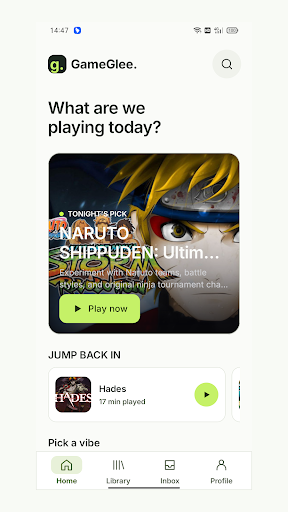
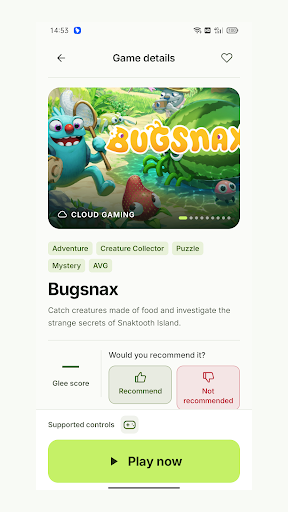
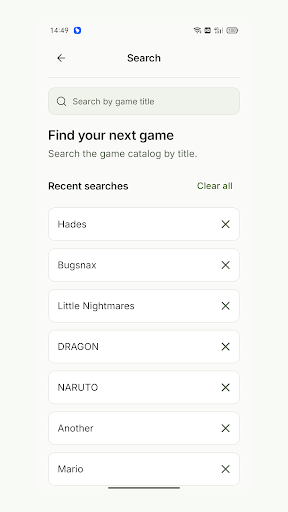
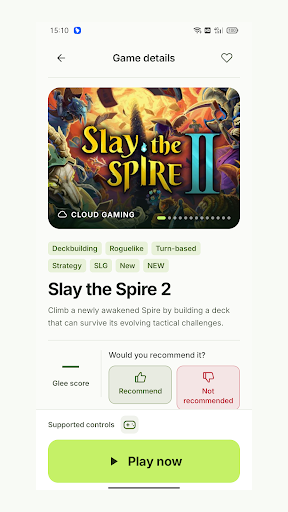
Find your next game with GameGlee. Explore the catalog, discover something that fits your mood, and stream supported games from the cloud to your Android phone.
DISCOVER YOUR NEXT ADVENTURE
Browse games by category, search for a title, and explore game details before you play.
PLAY FROM THE CLOUD
Launch supported games through a cloud session. Use the on-screen controls available for each game, and adjust supported streaming and control settings.
KEEP YOUR GAMES CLOSE
Save favorites, revisit your play history, and manage cloud saves where supported. Read player reviews and share your own experience through the community features.
MAKE IT YOURS
Choose a light or dark theme and use GameGlee in one of 11 interface languages. Continue as a guest or link a Google account where available.
A stable internet connection is required for cloud play. Game availability, queue times, play-time allowances, controls and save support depend on the game and service availability. Streaming quality depends on your connection and device.
OPTIONAL MEMBERSHIPS
Free features remain available. Choose Basic for the Basic game library or Premium for additional Premium-marked games. One-time 7-day and 30-day passes do not renew automatically. Monthly and yearly subscriptions renew automatically until cancelled in Google Play. Prices and billing terms are shown before purchase. Manage or cancel subscriptions in Google Play.
Support: support@wild-bug.com
Membership terms: https://wild-bug.com/terms/en#membership
Privacy policy: https://wild-bug.com/privacy/en
Mehr anzeigen

1. Laden das MEmu-Installationsprogramm herunter und beenden die Installation

2. MEmu starten und Google Play auf der Homepage öffnen

3. Suchen GameGlee: Cloud Gaming in Google Play
Install
4. Herunterladen und Installieren GameGlee: Cloud Gaming
5. Klicken nach Abschluss der Installation auf das Symbol, um es zu starten

6. Verwenden Sie MEmu, um GameGlee: Cloud Gaming auf Ihrem PC zu nutzen
MEmu Play ist aktuell der beste kostenlose Android-Emulator und bietet 50 Millionen Nutzern ein überragendes Android-App-Erlebnis. Dank der Virtualisierungstechnologie von MEmu können Sie Tausende von Android-Apps problemlos auf Ihrem Computer nutzen, selbst solche mit hohen Grafikanforderungen.
BGrößeres Bild mit besserer Grafik; Keine unterbrechungen, keine sorgen um Akku
Komplette Tastenbelegung unterstützt mit Maus und Tastatur oder Controller
Mit dem „Multi-Instance-Manager“ können Sie mehrere Spielkonten oder Spiele gleichzeitig auf einem PC ausführen.
Use GameGlee: Cloud Gaming on PC by following steps: