Assistive Touch Button
Actualizada
Versión actual
1.8.2
Ofrecida por

Deje de preocuparse por los recargos cuando use Assistive Touch Button en su teléfono celular, libérese de la pequeña pantalla y disfrute usando la aplicación en una pantalla mucho más grande. A partir de ahora, obtenga una experiencia de pantalla completa de su aplicación con teclado y mouse. MEmu le ofrece todas las características sorprendentes que esperaba: instalación rápida y configuración fácil, controles intuitivos, no más limitaciones de batería, datos móviles y llamadas molestas. El nuevo MEmu 9 es la mejor opción para usar Assistive Touch Button en su computadora. Codificado con nuestra absorción, el administrador de instancias múltiples hace posible abrir 2 o más cuentas al mismo tiempo. Y lo más importante, nuestro exclusivo motor de emulación puede liberar todo el potencial de su PC, hacer que todo sea fluido y agradable.
Más detalles
Disfruta de una experiencia increíble usando Assistive Touch Button en tu PC con MEmu Play. Es un potente emulador de Android gratuito que te ofrece miles de aplicaciones de Android en su versión de escritorio. ¡Conéctate con tus amigos y optimiza tu trabajo! Assistive Touch Button - Your Ultimate Floating Assistant for Android.
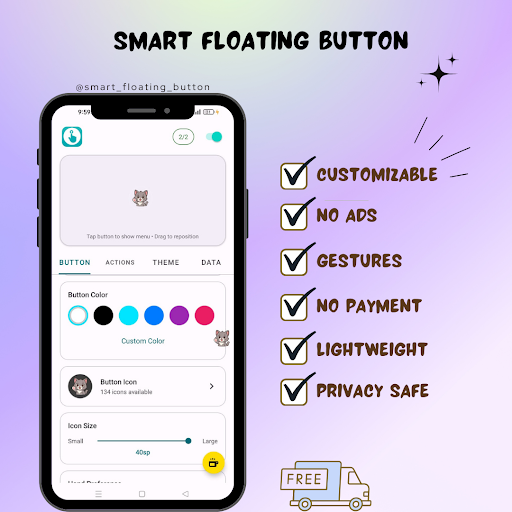
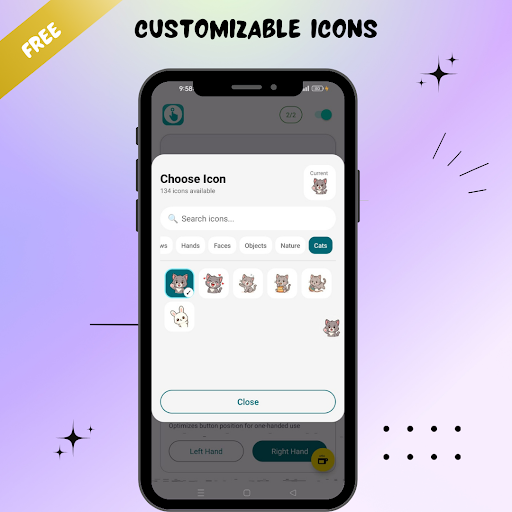
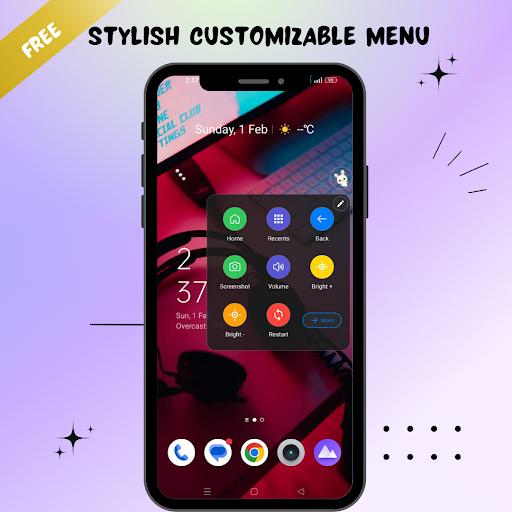
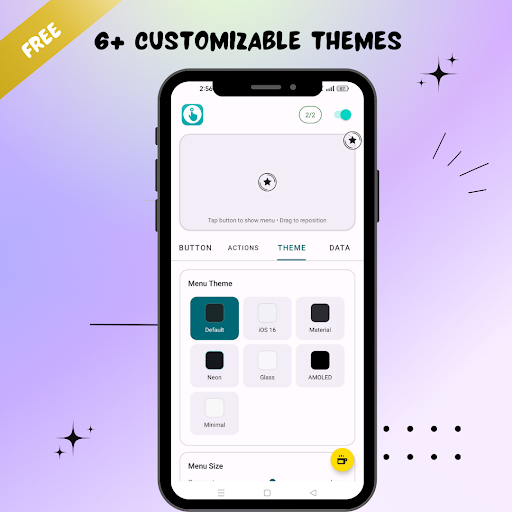
Assistive Touch Button - Your Ultimate Floating Assistant for Android
Transform how you use your phone with a powerful floating touch button that brings 50+ actions to your fingertips. No more stretching to reach the top of your screen!
FLOATING ASSISTIVE TOUCH BUTTON
• Always-on-top floating button works in any app
• Fully customizable size, color, opacity & position
• 192+ icon options to personalize your button
• Lock position to prevent accidental moves
• Left-hand & right-hand mode support
50+ POWERFUL QUICK ACTIONS
• Volume controls (up, down, slider)
• Flashlight toggle - instant torch access
• Screenshot - capture screen instantly
• Screen recorder - record your screen
• Lock screen with one tap
• Power menu access
• Brightness control
• Auto-rotate toggle
NAVIGATION BUTTONS
• Home button - go home instantly
• Back button - easy back navigation
• Recent apps - switch apps quickly
• Split screen mode
• Notification panel access
• Quick settings panel
CONNECTIVITY TOGGLES
• WiFi on/off toggle
• Bluetooth toggle
• Airplane mode
• Mobile data toggle
• Location services
• NFC toggle
6 GESTURE CONTROLS
Assign any action to gestures:
• Single tap - open menu
• Double tap - flashlight, screenshot or any action
• Long press - customize your action
• Swipe up/down - volume control
• Swipe left/right - your choice
7 BEAUTIFUL MENU LAYOUTS
• Grid 2x3 - classic layout
• Grid 3x3 - more actions visible
• Circular - radial menu design
• Ring - elegant ring layout
• Arc - one-hand friendly arc menu
• List - vertical scrolling menu
• Panel - dashboard style
7 STUNNING THEMES
• iOS Dark - elegant dark mode
• iOS 16 Light - clean Apple-style
• Material You - Google's modern design
• Neon Glow - cyberpunk style with glow effects
• Glass - frosted glass morphism
• AMOLED Dark - pure black for battery saving
• Minimal - clean & simple
CUSTOM GROUPS
Organize your actions into custom categories:
• Create unlimited groups
• Custom icons & colors for each group
• Pre-built groups: Navigation, System, Tools, Connectivity, Media
APP SHORTCUTS
• Add any app to your floating menu
• Quick launch your favorite apps
• Unlimited app shortcuts supported
ACCESSIBILITY FEATURES
• Perfect for one-handed use
• Helps users with mobility limitations
• Large button option for easy tapping
• Works as virtual navigation buttons
• Ideal assistive touch replacement for Android
26 LANGUAGES SUPPORTED
English, Hindi, Spanish, Portuguese, Arabic, Chinese, Japanese, Korean, German, French, Italian, Russian, Turkish, Thai, Vietnamese, Indonesian, Filipino, Bengali, Tamil, Urdu, Malay, Polish, Romanian & more!
BACKUP & RESTORE
• Export all your settings
• Restore on new device
• Never lose your customization
WHY CHOOSE THIS ASSISTIVE TOUCH APP?
No ads interrupting your experience
Lightweight & battery efficient
Works on Android 6.0 and above
Regular updates with new features
Privacy focused - all data stored locally
Perfect as an assistive touch alternative, a floating action button overlay, a button mapper for custom gestures, or a one-handed navigation tool. Whether you need quick access to volume controls, flashlight, screenshot, or app shortcuts — this floating button has you covered.
Download now and take full control of your Android device with the most customizable assistive touch and floating button app available.
Más detalles

1. Descargar el instalador de MEmu y finalice la instalación

2. Iniciar MEmu y abrir Google Play en la página de inicio

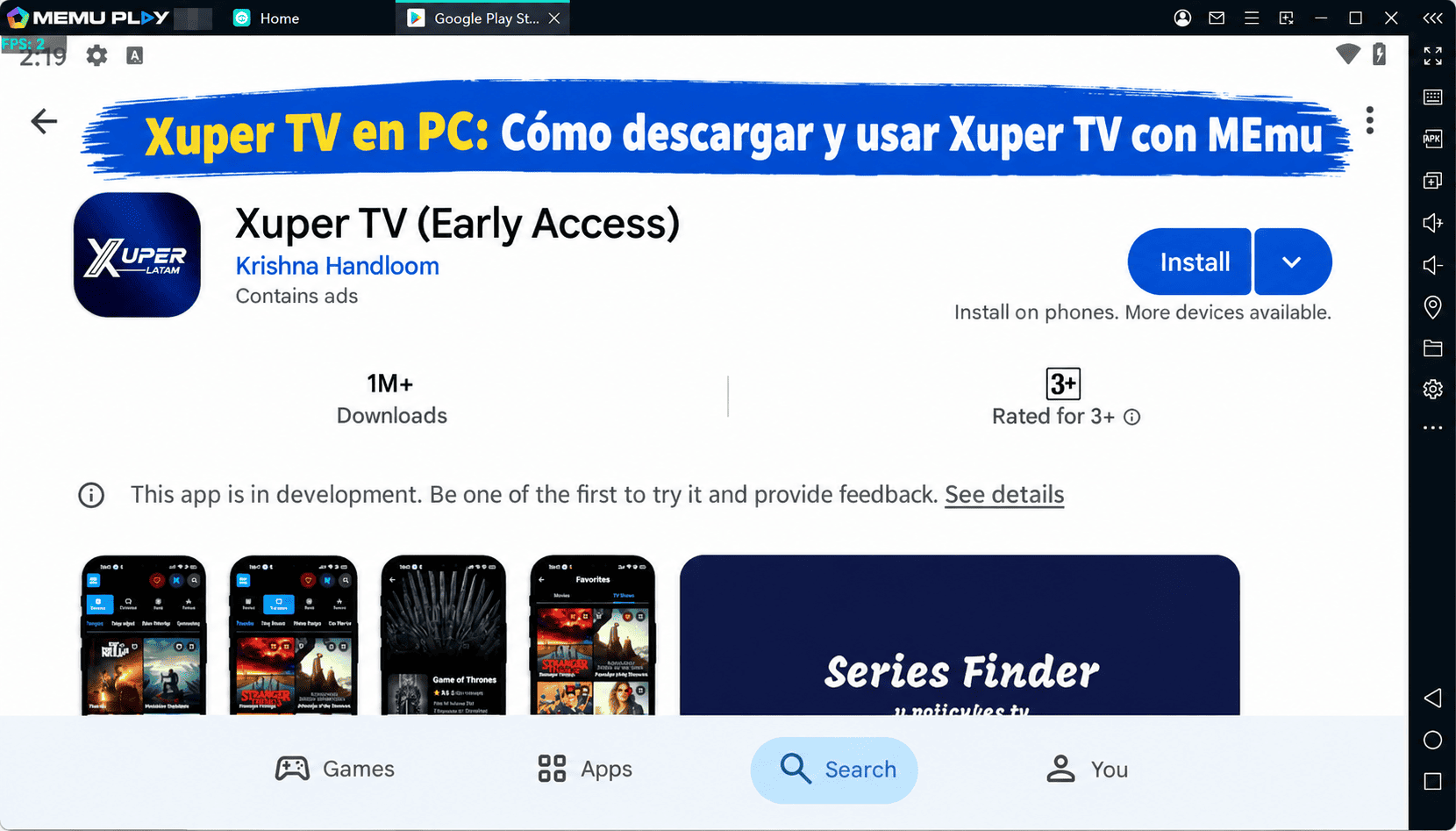
3. Buscar Assistive Touch Button en Google Play
Install
4. Descargar y instalar Assistive Touch Button
5. Hacer click al icono para iniciar

6. Experiencia Assistive Touch Button en PC con MEmu
MEmu App Player es el mejor emulador de Android gratuito y 50 millones de personas ya están disfrutando su magnífica experiencia de aplicación en Android. La tecnología de virtualización de MEmu te permite jugar a miles de aplicaciones Android suavemente en tu PC, incluso los más intensivos gráficamente.
Pantalla más grande con mejores gráficos; Larga duración, sin limitación de batería o datos móviles.
Soporte completo de keymapping para un control preciso del teclado y el mouse o gamepad.
Múltiples cuentas de juegos o tareas en una sola PC a la vez con el administrador de instancias múltiples.
Use Assistive Touch Button on PC by following steps: