TV Cast: Anycast in smart view
Updated
Current Version
5.0.2
Offered By

Stop worrying about high battery drain when using TV Cast: Anycast in smart view on your phone. Free yourself from the tiny screen and enjoy the app on a much larger display. From now on, get a full-screen experience of your app with the convenience of a keyboard and mouse. MEmu offers you all the surprising features you’d expect: quick installation and easy setup, intuitive controls, and no more worries about battery life, mobile data, or unexpected calls. The all-new MEmu 9 is the choice for using TV Cast: Anycast in smart view on your computer. With the MEmu multi-instance manager, you can run two or more accounts at the same time. Most importantly, our exclusive emulation engine unlocks your PC’s full potential, delivering smooth and enjoyable performance.
Show more
Enjoy superb experience of using TV Cast: Anycast in smart view on PC with MEMU App Player. It's a powerful free Android emulator which provides you with thousands of android apps for their desktop version. Enjoy connecting with friends and polishing your work with higher efficiency! Want to chromecast or screencast your phone's movie/game/video/picture on your big screen TV in smart view via DLNA?
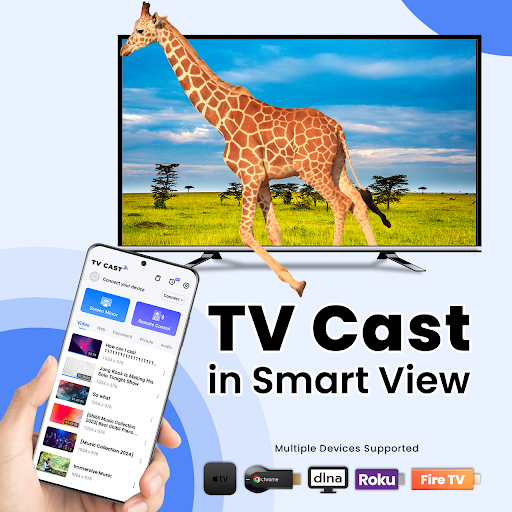
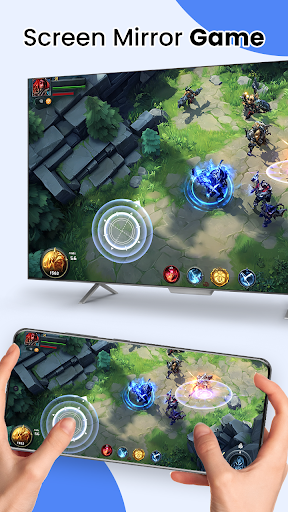
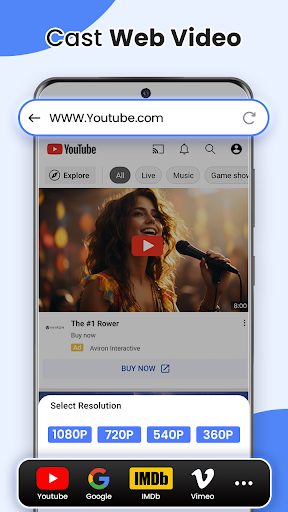
Want to chromecast or screencast your phone's movie/game/video/picture on your big screen TV in smart view via DLNA? Screen share them on a large screen to make them look more amazing?
EasyCast has all functions that fulfills your wishes. TV Cast video, photo, game, music and movie to your TV in wireless display!
Anycast Feature:
• Automatically search nearby TVs to cast screen via DLNA
• Scans local & SD cards files: music, audio, video, photo, PPT/slides
•Chromecast/Miracast/Screencast/Anycast/All share Cast/TV Cast/Airplay for all media
• Low latency with wireless display
• Multiple video playback modes
• TV Remote control function
How to screen share my phone to TV in smart view?
1. Turn off VPN and make sure your phone and TV are connected to the same Wi-Fi network
2. Launch the app and it will search for available devices nearby, then select the device to cast screen
4. Select local file to tv cast in samsung smart view
5. Start to enjoy the big screen viewing experience with stayconnect devices.
Built-in DLNA device/player/smart TV supported:
-Microsoft Xbox One
-Amazon Fire TV & Fire Stick
-Miracast for android to tv
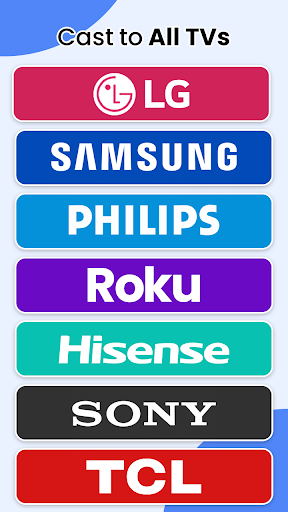
: Roku, smart TV Samsung, Vizio,
screen share LG smart tv, Hisense, Sony, Panasonic, Sharp, Toshiba, Philips, Insignia,Videocon Dth, Philco, Aoc, Jvc, Haier, Westinghouse, Daewoo, Sansui, Sanyo, Akai, Polaroid, Mi TV, Huawei TV etc.
-Other DLNA TV equipment
Disclaimer:
*Make sure your tv is DLNA certified before using
*This app is not an official TV brand product and is not affiliated with any of the above brands.
*Please know the differences of the screen mirroring, samsung dex and miracast. TV Casting does not display exactly what's on your screen the way screen mirroring does. You can close the app and do other phone actions without interrupting the casting.
Show more

1. Download MEmu installer and finish the setup

2. Start MEmu then open Google Play on the desktop

3. Search TV Cast: Anycast in smart view in Google Play
Install
4. Download and Install TV Cast: Anycast in smart view
5. On install completion click the icon to start

6. Enjoy using TV Cast: Anycast in smart view on PC with MEmu
MEmu Play is the best Android emulator, and 100 million users already enjoy its superb Android app experience. Powered by advanced virtualization technology, it lets you enjoy thousands of Android apps smoothly on your PC—including the most graphics-intensive ones.
Bigger screen with better graphics; Long duration, without limitation of battery or mobile data.
Full Keymapping support for precise control of keyboard and mouse or gamepad.
Multiple game accounts or tasks on single PC at one time with Multi-Instance manager.
Use TV Cast: Anycast in smart view on PC by following steps: