How to switch MEmu Play to Hyper-V mode
 |
|
To enable Hyper-V on Windows 11:
- Navigate to the Control Panel. Select Start, then search for Control Panel to open the application.
- Select Programs, then Programs and Features.
- Select Turn Windows Features on or off.
- Select Hyper-V and then select OK.
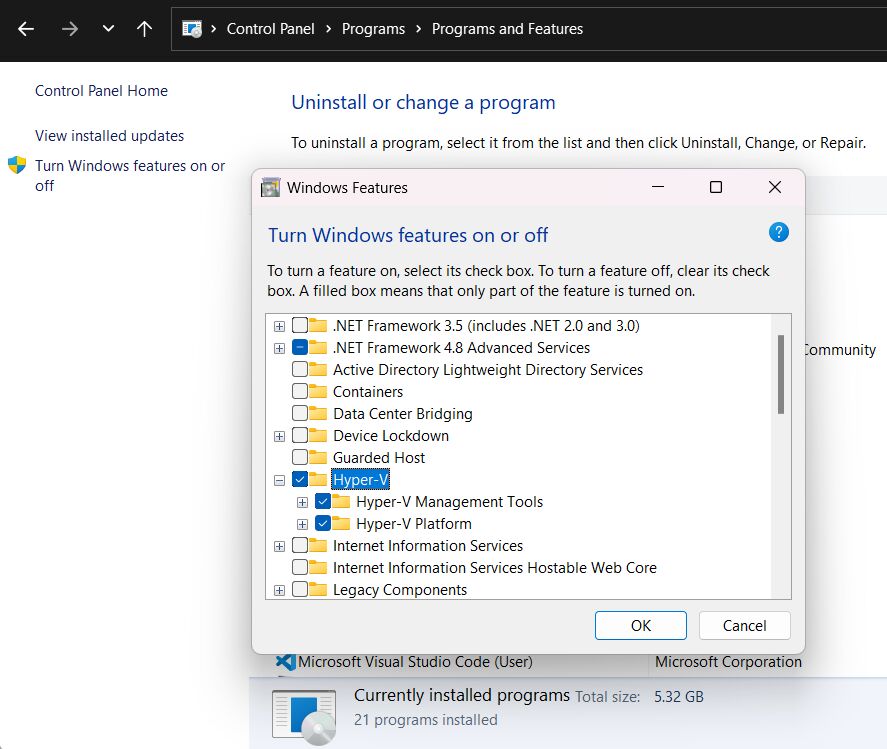
When the installation completes, you're prompted to restart your computer.
To enable Hyper-V on Windows 10:
- Select Start, then search for and select Settings.
- Select Apps & features. Then select Programs and Features
- Select Turn Windows features on or off.
- Select Hyper-V and then select OK.
- To complete the installation, restart your computer.
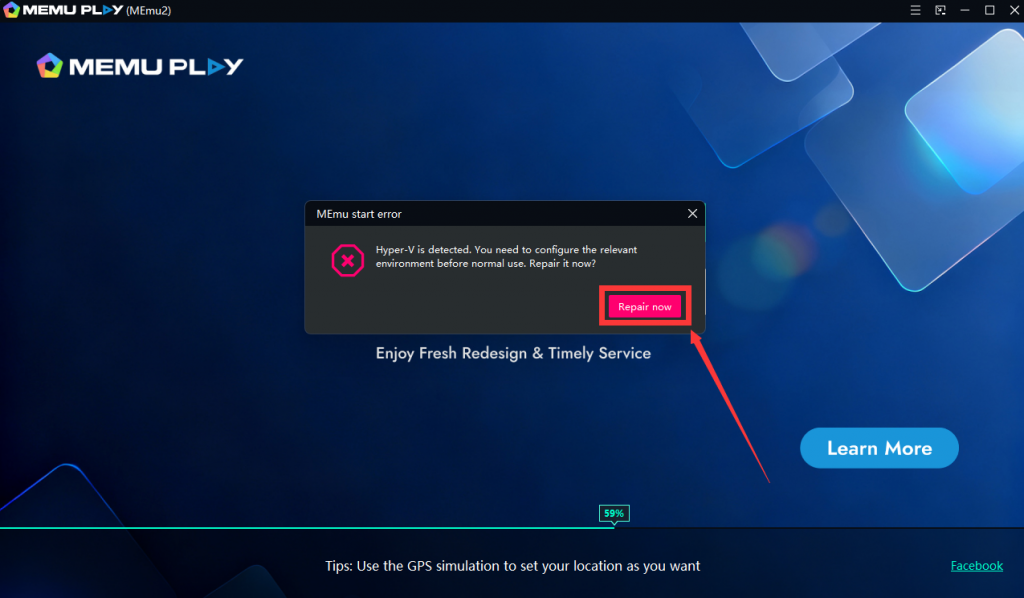
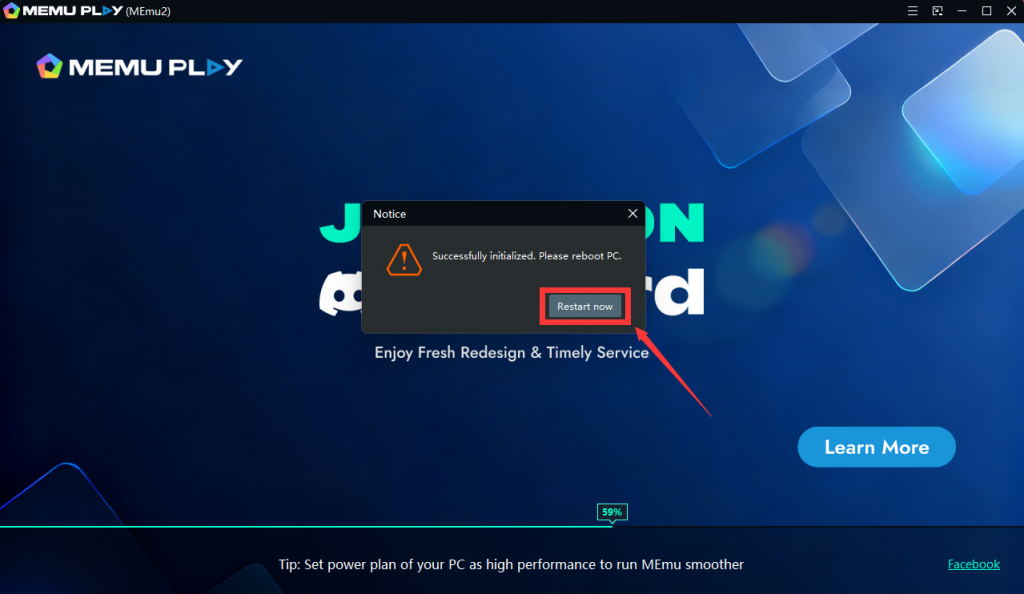
Enabling Hyper-V mode can resolve the BSOD (Blue Screen of Death) caused by the HPVR0.r0 error.