How to Fix Graphics Rendering Issues
 |
|
How to Fix Graphics Rendering Issues
Graphics rendering problems in Android emulators usually show as black screens, texture glitches, lag, or distorted visuals. These are typically caused by GPU drivers, rendering mode settings, or system conflicts.
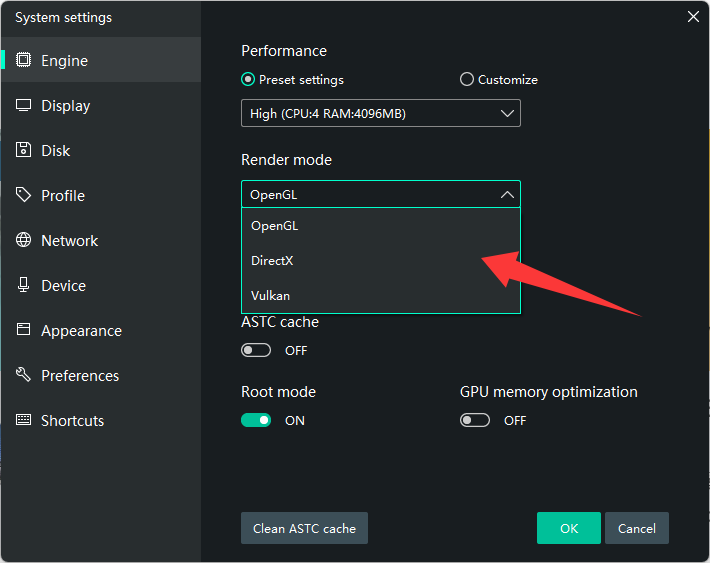
1. Switch Rendering Mode (Most Effective Fix)
Open MEmu → Settings → Engine:
- Try DirectX (best compatibility on Windows)
- Try OpenGL (better performance on some GPUs)
- Try Vulkan (modern GPUs, best performance if stable)
👉 Restart the emulator after switching
2. Update GPU Drivers
Outdated drivers often break rendering:
- NVIDIA → GeForce Experience
- AMD → AMD Software: Adrenalin Edition
- Intel → Intel Driver & Support Assistant
3. Force Dedicated GPU (Laptop Users)
- Open Windows Settings → System → Display → Graphics
- Add MEmu
- Set to High Performance
4. Disable Conflicting Virtualization
Turn off:
- Hyper-V
- Virtual Machine Platform
- Memory Integrity (Core Isolation)
👉 These often force software rendering instead of GPU rendering
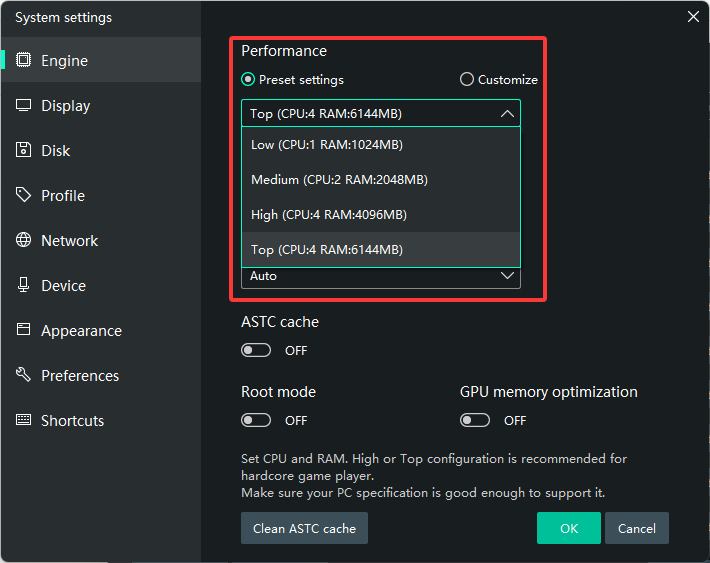
5. Adjust Emulator Performance Settings
In MEmu settings:
- Lower resolution (e.g., 1280×720)
- Reduce DPI (160–240)
- Adjust FPS limit
- Toggle ASTC texture decoding
6. Update or Reinstall Emulator
If issues persist:
- Update MEmu
- Or reinstall cleanly
7. Check GPU Health
- Use dxdiag to confirm GPU is detected
- Ensure system is not using fallback “Microsoft Basic Render Driver”
Common Symptoms & Fixes
- Black screen → Switch DirectX / OpenGL / Vulkan
- Textures missing or glitching → Update GPU drivers
- Lag or stutter → Enable dedicated GPU + reduce resolution
- Crash on load → Disable Hyper-V
Quick Recommended Setup
- DirectX mode
- Latest GPU drivers
- Hyper-V disabled
- High-performance GPU enabled