How to Fix Black Screen on Emulator
 |
|
How to Fix Black Screen on Emulator
A black screen in Android emulators is usually caused by graphics settings, drivers, or virtualization conflicts. Here’s how to fix it:
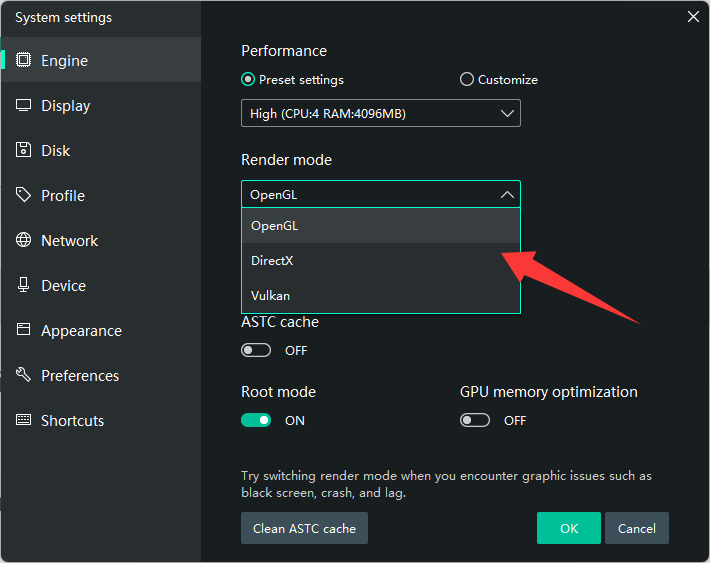
1. Switch Graphics Rendering Mode
Go to emulator Settings → Engine:
- Try DirectX (best compatibility)
- Try OpenGL (better on some GPUs)
- Try Vulkan
👉 Apply changes and restart the emulator
2. Update GPU Drivers
Outdated drivers are a common cause:
- NVIDIA → GeForce Experience
- AMD → AMD Software: Adrenalin Edition
- Intel → Intel Driver & Support Assistant
3. Disable Hyper-V
Conflicts with Hyper-V can cause black screens:
- Turn off Hyper-V, Virtual Machine Platform, Windows Hypervisor Platform
- Restart your PC
4. Force Dedicated GPU (Laptops)
- Open Windows Graphics Settings
- Set emulator (e.g., MEmu) to High Performance
5. Adjust Resolution & DPI
- Lower resolution (e.g., 1280×720)
- Set DPI to 160–240
👉 Reduces GPU load and fixes rendering issues
6. Restart ADB / Emulator
- Fully close emulator
- Restart or reboot the instance
7. Reinstall Emulator
If the issue persists:
- Uninstall and reinstall MEmu
Common Fixes by Scenario
- Black screen on launch → Switch DirectX / OpenGL/ Vulkan
- Black screen in games only → Update GPU driver
- Black screen after update → Reinstall emulator
- Black screen with sound → GPU/rendering issue
Quick Fix (Recommended)
- DirectX mode + latest GPU drivers + Hyper-V disabled