MEmu
English
  • 简体中文
  • 新马简中
  • 繁體中文
  • Español
  • Português
  • Italiano
  • Français
  • Deutsch
  • Pусский
  • Indonesia
  • Tiếng Việt
  • Melayu
  • ภาษาไทย
  • 日本語
  • 한국어
  • हिन्दी
  • العَرَبِيَّة
  • Türkçe
  • Polski
  • Čeština
  • Ελληνικά
  • Українська
  • বাংলা
  • اردو‎
  • Nederlands
Support Business
Blog
  • App Reviews
  • Game Reviews
  • Game Guides
  • Game News
  • MEmu Latest
  • Release Notes
Game Center
  • Strategy
  • Role Playing
  • Action
  • Adventure
  • Racing
  • Casual
  • Card
  • Arcade
  • Sports
  • Simulation
  • Puzzle
  • Music
  • Word
  • Board
  • Casino
  • Trivia
  • Educational
  • Pre-registration
  • category_
  • category_null
  • Game Center
  • Blog
  • Business
  • Support
MENU
  • Home
  • App Reviews
  • Game Reviews
  • Game News
  • Game Guides
  • Redeem Codes
  • MEmu Latest
  • Release Notes
Skip to content
  • Home
  • App Reviews
  • Game Reviews
  • Game News
  • Game Guides
  • Redeem Codes
  • MEmu Latest
  • Release Notes
Download
SQUARE ENIX Brings the Heat: Dragon Quest Smash/Grow Hits Mobile with High-Speed Roguelite Gameplay.
How to Fix Graphics Rendering Issues
How to Fix Emulator Not Detecting GPU
How to Fix Black Screen on Emulator
How to Fix MEmu Not Compatible with Your Device Fix

Tag: lang-en

auto chess strategies
Game Guides   

Auto Chess strategies: what should be done in different stages

2020-07-07

SEE MORE

Recent Posts

  • SQUARE ENIX Brings the Heat: Dragon Quest Smash/Grow Hits Mobile with High-Speed Roguelite Gameplay.

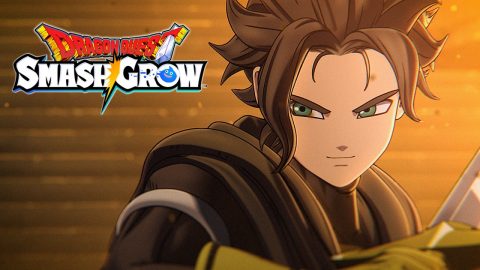
    SQUARE ENIX’s latest mobile journey has arrived! After a successful closed beta and a massive pre-registration period this March, the roguelite RPG Dragon Quest Smash/Grow is now officially live on both Android and iOS. Download it today! Contents Dragon Quest Smash/Grow comes with co-op gameplay and multiple challenge modes <memubtn game_id=342689&ext=20260421></memubtn> Dragon Quest Smash/Grow comes with co-op gameplay and multiple challenge modes Talking the gameplay side of things, Smash/Grow focuses on fast-paced combat mixed with roguelite mechanics. You’ll be smashing through waves of enemies and using signature Dragon Quest moves like Coup de Grâce attacks, while adapting your build through random “Blessings” that change every run. Dragon Quest Smash/Grow gameplay (Image via SQUARE ENIX) If you’re familiar with the series, you’ll notice plenty of returning enemies like slimes and drackies, along with a new mechanical sidekick named Roly, who travels with you throughout the journey. He is voiced by Toshio Furukawa, known for the voice behind Piccolo in the Dragon Ball franchise and Myst in Dragon Quest: The Adventure of Dai. As an additional feature, there’s a vocations system that lets you build your party with different classes and upgrade them over time. Alongside the main story, the game includes co-op quests for up to four players, plus extra challenges like boss fights and gauntlet-style modes. Celebrating its 40th anniversary this year, the Dragon Quest series itself has been around for decades and remains one of Square Enix’s biggest RPG franchises. On mobile, it has seen a mix of releases over the years, with recent titles like Dragon Quest Tact, Dragon Quest X Offline, and Dragon Quest Monsters. For those checking it out, you can download Dragon Quest Smash/Grow from the Google Play Store on MEmu. Note that you will also receive 10 Premium Transmuter Vouchers to kickstart your adventure.

  • How to Fix Graphics Rendering Issues

    How to Fix Graphics Rendering Issues Graphics rendering problems in Android emulators usually show as black screens, texture glitches, lag, or distorted visuals. These are typically caused by GPU drivers, rendering mode settings, or system conflicts. 1. Switch Rendering Mode (Most Effective Fix) Open MEmu → Settings → Engine: Try DirectX (best compatibility on Windows) Try OpenGL (better performance on some GPUs) Try Vulkan (modern GPUs, best performance if stable) 👉 Restart the emulator after switching 2. Update GPU Drivers Outdated drivers often break rendering: NVIDIA → GeForce Experience AMD → AMD Software: Adrenalin Edition Intel → Intel Driver & Support Assistant 3. Force Dedicated GPU (Laptop Users) Open Windows Settings → System → Display → Graphics Add MEmu Set to High Performance 4. Disable Conflicting Virtualization Turn off: Hyper-V Virtual Machine Platform Memory Integrity (Core Isolation) 👉 These often force software rendering instead of GPU rendering 5. Adjust Emulator Performance Settings In MEmu settings: Lower resolution (e.g., 1280×720) Reduce DPI (160–240) Adjust FPS limit Toggle ASTC texture decoding 6. Update or Reinstall Emulator If issues persist: Update MEmu Or reinstall cleanly 7. Check GPU Health Use dxdiag to confirm GPU is detected Ensure system is not using fallback “Microsoft Basic Render Driver” Common Symptoms & Fixes Black screen → Switch DirectX / OpenGL / Vulkan Textures missing or glitching → Update GPU drivers Lag or stutter → Enable dedicated GPU + reduce resolution Crash on load → Disable Hyper-V Quick Recommended Setup DirectX mode Latest GPU drivers Hyper-V disabled High-performance GPU enabled

  • How to Fix Emulator Not Detecting GPU

    How to Fix “Emulator Not Detecting GPU” If an Android emulator like MEmu is not detecting your GPU, it usually means a driver issue, virtualization conflict, or the emulator is falling back to software rendering. 1. Update GPU Drivers (Most Important) Outdated or broken drivers are the main cause: NVIDIA → GeForce Experience AMD → AMD Software: Adrenalin Edition Intel → Intel Driver & Support Assistant 👉 Restart PC after updating https://www.memuplay.com/blog/how-to-update-graphic-driver.html 2. Check Rendering Mode in Emulator Open MEmu → Settings → Engine: Try DirectX Try OpenGL Try Vulkan (if supported — often fastest when stable) 👉 If one mode fails, switch to another and restart 3. Force Dedicated GPU (Laptop Users) Open Windows Settings → System → Display → Graphics Add MEmu Set to High Performance GPU 4. Disable Conflicting Virtualization Turn off Hyper-V Disable Virtual Machine Platform Disable Memory Integrity (Core Isolation) 👉 These can force software rendering instead of GPU usage 5. Clean Reinstall GPU Driver (Advanced Fix) If GPU is still not detected: Use Display Driver Uninstaller Reinstall latest driver cleanly 6. Check GPU Recognition in Windows Press Win + R → dxdiag Check if GPU is listed under Display tab👉 If missing, it's a driver or hardware issue 7. Update Emulator Version Older builds of MEmu may not support newer GPUs or Vulkan properly. MEmu - The Best Android Emulator for PC - Free Download Common Causes Missing or corrupted GPU drivers Emulator stuck in software rendering mode Hyper-V enabled Laptop using integrated GPU instead of dedicated GPU Quick Fix Summary Update GPU driver Switch rendering mode (DirectX / OpenGL / Vulkan) Disable Hyper-V Force high-performance GPU

  • How to Fix Black Screen on Emulator

    How to Fix Black Screen on Emulator A black screen in Android emulators is usually caused by graphics settings, drivers, or virtualization conflicts. Here’s how to fix it: 1. Switch Graphics Rendering Mode Go to emulator Settings → Engine: Try DirectX (best compatibility) Try OpenGL (better on some GPUs) Try Vulkan 👉 Apply changes and restart the emulator 2. Update GPU Drivers Outdated drivers are a common cause: NVIDIA → GeForce Experience AMD → AMD Software: Adrenalin Edition Intel → Intel Driver & Support Assistant 3. Disable Hyper-V Conflicts with Hyper-V can cause black screens: Turn off Hyper-V, Virtual Machine Platform, Windows Hypervisor Platform Restart your PC 4. Force Dedicated GPU (Laptops) Open Windows Graphics Settings Set emulator (e.g., MEmu) to High Performance 5. Adjust Resolution & DPI Lower resolution (e.g., 1280×720) Set DPI to 160–240👉 Reduces GPU load and fixes rendering issues 6. Restart ADB / Emulator Fully close emulator Restart or reboot the instance 7. Reinstall Emulator If the issue persists: Uninstall and reinstall MEmu Common Fixes by Scenario Black screen on launch → Switch DirectX / OpenGL/ Vulkan Black screen in games only → Update GPU driver Black screen after update → Reinstall emulator Black screen with sound → GPU/rendering issue Quick Fix (Recommended) DirectX mode + latest GPU drivers + Hyper-V disabled

  • How to Fix MEmu Not Compatible with Your Device Fix

    How to Fix “MEmu Not Compatible with Your Device” If MEmu shows “Your device isn’t compatible with this version” in Google Play, it’s usually due to device profile, Android version, or Play Store filtering. Here are the effective fixes: 1. Change Device Model (Most Effective) Open MEmu → Settings → General Find Device Model Switch to a popular model (e.g., Samsung / Pixel) Save and restart MEmu 2. Create a New Android Instance Some apps require a newer Android version: Open Multi-MEmu Create a new instance (Android 7 / 9 / 12 if available) Install the app again 3. Clear Google Play Store Data Open Settings → Apps → Google Play Store Tap Storage → Clear Data & Cache Restart MEmu and reopen Play Store 4. Install APK Manually If Play Store blocks installation: Download APK from trusted sources Drag and drop into MEmu to install 5. Update Google Services Make sure: Google Play Services is up to date Google Play Store is updated 6. Check CPU Architecture (x86 / ARM) Some apps require specific architecture: Try enabling ARM compatibility (if available) Or use a different instance type 7. Enable Root Mode (Optional) Some apps check device status: Enable Root Mode in settings Restart emulator Common Causes App not supported on emulator profiles Android version too low/high Play Store device filtering Missing hardware features (GPS, sensors, etc.) Quick Fix (Recommended) Change device model + use newer Android instance + clear Play Store data

  • How to Fix MEmu Blue Screen Error

    How to Fix MEmu Blue Screen Error (BSOD) A blue screen while running MEmu is usually caused by virtualization conflicts, driver issues, or system misconfiguration. Here’s how to fix it: 1. Disable Hyper-V (Most Common Cause) Conflicts with Hyper-V often trigger BSOD: Press Win + R → type optionalfeatures Uncheck: Hyper-V Windows Hypervisor Platform Virtual Machine Platform Restart your PC Or run (Admin CMD): bcdedit /set hypervisorlaunchtype off 2. Turn Off Memory Integrity Open Windows Security Go to Device Security → Core Isolation Disable Memory Integrity Restart 3. Update or Reinstall GPU Drivers Faulty graphics drivers can crash the system: Update via GeForce Experience Or AMD Software: Adrenalin Edition Intel users → Intel Driver & Support Assistant If needed, clean reinstall using Display Driver Uninstaller https://www.memuplay.com/blog/how-to-update-graphic-driver.html 4. Check CPU Virtualization (VT) Ensure VT-x / AMD-V is enabled in BIOS Without it, MEmu may crash or fail to start 5. Change Graphics Rendering Mode In MEmu Settings → Engine: Switch between DirectX,Vulkan and OpenGL DirectX is usually more stable 6. Update MEmu Version Older versions may cause system crashes: Install the latest version of MEmu 7. Reduce Resource Allocation Over-allocation can trigger instability: CPU: 2–4 cores RAM: 2–4 GB (adjust based on system) 8. Check for Conflicting Software These may cause BSOD: Virtual machines (VMware, VirtualBox) Android subsystems Some antivirus programs Common BSOD Causes SYSTEM_SERVICE_EXCEPTION → driver conflict IRQL_NOT_LESS_OR_EQUAL → memory/driver issue HYPERVISOR_ERROR → Hyper-V conflict Quick Fix (Recommended Setup) Disable Hyper-V Enable VT in BIOS Update GPU drivers Use DirectX mode

  • How to Fix GPU Driver Problems on Emulator

    How to Fix GPU Driver Problems on Emulator GPU driver issues can cause black screens, crashes, or low FPS in emulators. Here’s how to fix them effectively: 1. Update Your GPU Drivers (Most Important) Outdated or corrupted drivers are the #1 cause. NVIDIA → update via GeForce Experience AMD → use AMD Software: Adrenalin Edition Intel → use Intel Driver & Support Assistant 👉 Always install the latest stable version, not beta. https://www.memuplay.com/blog/how-to-update-graphic-driver.html 2. Clean Install GPU Drivers If updating doesn’t help: Uninstall current drivers Use Display Driver Uninstaller to remove leftovers Reinstall the latest driver 3. Switch Graphics Rendering Mode In emulator settings (Engine / Display): Try DirectX (best compatibility) Try OpenGL (sometimes better performance) Try Vulkan (may be unstable) 4. Force Dedicated GPU (Laptops) For dual-GPU systems: Open Windows Graphics Settings Add emulator (e.g., MEmu) Set to High Performance GPU 5. Disable Conflicting Features Turn off Hyper-V Disable Memory Integrity (Core Isolation) Close overlays (Discord, Xbox Game Bar, etc.) 6. Adjust Emulator Settings Lower resolution (e.g., 1280×720) Reduce DPI (160–240) Limit FPS if overheating Enable/disable ASTC decoding 7. Check GPU Compatibility Older GPUs may not fully support: OpenGL 4.x Vulkan 👉 In this case, use DirectX mode or update hardware. Common Fixes by Symptom Black screen → Switch OpenGL ↔ DirectX Crash on launch → Reinstall drivers + disable Hyper-V Low FPS → Update drivers + use dedicated GPU Glitches / artifacts → Toggle ASTC / change resolution Quick Best Setup Latest GPU driver DirectX rendering mode Hyper-V disabled Dedicated GPU enabled

  • How to Fix OpenGL / DirectX/ Vulkan Issues on MEmu

    Fix OpenGL / DirectX / Vulkan Issues on MEmu If MEmu shows black screens, graphical glitches, or crashes, the issue is usually related to GPU drivers or the selected rendering mode (OpenGL / DirectX / Vulkan). Here’s how to fix it: 1. Switch Graphics Rendering Mode Open MEmu → Settings → Engine: Try DirectX mode (best compatibility) Try OpenGL mode (better performance on some GPUs) Vulkan may be unstable on some systems 👉 Apply changes and restart the emulator after switching 2. Update Graphics Drivers Outdated drivers are the most common cause: For NVIDIA GPUs → update via GeForce Experience For AMD GPUs → use AMD Software: Adrenalin Edition For Intel GPUs → update via Intel Driver & Support Assistant https://www.memuplay.com/blog/how-to-update-graphic-driver.html 3. Force High-Performance GPU On laptops with dual GPUs: Open Windows Graphics Settings Add MEmu Set to High Performance 4. Disable Conflicting Features Disable Hyper-V Turn off Memory Integrity (Core Isolation) Close overlay apps (Discord, Xbox Game Bar, etc.) 5. Adjust Resolution & DPI Lower resolution (e.g., 1280×720) Set DPI to 160–240 Helps reduce GPU load and fix rendering bugs 6. Enable / Disable ASTC & Rendering Cache In MEmu Engine settings: Toggle ASTC texture decoding Try enabling/disabling Render Cache 7. Reinstall or Reset Graphics Components If issues persist: Clean reinstall GPU drivers (use DDU if needed) Reinstall MEmu Common Symptoms & Fixes Black screen → Switch OpenGL ↔ DirectX Lag / low FPS → Update drivers + disable Hyper-V Texture glitches → Toggle ASTC / change DPI Crash on launch → Check GPU compatibility Quick Recommendation Use DirectX mode + latest drivers + Hyper-V disabled for most stable experience

  • MEmu Compatibility with Windows 11

    MEmu Compatibility with Windows 11 MEmu is fully compatible with Windows 11, but there are important limitations and requirements you need to understand for stable performance. ✅ Compatibility Overview MEmu runs on Windows 11 without major issues on supported hardware Requires hardware virtualization (VT-x / AMD-V) enabled in BIOS Works best on systems with 4GB+ RAM and SSD storage ⚠️ Key Issue: Hyper-V Conflict The biggest compatibility problem on Windows 11 is with Hyper-V: Windows 11 enables virtualization-related features by default These features conflict with MEmu’s virtualization engine Result: Emulator won’t start Performance drops significantly Errors like “Hyper-V detected” 👉 Official guidance recommends disabling Hyper-V and related features for best performance 🔄 Workarounds You have two options: Option 1: Disable Hyper-V (Best Performance) Turn off: Hyper-V Virtual Machine Platform Windows Hypervisor Platform Restart system ✔ Recommended for gaming and multi-instance use Option 2: Use Hyper-V Mode (Limited Support) Some versions of MEmu provide a Hyper-V compatible mode Pros: Works alongside Docker / WSA Cons: Lower FPS and stability https://www.memuplay.com/blog/how-to-enable-virtualization-technology-vt-on-pc.html 💡 Windows 11 Notes Hyper-V is only fully supported on Pro / Enterprise / Education editions Even if disabled in UI, background virtualization (VBS, Memory Integrity) may still cause conflicts You may need to disable Core Isolation as well ✅ Best Setup for MEmu on Windows 11 Disable Hyper-V and related features Enable VT in BIOS Use DirectX mode for better stability Allocate 4–8 GB RAM + 4 CPU cores Install on SSD Conclusion ✔ Compatible: Yes ⚠️ Fully stable: Only when Hyper-V is disabled 🔧 With Hyper-V enabled: Possible, but not ideal

  • How to Fix Hyper-V Conflict with MEmu

    How to Fix Hyper-V Conflict with MEmu If MEmu doesn’t run properly, it’s usually caused by a conflict with Hyper-V. Here are the standard fixes: Disable Hyper-V (Recommended) Press Win + R, type optionalfeatures, and press Enter Uncheck: Hyper-V Windows Hypervisor Platform Virtual Machine Platform Click OK and restart your PC Disable via Command Line Run Command Prompt as Administrator: bcdedit /set hypervisorlaunchtype off Restart your PC. Turn Off Memory Integrity Open Windows Security Go to Device Security → Core Isolation Turn off Memory Integrity Restart your PC Use Hyper-V Mode (If Needed) Some versions of MEmu support running with Hyper-V enabled: Open MEmu settings Enable Hyper-V mode (performance may be lower) Note Disabling Hyper-V may affect tools like Docker Desktop or Windows Subsystem for Android.

  • COD Mobile S4: Eternal Prison is Live! Rebirth Island returns alongside Mythic DP27 and the Godzilla x Kong event!

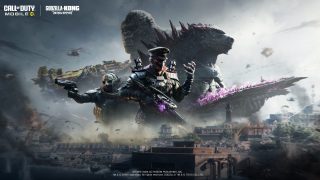
    COD Mobile has entered April 2026 with a brand new season, with Season 4 titled Eternal Prison. The season takes things to a larger scale with the arrival of Rebirth Island across both Battle Royale and DMZ: Recon. With the collaboration being part of it with Godzilla and Kong, Season 4 also brings a brand-new Battle Pass, the DP27 LMG, the Toxic Overload Battle Royale class, and multiple seasonal events packed with rewards. Here’s everything you need to know about the latest season, going live on April 22, 2026. Contents COD Mobile Season 4 DMZ: Recon Updates COD Mobile Season 4 Battle Royale: Rebirth Island COD Mobile Season 4 2026 Eternal Prison: Key Highlights and Seasonal Events COD Mobile Season 4 2026: Battle Pass and Challenge Pass Store Update: New Mythic Weapon, Godzilla x Kong <memubtn game_id=20215&ext=shouchou></memubtn> COD Mobile Season 4 DMZ: Recon Updates Rebirth Island arrives in DMZ Rebirth Island officially joins DMZ: Recon, bringing a fresh extraction experience set inside the iconic prison complex. The map comes with improved visuals, updated points of interest, and environmental upgrades across DMZ and Battle Royale. High danger zones and prison access The prison area acts as a high-risk zone where the most intense fights take place. Unlike Battle Royale, you must manually activate switches to open the prison gates. Once triggered, a countdown begins, followed by a short window where all gates open before entering cooldown again. COD Mobile Season 4 2026 DMZ Recon updates (Image via Activision) New extraction system and boss fight Extraction on Rebirth Island now requires activating dual terminals to initiate the sequence. The first extraction in a match triggers a boss encounter featuring Nikto, who defends the rooftop with a Riot Shield and aerial support, whereas the extractions return to standard helicopter escapes. Additional features and hazards A submarine circles the island, capable of launching missiles at players caught in its range, adding another layer of danger during matches. A radiation zone also spreads across the map as the match progresses, so you will have to run toward the prison center to be saved. The mode also introduces Ultimate-tier loot based on rare elements, along with a new crafting system that allows you to combine materials into powerful gear for future runs. COD Mobile Season 4 Battle Royale: Rebirth Island Rebirth Island also arrives in Battle Royale with updated visuals and several gameplay improvements. Respawn limits have been removed, so you can redeploy as long as your squad survives, keeping matches active for longer. COD Mobile Season 4 2026 Rebirth Island (Image via Activision) New features such as UAV Towers, Contracts, and Buy Stations expand strategic options, while Killstreaks like Bomb Drones and Precision Airstrikes can now be purchased mid-match. Matches now end with a victory exfil animation, giving squads a cinematic finish to their wins. COD Mobile Season 4 2026 Eternal Prison: Key Highlights and Seasonal Events Operation Rebirth This event is here to explore Rebirth Island across both DMZ and Battle Royale by completing tasks that reveal sections of the map. As progress is made, you earn rewards ranging from Secret Caches to larger unlocks like a Charly Operator variant and the Axe — Canvassed melee weapon. Godzilla x Kong event Season 4 brings a major Monsterverse collaboration featuring themed rewards inspired by Godzilla, Kong, and Shimo. You can complete missions to earn Hollow Earth energy, which is used in a special mini-game tied to additional rewards. Items include the ASM10 — Frost Bite blueprint, Grinch — Rimebound Operator Skin, and the Legendary Purifier — Shimo’s Might. COD Mobile Season 4 2026 Godzilla Kong event (Image via Activision) Cache Frenzy returns Cache Frenzy makes a comeback. With this, you can earn plenty of Secret Caches by completing tasks. These can be used to unlock items like the Legendary PP19 Bizon — Mayan Malediction and other previously released rewards. Additional events throughout the season offer more cosmetics and blueprints, including themed rewards tied to seasonal celebrations like Mother’s Day. COD Mobile Season 4 2026: Battle Pass and Challenge Pass The Eternal Prison Battle Pass features a mix of modern, sci-fi, and themed content across free and premium tiers. Battle Pass Free Tiers The DP27 LMG headlines the free rewards, offering high damage and a large magazine suited for sustained fire. You can also earn additional skins, blueprints, and Vault Coins through progression. Premium Pass Tiers Premium rewards include kaiju hunter-inspired Operator Skins such as Surf Warrior — Kaiju Recon, Syd — Game Warden, Polina — High Bitrate, and Vanguard — Deepwater Elite. Weapon Blueprints like Type 19 — Scavenged, SVD — Specimen Tracker, PDW57 — Wrought Cargo, and DP27 — Gilded Huntsman expand the lineup, built around the season’s theme. COD Mobile Season 4 2026 Battle Pass (Image via Activision) Ground Forces subscribers receive the Wolf — Gravedigger Operator Skin, R9-0 — Volcanic Waking blueprint, and Backpack — Volcanic Waking, along with standard XP bonuses and discounts. Season 4 Seasonal Store The Seasonal Store ties into the Challenge Pass; all you need to do is do missions to earn tokens and exchange them for rewards. One of the highlights for this season is the Toxic Overload Battle Royale class, which allows you to control areas by spreading radiation that slows and damages enemies. Additional rewards include weapon blueprints like the AGR 556 — Orbital Station and other seasonal cosmetics. Store Update: New Mythic Weapon, Godzilla x Kong Season 4 introduces the Mythic DP27 — Necrotic Reliquary, arriving alongside the Wicht Warden Operator in a themed draw. The Godzilla and Kong draws bring Operator Skins inspired by both Titans, including Cassius with a Godzilla-themed armor and Cosmic Silverback — B.E.A.S.T., inspired by Kong. Additional Store content includes more themed cosmetics, while three older Battle Passes join the Vault: In Deep Water, Radical Raid, and Fool’s Gold.


  • Arknights Announces 'Retracing Our Steps' as Part of 2026 Thank-You Celebration

    Yostar Limited. has kicked off a Thank-You Celebration for their beloved RPG, Arknights, introducing the limited-time event, Retracing Our Steps. Now live until May 5, 2026, this event brings a variety of new Operators, multiple stages, rewards, and more. Contents Arknights Retracing Our Steps Event Overview New Operators join the roster of Arknights Arknights Retracing Our Steps: Special Login Event Arknights: New outfits and returning cosmetics <memubtn game_id=41020&ext=20260417></memubtn> Arknights Retracing Our Steps Event Overview So, the Retracing Our Steps event is divided into three main stages, each offering its own challenges and progression. Here are the three stages: Pilgrimage through Blizzards. Road of Reformation. Heart of Karlan. Arknights Retracing Our Steps Event Calendar (Image via Yostar Limited.) And by clearing the stages, you can collect special Multi-functional Snow Detectors and then exchange them for rewards at the Observatory Support Division. The rewards are: 6-star Operator Astgenne the Lightchaser’s Token. Headhunting Permits. Icefield Messenger Series outfit for Cardigan. 0011 Productions Series outfit for Jessica. Besides this, there is also the Karlan Trade R&D, where you can clear event stages through rebuilding regions. By doing so, you’ll earn various rewards like materials and more. New Operators join the roster of Arknights This update also introduces several Operators across diverse roles and they’re as follows: 1. Arknights 6-star Operator: SilverAsh the Reignfrost [Limited] SilverAsh the Reignfrost in Arknights (Image via Yostar Limited.) SilverAsh the Reignfrost is a strategist that focuses on supporting allies even before deployment in the Deployment Waiting Zone. You can add an Eye of the Blizzard to the zone with the Open Game talent to rearrange undeployed Operators, while Snow Realm Trailblazer lets you boost Kjerag Operators with Frozen immunity, defense, and healing effects. With his trait, you can also block 2 enemies. 2. Arknights 6-star Operator: Pramanix the Prerita Pramanix the Prerita in Arknights (Image via Yostar Limited.) Next up is Pramanix the Prerita, a Caster that controls the battlefield with snow-based abilities. Unending Snows talent allows snowfall on tiles at intervals within your attack range to deal Arts damage while reducing the movement speed of ground units. While your traits don’t let you attack normally, you instead get enhanced DEF and RES with your attack, doing AoE damage if the skill is active. 3. Arknights 6-star Operator: Astgenne the Lightchaser Astgenne the Lightchaser in Arknights (Image via Yostar Limited.) Astgenne the Lightchaser is also a Caster that can link enemies together so they share damage. With her trait, you can do Arts damage and slow targets. And thanks to her Data Modeling talent, your attack speed is increased when you’re inflicting Slow effects, while Energy Source Analysis talent lets you apply Fragile effects to enemies within attack range. You also get two 5-Star Operators besides these 6-Star ones. 1. Arknights 5-star Operator: Hadiya Hadiya in Arknights (Image via Yostar Limited.) Hadiya is a Guard that can use DP to increase her combat abilities, while also gaining ATK bonuses and stunning enemies with her Child of the Wilds talent. And with the help of Equipment Alteration, you get additional effects for selecting deployed Operators under certain conditions. 2. Arknights 5-star Operator: Snow Hunter Snow Hunter in Arknights (Image via Yostar Limited.) Lastly, Snow Hunter is an ammo-based Sniper who deals increased damage and can summon Rift Cloudbeast on skill activation to hit enemies and apply cold effects with the Cloud-Rifting Shot talent. With her trait, you reload ammo when not attacking. Arknights Retracing Our Steps: Special Login Event This Arknights celebration also includes a limited-time login event through which you earn useful rewards just by consistently logging in daily. Now live until April 28, you can get the following rewards: Arknights Exclusive Outfit for Estelle (Image via Yostar Limited.) 10 free pulls via the special Traces of Melted Snow Headhunting Permit. Exclusive Outfit for Estelle and Exclusive Furniture ‘Statue in Storm’. Emergency Sanity Concentrate, Orundum, and Elite Materials. Now, you can use the free pulls on the Limited Headhunting [A Shared Oath of Guardianship]. And for the exclusive rewards like the outfits and elite materials, you just need to log in for 10 days straight. Arknights: New outfits and returning cosmetics Lastly, The Outfit Store also got an update with new and returning outfits. First of all, here are the new ones from the EPOQUE Collection and Test Collection: Glorious Path Outfit for Vina Victoria (Image via Yostar Limited.) Glorious Path for Vina Victoria. Condolence for Civilight Eterna. Unruly Humbleness for Lappland the Decadenza. Ritual of Immortality for Ho’olheyak. And alongside these, you can also get the following fan-favorites: Test Collection Supernova for Wiš’adel, Ambience Synesthesia Tailor-Provided – Golden Reverie for Muelsyse. Allmind As One for Executor the Ex Foedere. EPOQUE Collection Il Segreto Della Notte for Texas the Omertosa.

  • MONGIL: STAR DIVE Beginner Guide

    MONGIL: STAR DIVE is a 3D Action RPG developed by Netmarble, often referred to by fans as a spiritual successor to Touch Monster (Touch Monster 2). Built with Unreal Engine 5, the game features a Tag Team combat system where you control a party of 3 characters and can swap between them in real-time to execute combos. Adorable monster companions'll also accompany you throughout your journey in a vibrant fantasy world. ContentsCore Combat & Gacha MetaBeginner Banners Explained (Crucial for Rerolling)Currency & Pull Income (F2P & Day 1)Monthly Subscription (Dawn Oath) – Buy & Cancel TrickPaid 5★ Selector Box (Not Free)Priority: Push Main Story ASAPIncreasing Max Stamina (Action Points)Monster Fusion – Get High-Star Monsters EarlyWhat to Do After Dailies? Core Combat & Gacha Meta MONGIL is a character-driven gacha game where new banners rotate approximately every 3 weeks. Endgame content often requires you to exploit Elemental Weaknesses and execute specific team combos within strict time limits. Having a diverse roster is essential to adapt to different boss mechanics. Example (Launch Patch – April 15, 2026): Featured Banner: "Esde" (Wind Element). Meta Context: Esde excels in the current Story Event and specific boss encounters. Early Game Synergy Tip: Jiwon (5★ available from the Beginner Banner) is a top-tier support choice for Esde. Ultimate Skill: Reduces enemy Wind Resistance. Passive Skill: Increases Wind DMG based on stacks. Role: Does not overlap with Esde's DPS role and can equip Artifact effects (Support/Heal) to further boost the team. Beginner Banners Explained (Crucial for Rerolling) New players have access to two limited-time beginner banners before the Standard Banner unlocks. You are guaranteed at least two 5★ characters from these banners. Banner 1: New Journey (20 Pulls) Cost: 8 "Promise Compass" per pull (20% discount). Mechanism: Pulls 1–19 have a 1% chance for a random 5★ (from a pool of 6). Guarantee: The 20th pull guarantees a random 5★ from the pool. Important: This banner disappears after 20 pulls and is replaced by Banner 2. Banner 2: New Bond (50 Pulls) Cost: 10 "Promise Compass" per pull. Mechanism: You select a target 5★ from the remaining pool. Rate: 1% chance to pull the selected character in pulls 1–49. Guarantee: The 50th pull guarantees the selected 5★. Flexibility: If you pull the target early (within the first 40 pulls), you can change the target without resetting pity. Reroll Strategy If you want two specific 5★ characters to start: Pull on Banner 1 (20 pulls) . If you do not get your desired character, Reset Account/Reroll immediately. Once satisfied with Banner 1, proceed to Banner 2 to select the other desired character. Currency & Pull Income (F2P & Day 1) As a Day 1 player, you will receive 20 Standard Tickets from pre-registration rewards to use on Banner 1. The game is generous with one-time clear rewards. Sources of Free "Promise Compass" (Standard Tickets) & Gems: Daily Missions Adventure Rank Level Up (50 Gems per level) Side Quests (Look for ! icons on NPCs) Exchange Shops (e.g., Salt currency from pulling duplicates) Puzzles (Rewards Fate Compass for Limited Banners + Gems) First Clear Rewards (Dungeons & Challenges) Monster Guidebook (Capture/Fusion Research points) Achievements Limited Time Events Estimated Day 1 Income (Author's Test): Standard Pulls: 100+ Limited Pulls/Gems: 80+ Note: Most of this is one-time income. To sustain long-term pulling, the Monthly Subscription is highly recommended. Monthly Subscription (Dawn Oath) – Buy & Cancel Trick Recommendation: Purchase the "Dawn Oath" Monthly Subscription for steady gem income. Pro Tip: After purchasing, you can immediately cancel the auto-renewal via the subscription management page. You will still retain all benefits for the full 30 days. Bonus: Don't forget to visit the Membership Shop daily/weekly to buy out discounted Gold and materials (Resets at 07:00 AM server time). Paid 5★ Selector Box (Not Free) A 5★ Character Selector (from the Standard Banner pool) is available for purchase. Location: Garden of Records > Lena's Starter Support. Requirement: Purchase all 10 packages in the set. Approx. Cost: ~$35 USD + 525 Paid Gems (Can use subscription gems). Priority: Push Main Story ASAP The level cap of farming dungeons is locked behind Main Story progress. Strategy: Push the Main Story as far as your current power allows before spending Stamina Keys on resource stages. This ensures you unlock the highest difficulty tiers, maximizing the value of your daily Stamina. Increasing Max Stamina (Action Points) Stamina is used for Dodging and Special Actions in combat. How to Upgrade: Collect "Marks of Wisdom" from Puzzle rewards. Location: Exchange these marks with Verona (NPC Alchemist in town) for "Tome of Endless Wandering" . Monster Fusion – Get High-Star Monsters Early Monster capture yields random star ratings (1★ to 5★) based on Cat Level. Early Game Power Spike: Use the Fusion system to gamble low-star monsters into higher-star ones. Stats Tip: If you roll Purple or Gold sub-stats, Lock them immediately. Aim for specialized builds (e.g., Crit Rate + Crit DMG + Boss DMG). What to Do After Dailies? Once you've cleared Story, spent Keys, and finished Daily Missions: Revisit Old Maps: Farm materials for Crafting and Cooking. Monster Hunting: Capture monsters to increase Cat Level (Max Lv. 30 at launch).

  • Celebrate Two Years of Resonating! Wuthering Waves 2nd Anniversary Fest: Full Schedule & Event Guide

    Kuro Games announces Wuthering Waves‘ 2nd Anniversary Fest. It is set to deliver a wonderful experience for fans of Wuthering Waves and will take place this May in Japan. Following the game’s successful second year, the upcoming offline event is expected to bring together players from around the world for a special weekend filled with community activities and exclusive experiences. Contents Wuthering Waves 2nd Anniversary Fest Schedule and Location What to expect at the Wuthering Waves 2nd Anniversary Fest How to Participate in this Event Final Thoughts <memubtn game_id=115932&ext=shouchou></memubtn> Wuthering Waves 2nd Anniversary Fest Schedule and Location According to the official announcement, the Wuthering Waves 2nd Anniversary Fest will take place from May 30, 2026, to May 31, 2026. Wuthering Waves 2nd Anniversary Fest announcement (image via Kuro Games) This year’s Anniversary Fest will be held at Makuhari Messe, Chiba, Japan. Makuhari Messe is Japan’s second-largest convention venue and has hosted many large-scale gaming and anime events. What to expect at the Wuthering Waves 2nd Anniversary Fest While full details have not been revealed yet, based on previous anniversary fan gathering events, we can expect a variety of attractions such as: Live stage programs Developer talks Merchandise booths Art exhibitions Cosplay showcases Fan activities and mini-games Possible sneak peeks for future updates Commemorative gift pack Wuthering Waves 1st Anniversary Fest Cosplay Event (image via Kuro Games) Fans attending the 2nd Anniversary Fest can look forward to exclusive in-game rewards and upcoming character teasers. However, nothing beyond the date and venue has been officially confirmed yet How to Participate in this Event Kuro Games only reveals that to participate in this event, you have to purchase tickets, and further details will be announced on their social media accounts. But if we follow the previous year’s criteria for participating in this event, then you have to follow these rules: Attendees must be 18 years or older to participate. Proof of age may be requested during check-in. Each participant is allowed to purchase one ticket only. Final Thoughts The Wuthering Waves 2nd Anniversary Fest is shaping up to be one of the biggest moments in the Wuthering Waves game’s history. If you’re planning to attend in Japan, follow Wuthering Waves’ official social media accounts closely.

  • Mongil: Star Dive Codes April 2026 *Latest Codes*

    Netmarble’s action RPG Mongil: Star Dive launched globally on April 15, 2026, inviting players to explore the monster-filled continents of Verna and Belana alongside Cloud and Verna. As the sequel to a classic monster-taming series, the game blends fast-paced combat with a unique absorption mechanic—defeated creatures are shrunk into collectible “Monsterlings” via your feline companion, letting you build and command a powerful team. Contents All Active MONGIL: STAR DIVE Codes How to Redeem Mongil: Star Dive Codes How to Get More MONGIL: STAR DIVE Codes Why Aren't My Codes Working? Conclusion To give new tamers an early edge, launch-day redemption codes are now available, offering free Diamonds, rare Artifacts, and even instant Monsterling unlocks alongside other essential resources to help you tame the chaos of a collapsing ecosystem and unravel the mystery behind the “Wound of the World.” All Active MONGIL: STAR DIVE Codes Code Rewards MONGILDISCORD ・Starlight Crystal x30・Glimmering Stardust x3・Gold x300,000 LOVEMONGIL ・Overflowing Love (Artifact) DEVLIVE0410 ・Scar (Monsterling)・White Wolf Warrior (Monsterling)・Spark Slime (Monsterling) MONGILPRESENT ・Brown Cappy (Monsterling)・Spark Slime (Monsterling)・Forkmugger (Monsterling) DINDINISDINDIN ・Green Cappy (Monsterling)・Gold x10,000 MONGILREPORT ・White Wolf Warrior (Monsterling) How to Redeem Mongil: Star Dive Codes Complete the Prerequisite QuestYou must first finish the early main quest titled "Monster Tamers" to unlock the in-game Mail feature, where rewards are delivered. Open the main Menu (top-right icon) and tap Settings (gear icon). Navigate to the Other tab and scroll down to the Customer Support section. Tap Redemption Code, enter your code in the pop-up window, and select Use. Collect Your Rewards Open the in-game Mail (envelope icon in the menu). How to Get More MONGIL: STAR DIVE Codes New codes for Mongil: Star Dive are regularly shared across the official Discord server, the @Stardive_EN X feed, and Facebook announcements. Rather than scouring multiple platforms yourself, you can let us do the tracking. We monitor all official channels and update our code list continuously, so bookmarking this page ensures you never miss a free reward while you focus on exploring Verna and expanding your Monsterling collection. Why Aren't My Codes Working? If a redemption code fails, it is usually due to one of the following launch-week issues: Tutorial Incomplete: The mailbox and code menu only unlock after finishing the introductory "Monster Tamers" quest, where you learn capture mechanics. Typographical Errors: Codes are case-sensitive and must be entered exactly as shown. Ensure there are no leading or trailing spaces. One-Time Restriction: Each promotional code can only be redeemed once per account. Server Delay: High launch-day traffic may cause a brief lag before rewards appear in your mailbox. If items don't show up immediately, try closing and relaunching the game. Conclusion Embarking on your journey in Mongil: Star Dive is a grand-scale adventure, and having a steady supply of Diamonds and powerful Monsterlings is essential for conquering the early chapters. While the current batch of free codes gives you a strong head start with valuable resources and starter creatures, securing the rarest Star-tier Monsterlings and premium Artifacts will require continued dedication as you dive deeper into the world.

Top Games

  • Garena Free Fire PC

    Garena Free Fire

    Action · GARENA INTERNATIONAL I

  • PUBG MOBILE PC

    PUBG MOBILE

    Action · Level Infinite

  • Call of Duty Mobile PC

    Call of Duty Mobile

    Action · Activision Publishing, Inc.

  • Among Us PC

    Among Us

    Action · Innersloth LLC

  • Mobile Legends PC

    Mobile Legends

    Action · MOONTON

  • Brawl Stars PC

    Brawl Stars

    Action · Supercell

  • Clash of Clans PC

    Clash of Clans

    Strategy · Supercell

  • Clash Royale PC

    Clash Royale

    Strategy · Supercell

  • Lords Mobile PC

    Lords Mobile

    Strategy · IGG.COM

  • GTA 5 PC

    GTA 5

    Action · ImpulseGaming

  • SCHOOLBOY RUNAWAY - STEALTH PC

    SCHOOLBOY RUNAWAY - STEALTH

    Arcade · Linked Squad

  • Tekken 3 PC

    Tekken 3

    Action · BANDAI NAMCO Entertainment Inc.

  • Garena Free Fire Max PC

    Garena Free Fire Max

    Action · GARENA INTERNATIONAL I

  • Bus Simulator Indonesia PC

    Bus Simulator Indonesia

    Simulation · Maleo

  • Indian Bikes Driving 3D PC

    Indian Bikes Driving 3D

    Simulation · Rohit Gaming Studio

  • Love and Deepspace PC

    Love and Deepspace

    Simulation · InFold Pte. Ltd.

  • Hay Day PC

    Hay Day

    Casual · Supercell

  • Crafting and Building PC

    Crafting and Building

    Adventure · GeneRe

  • Car Parking Multiplayer PC

    Car Parking Multiplayer

    Simulation · olzhass

  • Magic Chess: Go Go PC

    Magic Chess: Go Go

    Strategy · Vizta Games

  • Supermarket Simulator PC

    Supermarket Simulator

    Simulation · KATIE LOUISE JEE

  • BATTLEGROUNDS MOBILE INDIA PC

    BATTLEGROUNDS MOBILE INDIA

    Action · KRAFTON, Inc.

  • Predictor Aviator PC

    Predictor Aviator

    Arcade · MobisMobis

  • Car For Sale Simulator 2023 PC

    Car For Sale Simulator 2023

    Simulation · Westeight Studio

MEmu

Play With The Best Android Emulator

MEmu
DOWNLOAD
MEmu

Follow us

  • Facebook
  • X
  • Youtube

Support & Contact

  • MEmu Support
  • Facebook Group
  • Discord
  • Email

Popular Games on PC

  • Garena Free Fire PC
  • PUBG MOBILE PC
  • Call of Duty Mobile PC
  • Among Us PC
  • Mobile Legends PC
  • Brawl Stars PC
  • Clash of Clans PC
  • Clash Royale PC
  • Lords Mobile PC
  • GTA 5 PC

Top Apps on PC

  • WhatsApp Messenger PC
  • Instagram PC
  • Facebook PC
  • WhatsApp Business PC
  • Facebook Lite PC
  • Snapchat PC
  • BIGO LIVE - Live Stream PC
  • Likee - Let You Shine PC
  • HAGO PC
  • MeetMe: Chat & Meet New People PC

More Games on PC

  • Game Center

About

  • About Us
  • Android Emulator
  • MEmu 9.0

Download

  • Download

Business

  • MEmu for Business

Copyright © 2026 Microvirt. All Rights Reserved.|Terms of Use|Privacy Policy|About Us