How to Fix OpenGL / DirectX/ Vulkan Issues on MEmu
 |
|
Fix OpenGL / DirectX / Vulkan Issues on MEmu
If MEmu shows black screens, graphical glitches, or crashes, the issue is usually related to GPU drivers or the selected rendering mode (OpenGL / DirectX / Vulkan). Here’s how to fix it:
1. Switch Graphics Rendering Mode
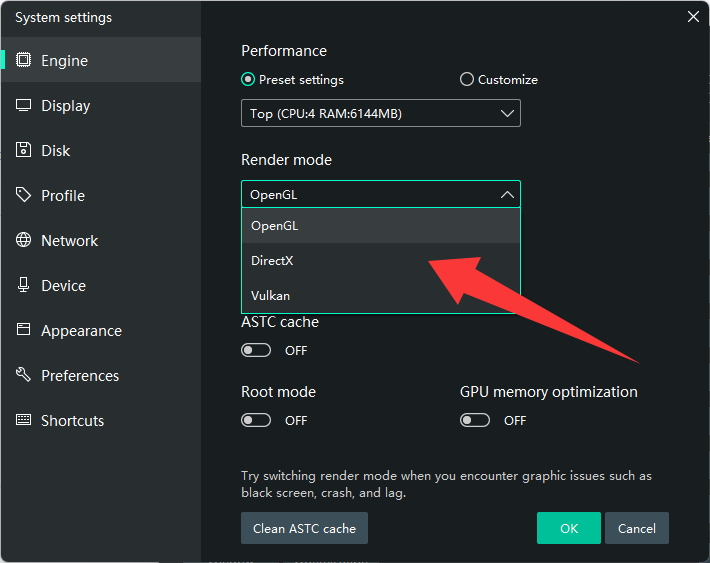
Open MEmu → Settings → Engine:
- Try DirectX mode (best compatibility)
- Try OpenGL mode (better performance on some GPUs)
- Vulkan may be unstable on some systems
👉 Apply changes and restart the emulator after switching
2. Update Graphics Drivers
Outdated drivers are the most common cause:
- For NVIDIA GPUs → update via GeForce Experience
- For AMD GPUs → use AMD Software: Adrenalin Edition
- For Intel GPUs → update via Intel Driver & Support Assistant
3. Force High-Performance GPU
On laptops with dual GPUs:
- Open Windows Graphics Settings
- Add MEmu
- Set to High Performance
4. Disable Conflicting Features
- Disable Hyper-V
- Turn off Memory Integrity (Core Isolation)
- Close overlay apps (Discord, Xbox Game Bar, etc.)
5. Adjust Resolution & DPI
- Lower resolution (e.g., 1280×720)
- Set DPI to 160–240
- Helps reduce GPU load and fix rendering bugs
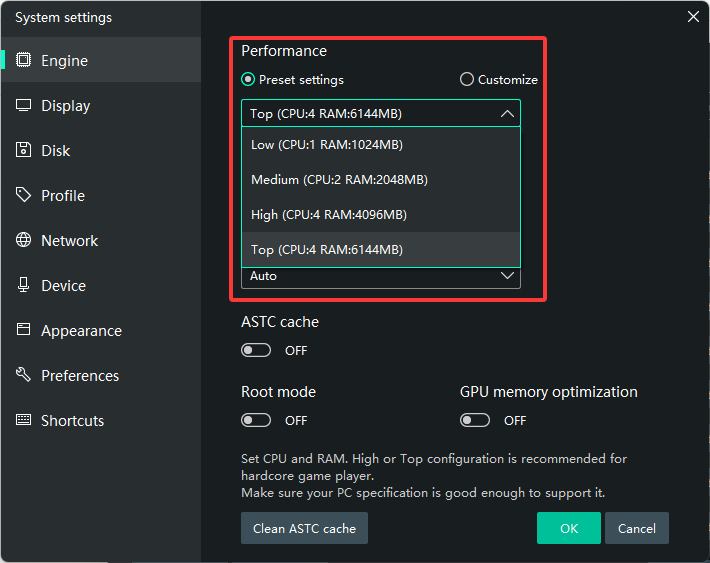
6. Enable / Disable ASTC & Rendering Cache
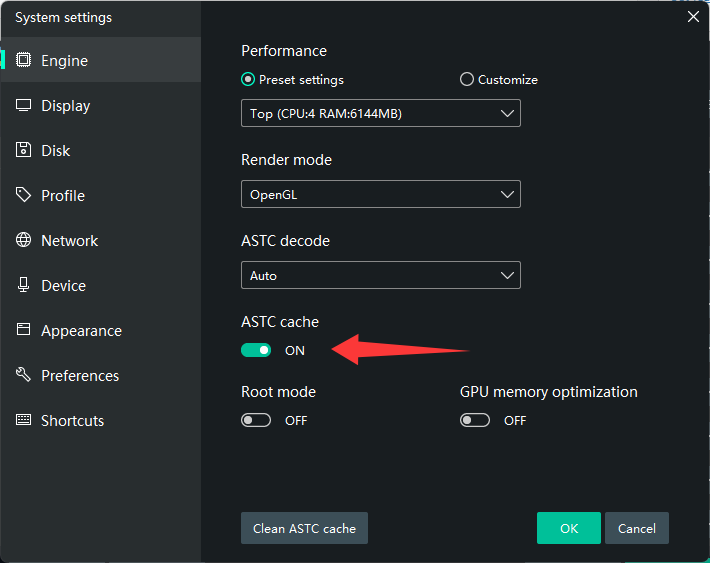
In MEmu Engine settings:
- Toggle ASTC texture decoding
- Try enabling/disabling Render Cache
7. Reinstall or Reset Graphics Components
If issues persist:
- Clean reinstall GPU drivers (use DDU if needed)
- Reinstall MEmu
Common Symptoms & Fixes
- Black screen → Switch OpenGL ↔ DirectX
- Lag / low FPS → Update drivers + disable Hyper-V
- Texture glitches → Toggle ASTC / change DPI
- Crash on launch → Check GPU compatibility
Quick Recommendation
- Use DirectX mode + latest drivers + Hyper-V disabled for most stable experience