Lucky Fruit Quest Master
Updated
Current Version
1.2.2
Offered By

With your passion for Lucky Fruit Quest Master, you shouldn’t have to limit yourself to the small screen of a phone. Play like a pro and take full control of the game using a keyboard and mouse. MEmu gives you everything you’re looking for. Download and play Lucky Fruit Quest Master on PC. Play as long as you want — no more worries about battery life, mobile data, or unexpected calls. The all-new MEmu 9 is the best way to play Lucky Fruit Quest Master on PC. With our expertly designed keymapping system, Lucky Fruit Quest Master feels just like a real PC game. The MEmu multi-instance manager lets you run two or more accounts on the same device at the same time. Most importantly, our exclusive emulation engine unlocks your PC’s full potential, delivering smooth and seamless performance.
Show more
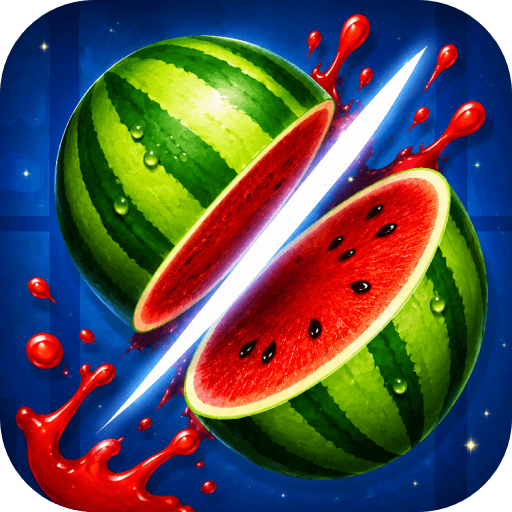
Download Lucky Fruit Quest Master on PC with MEmu Android Emulator. Enjoy playing on big screen. Lucky Fruit Quest Master is a casual fruit-cutting arcade game controlled by tapping the screen.
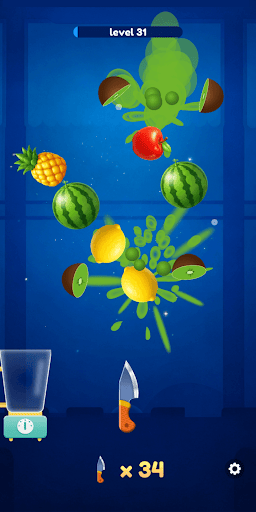

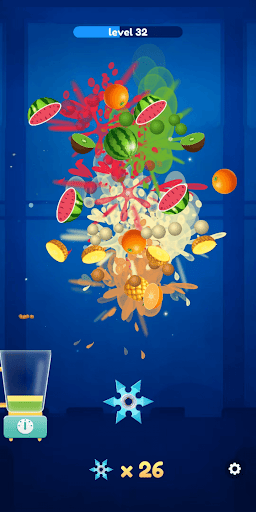

Lucky Fruit Quest Master is a casual fruit-cutting arcade game controlled by tapping the screen.
Tap the screen to start the game. During gameplay, each tap launches a knife upward from the bottom of the screen.
Aim at the rotating fruit above. When a knife hits the fruit, the fruit splits into two parts with a juice splash and movement effects.
The game uses single-touch controls and timing-based knife-launching gameplay.
Show more

1. Download MEmu installer and finish the setup

2. Start MEmu then open Google Play on the desktop

3. Search Lucky Fruit Quest Master in Google Play
Install
4. Download and Install Lucky Fruit Quest Master
5. On install completion click the icon to start

6. Enjoy playing Lucky Fruit Quest Master on PC with MEmu
MEmu Play is the best Android emulator and 100 million people already enjoy its superb Android gaming experience. The MEmu virtualization technology empowers you to play thousands of Android games smoothly on your PC, even the most graphic-intensive ones.
Bigger screen with better graphics; Long duration, without limitation of battery or mobile data.
Full Keymapping support for precise control of keyboard and mouse or gamepad.
Multiple game accounts or tasks on single PC at one time with Multi-Instance manager.
Play Lucky Fruit Quest Master on PC by following steps: