S-pushTAN
Updated
Current Version
5.3.1
Offered By

Stop worrying about high battery drain when using S-pushTAN on your phone. Free yourself from the tiny screen and enjoy the app on a much larger display. From now on, get a full-screen experience of your app with the convenience of a keyboard and mouse. MEmu offers you all the surprising features you’d expect: quick installation and easy setup, intuitive controls, and no more worries about battery life, mobile data, or unexpected calls. The all-new MEmu 9 is the choice for using S-pushTAN on your computer. With the MEmu multi-instance manager, you can run two or more accounts at the same time. Most importantly, our exclusive emulation engine unlocks your PC’s full potential, delivering smooth and enjoyable performance.
Show more
Enjoy superb experience of using S-pushTAN on PC with MEMU App Player. It's a powerful free Android emulator which provides you with thousands of android apps for their desktop version. Enjoy connecting with friends and polishing your work with higher efficiency! Play it safe: With the S-pushTAN app, you get your Sparkasse's secure authorization process on your phone or tablet.
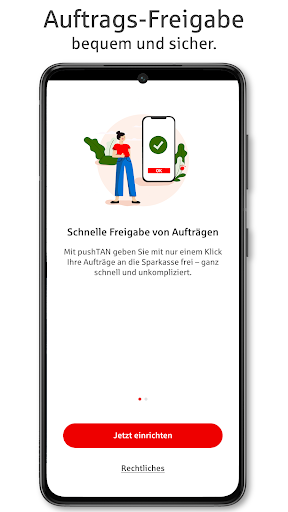
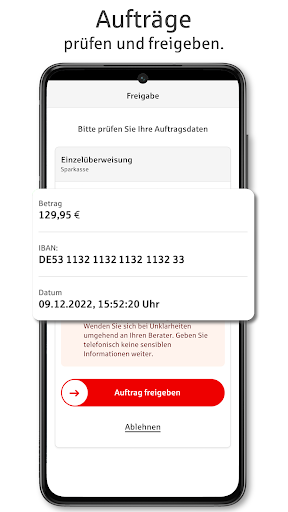
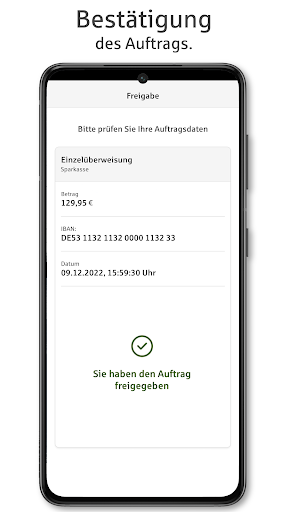
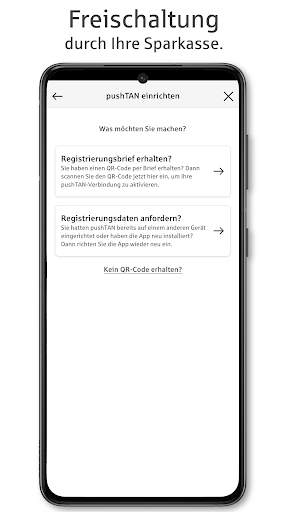
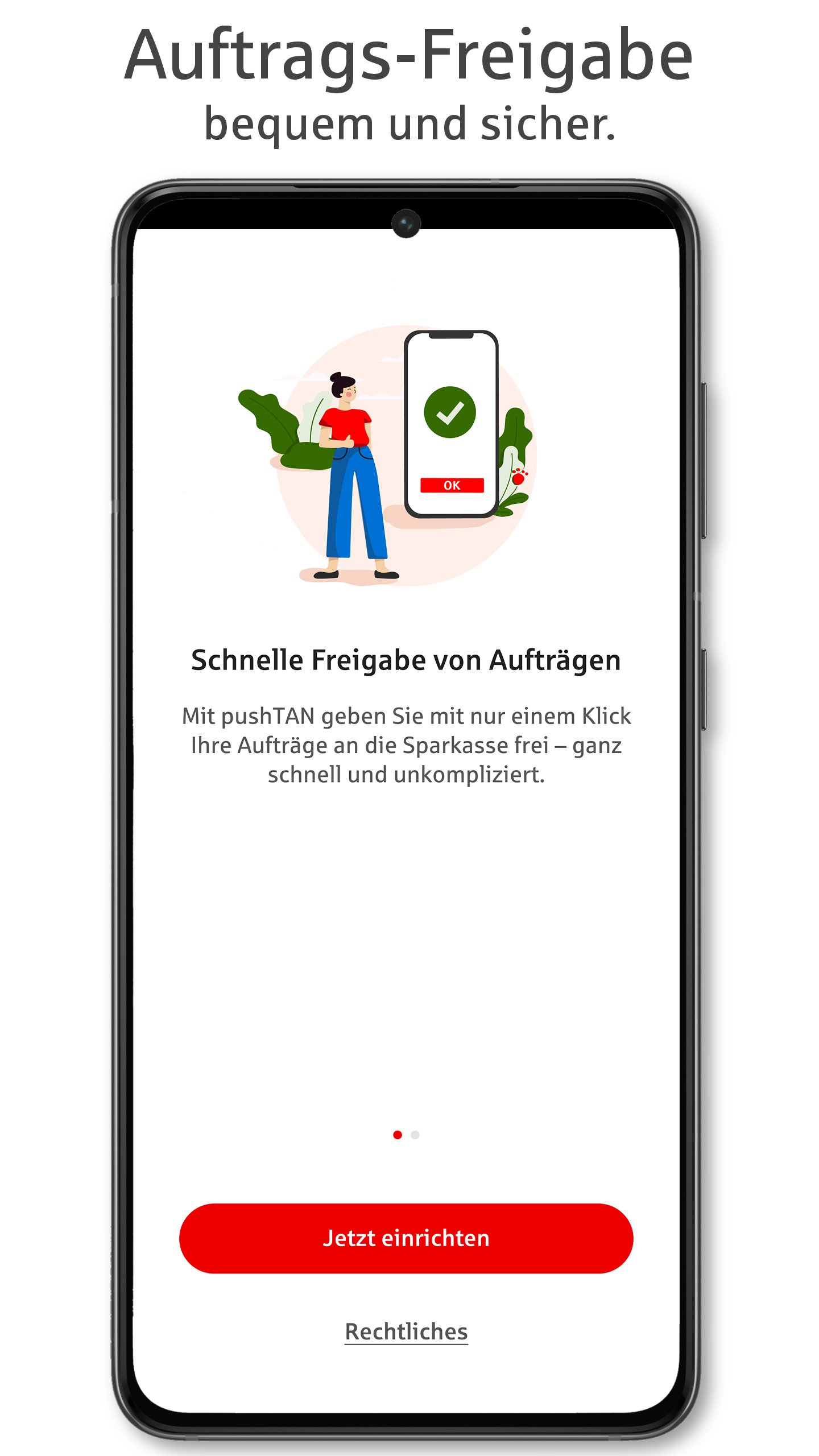
Play it safe: With the S-pushTAN app, you get your Sparkasse's secure authorization process on your phone or tablet. Use pushTAN for online banking, an advanced, mobile security process.
IT'S EASY
• When banking online on your smartphone, tablet, or computer, you place and submit your orders there.
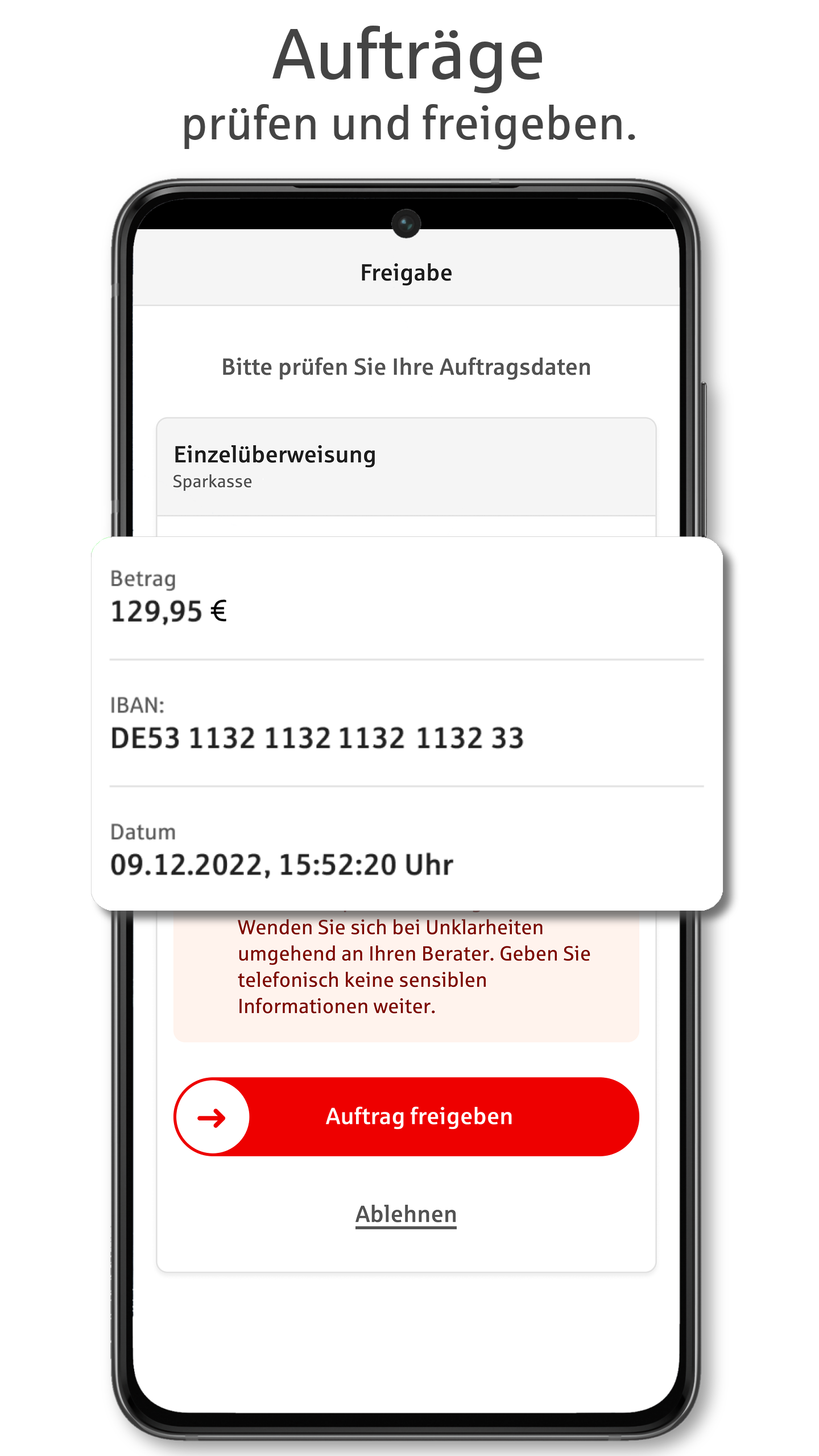
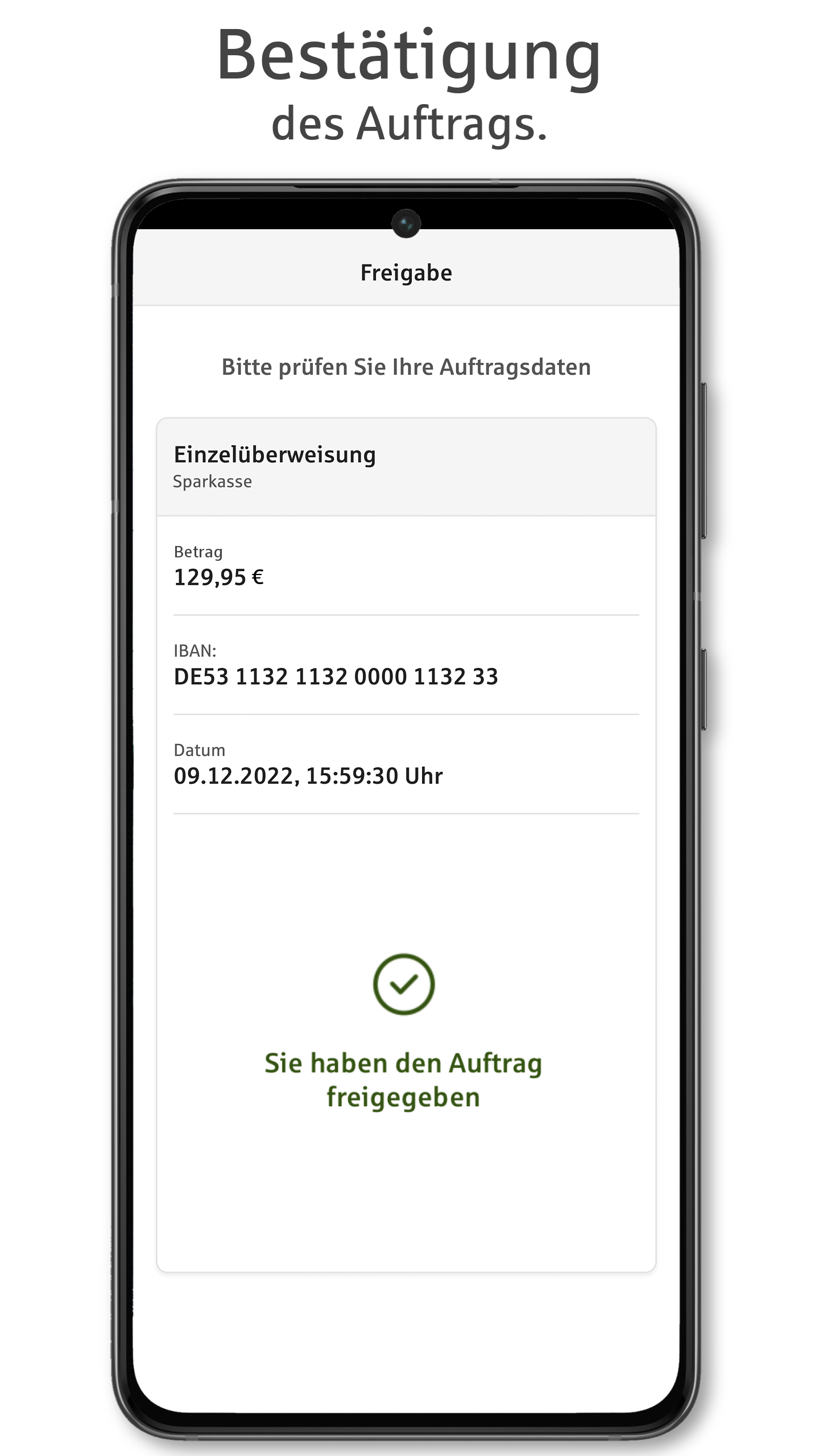
• The S-pushTAN app always shows you the order details. You check the data and approve the order easily and simply – that's it.
• Can be used for all orders that require a TAN or authorization: transfers, submitting or changing standing orders, securities and service orders, and much more.
GET STARTED AFTER ACTIVATION BY YOUR SAVINGS BANK
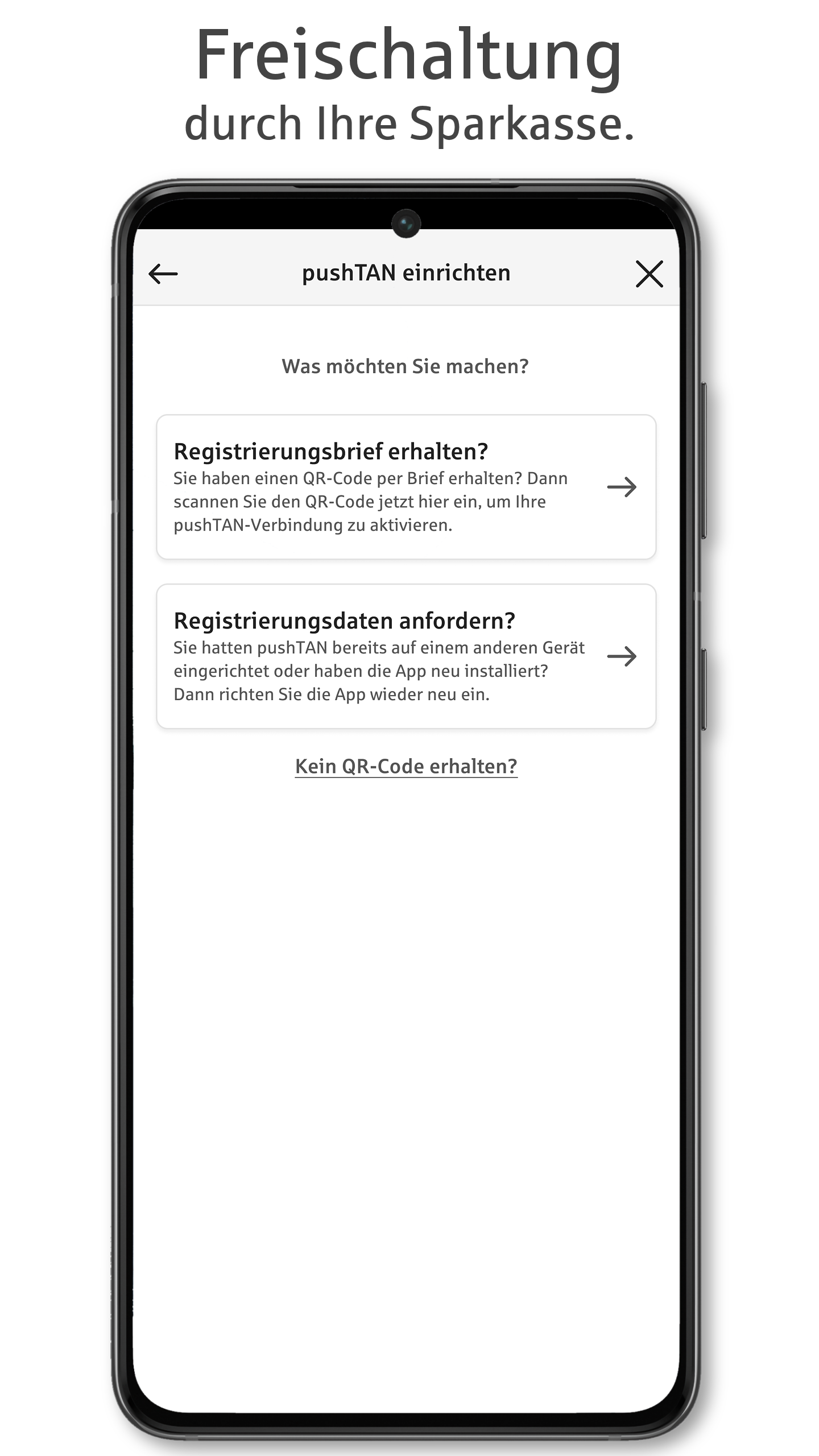
You can start using the S-pushTAN app once you are registered for the pushTAN process and have received your personal registration letter:
1 - Apply for the pushTAN process at your savings bank or switch from your current process to the pushTAN process online at your savings bank's online branch.
2 - Download the S-pushTAN app for free to your smartphone or tablet.
3 - Start setting up the S-pushTAN app as soon as you receive the registration letter from your savings bank.
SECURITY
• The S-pushTAN app communicates encrypted via tested interfaces. It ensures secure data transfer in accordance with German online banking regulations.
• Access to S-pushTAN is protected by a password of your choice and, optionally, by fingerprint or facial recognition.
• The app automatically locks after a short period of time. This ensures maximum security for your data, even if you lose your smartphone or tablet.
NOTES
• To use S-pushTAN, you need activation from your Sparkasse and your registration data for initial setup.
• To use the latest version of the app, you need at least Android 6 on your smartphone or tablet.
• If your smartphone or tablet is rooted or is using a beta version of the operating system, S-pushTAN will not run on it. The important high security standards for the mobile banking we offer cannot be guaranteed on compromised devices.
• The current version requires the use of your device's system keyboard; custom keyboards are not supported. In the device settings, set the keyboard to "Standard" or "Default" or "System Keyboard."
• Please do not deny any of the requested permissions for S-pushTAN during setup, as these are necessary for the app to function properly.
• The app is free of charge, but its use may incur charges. Please refer to the information provided by your savings bank.
------------------------------------------------------------------------
We take the protection of your data very seriously. It is regulated in our privacy policy. By downloading and/or using the S-pushTAN app, you unconditionally accept the terms of the Star Finanz GmbH End User License Agreement.
• Data protection: https://cdn.starfinanz.de/s-pushtan-datenschutz
• Terms of use: https://cdn.starfinanz.de/s-pushtan-lizenzbestimmung
• Accessibility statement: https://www.sparkasse.de/pk/produkte/konten-und-karten/finanzen-apps/s-pushtan.html
Show more

1. Download MEmu installer and finish the setup

2. Start MEmu then open Google Play on the desktop

3. Search S-pushTAN in Google Play
Install
4. Download and Install S-pushTAN
5. On install completion click the icon to start

6. Enjoy using S-pushTAN on PC with MEmu
MEmu Play is the best Android emulator, and 100 million users already enjoy its superb Android app experience. Powered by advanced virtualization technology, it lets you enjoy thousands of Android apps smoothly on your PC—including the most graphics-intensive ones.
Bigger screen with better graphics; Long duration, without limitation of battery or mobile data.
Full Keymapping support for precise control of keyboard and mouse or gamepad.
Multiple game accounts or tasks on single PC at one time with Multi-Instance manager.
Use S-pushTAN on PC by following steps: