OSLink
Updated
Current Version
1.3.13.7
Offered By

Stop worrying about high battery drain when using OSLink on your phone. Free yourself from the tiny screen and enjoy the app on a much larger display. From now on, get a full-screen experience of your app with the convenience of a keyboard and mouse. MEmu offers you all the surprising features you’d expect: quick installation and easy setup, intuitive controls, and no more worries about battery life, mobile data, or unexpected calls. The all-new MEmu 9 is the choice for using OSLink on your computer. With the MEmu multi-instance manager, you can run two or more accounts at the same time. Most importantly, our exclusive emulation engine unlocks your PC’s full potential, delivering smooth and enjoyable performance.
Show more
Enjoy superb experience of using OSLink on PC with MEMU App Player. It's a powerful free Android emulator which provides you with thousands of android apps for their desktop version. Enjoy connecting with friends and polishing your work with higher efficiency! OSlink is a remote control app that supports mutual access across different systems and multiple devices.
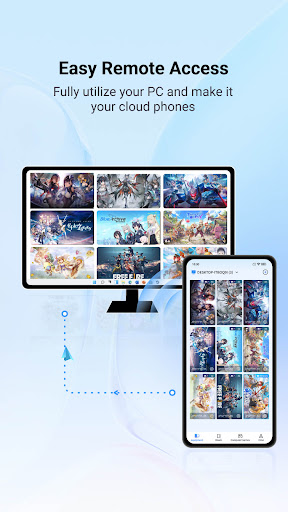
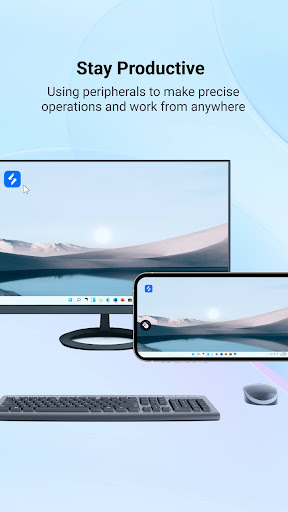
OSlink is a remote control app that supports mutual access across different systems and multiple devices. It supports desktop and mobile devices such as Windows computers, Android phones/tablets;
Features
[Remote Access]
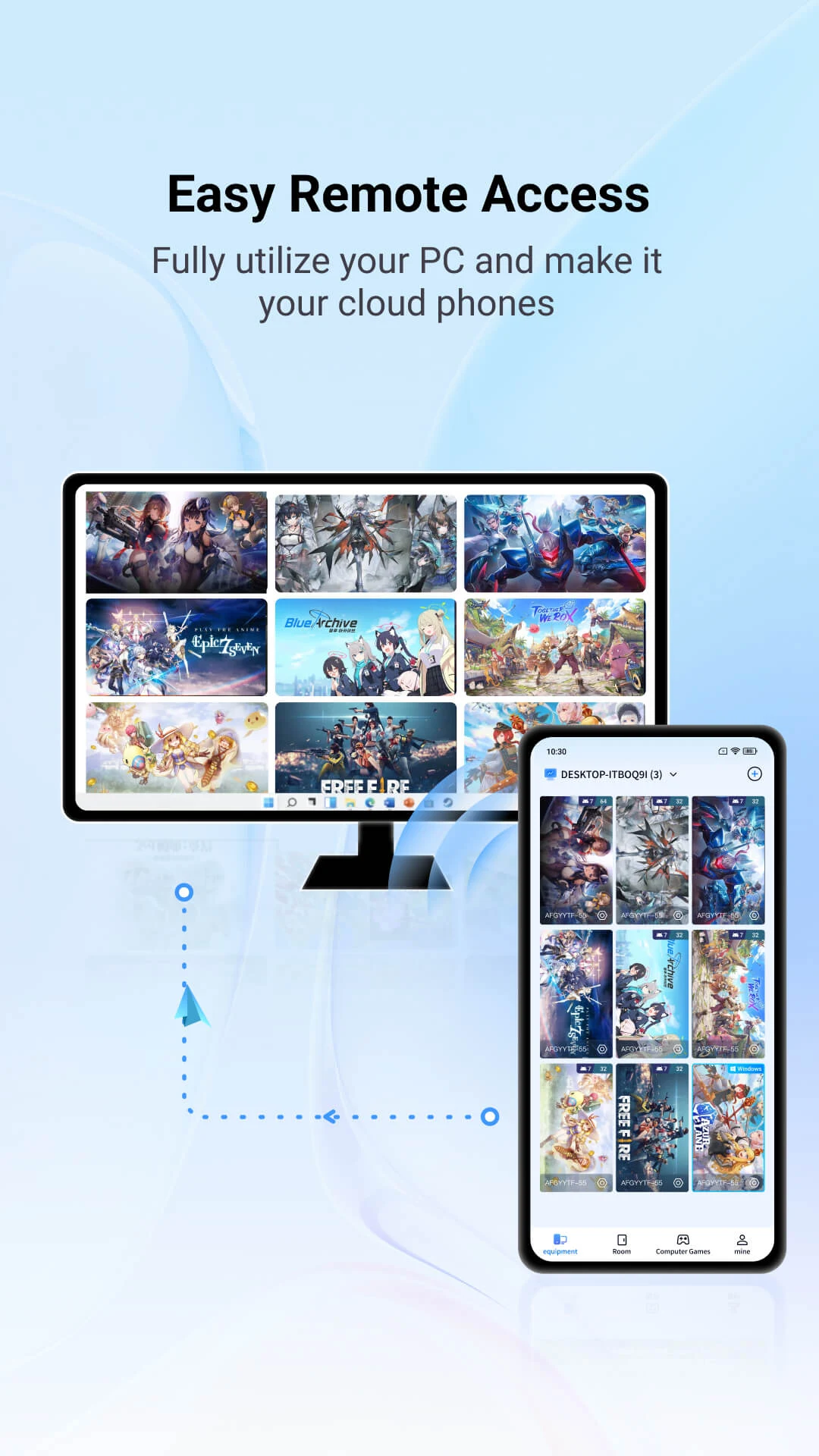
Devices such as Android phones, Android tablets and Windows computers can remotely access each other, and there is no limit to the number of remote device connections.
[Screen Mirroring]
Screen mirror your mobile screen on a Windows computer. Normal Mode applies for sharing mobile files during meetings, and Game Mode guarantees an impeccable experience of playing mobile games on a computer.
[Remotely Control Android Device]
Android phones remotely access Android phones or tablets. Real mobile phones host games more stably.
[Remote Gaming]
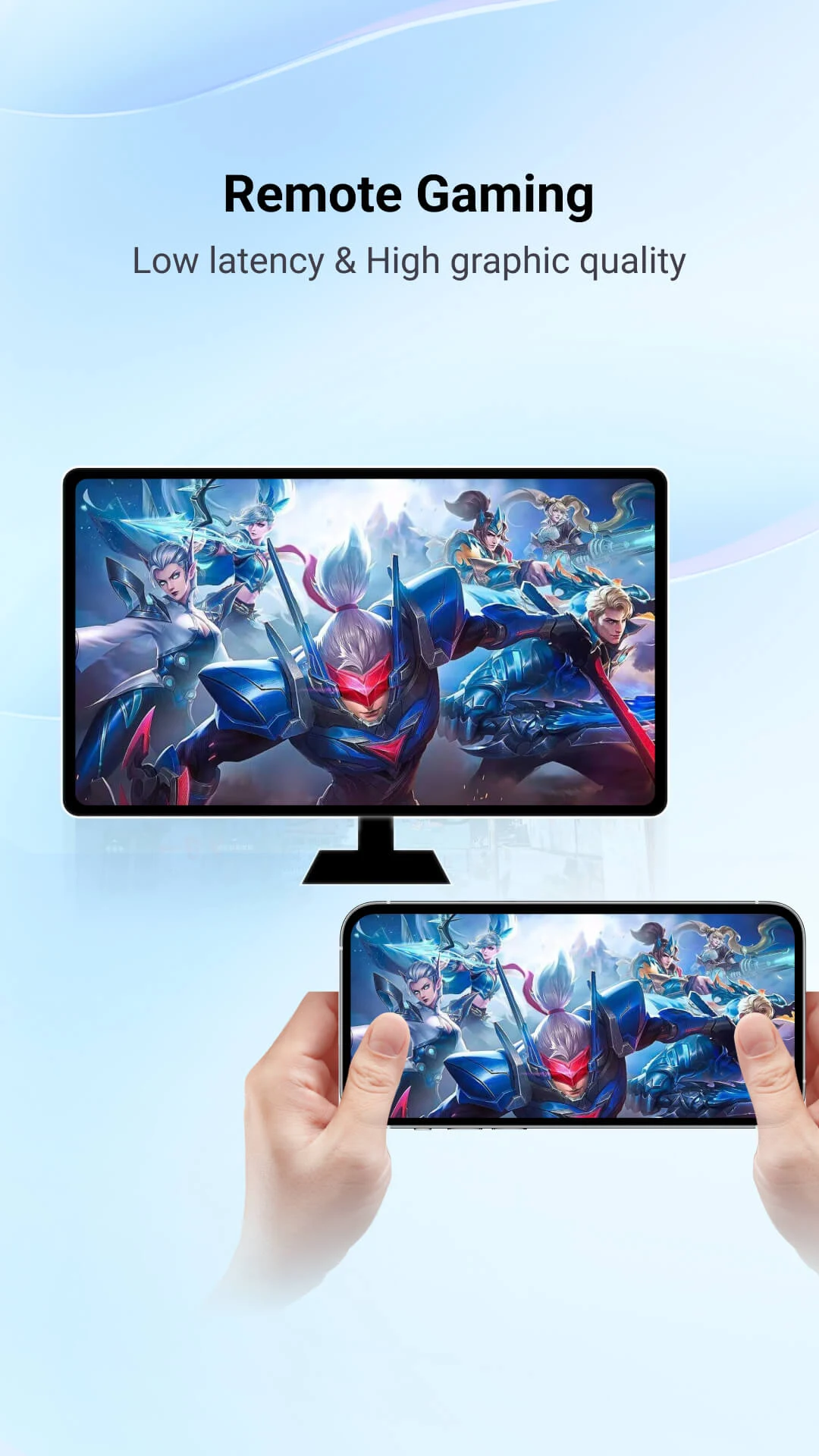
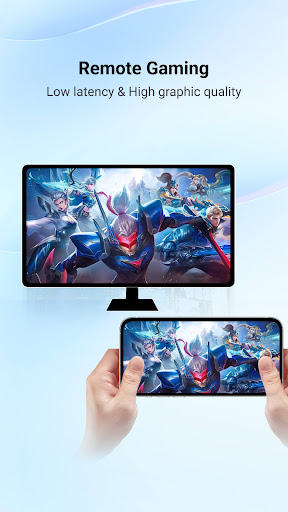
Remotely access your computer to play PC games with your phone, turning your PC, Xbox, emulators, Epic, and Steam games into mobile versions.
[Support Bluetooth Keyboard & Mouse]
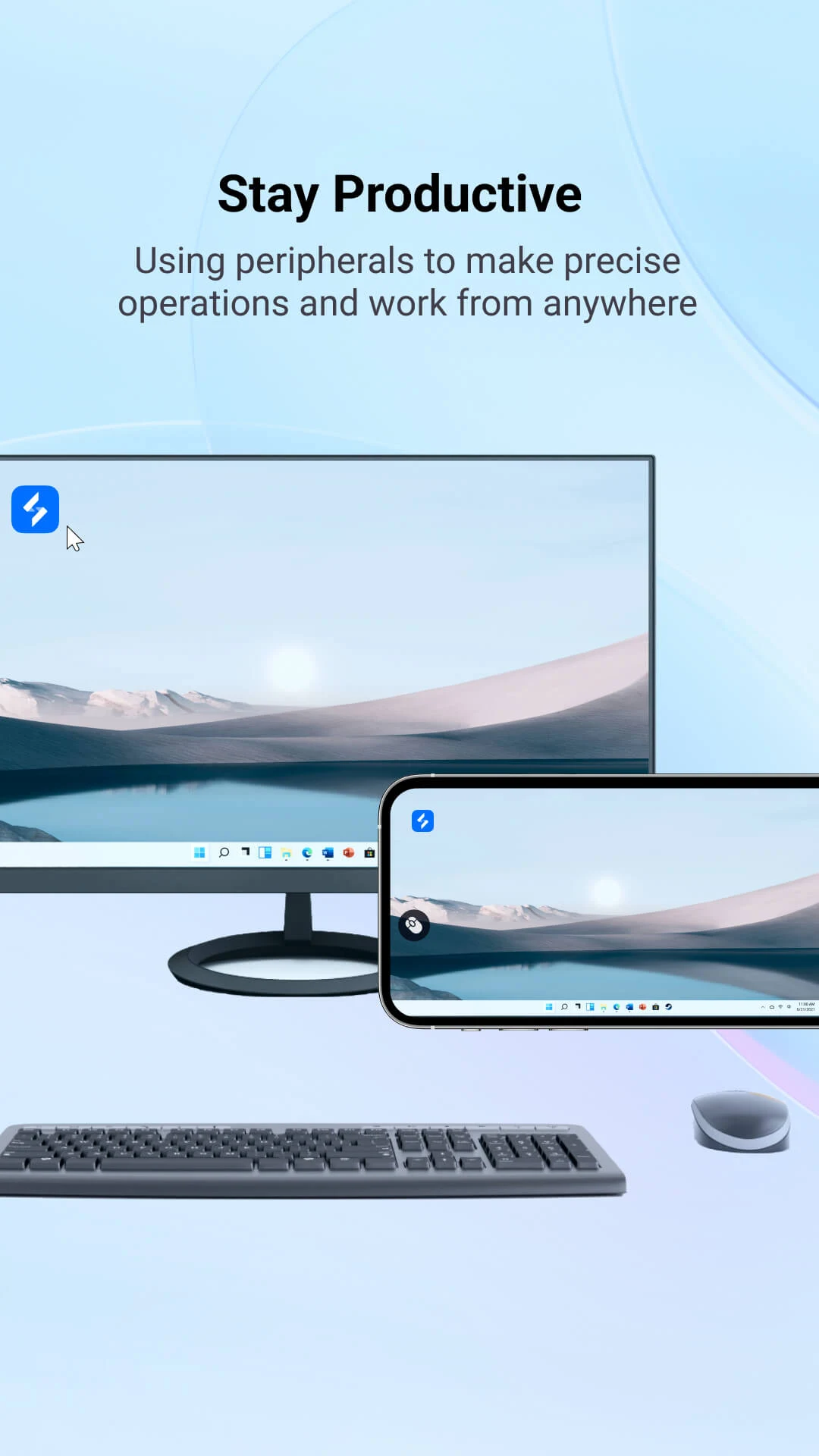
Support controller, keyboard and mouse connected to mobile phones/tablets via Bluetooth. Provide virtual keymaps for popular games (GTA5, COD, PUBG, WOW, etc.), and also allow you to set your own customized keymaps.
[Remotely Control LDPlayer]
Allow mobile phones to remotely control LDPlayer on computer, running multiple games or applications at the same time, monitoring game progress in real time and saving mobile phone storage space.
[Play Together]
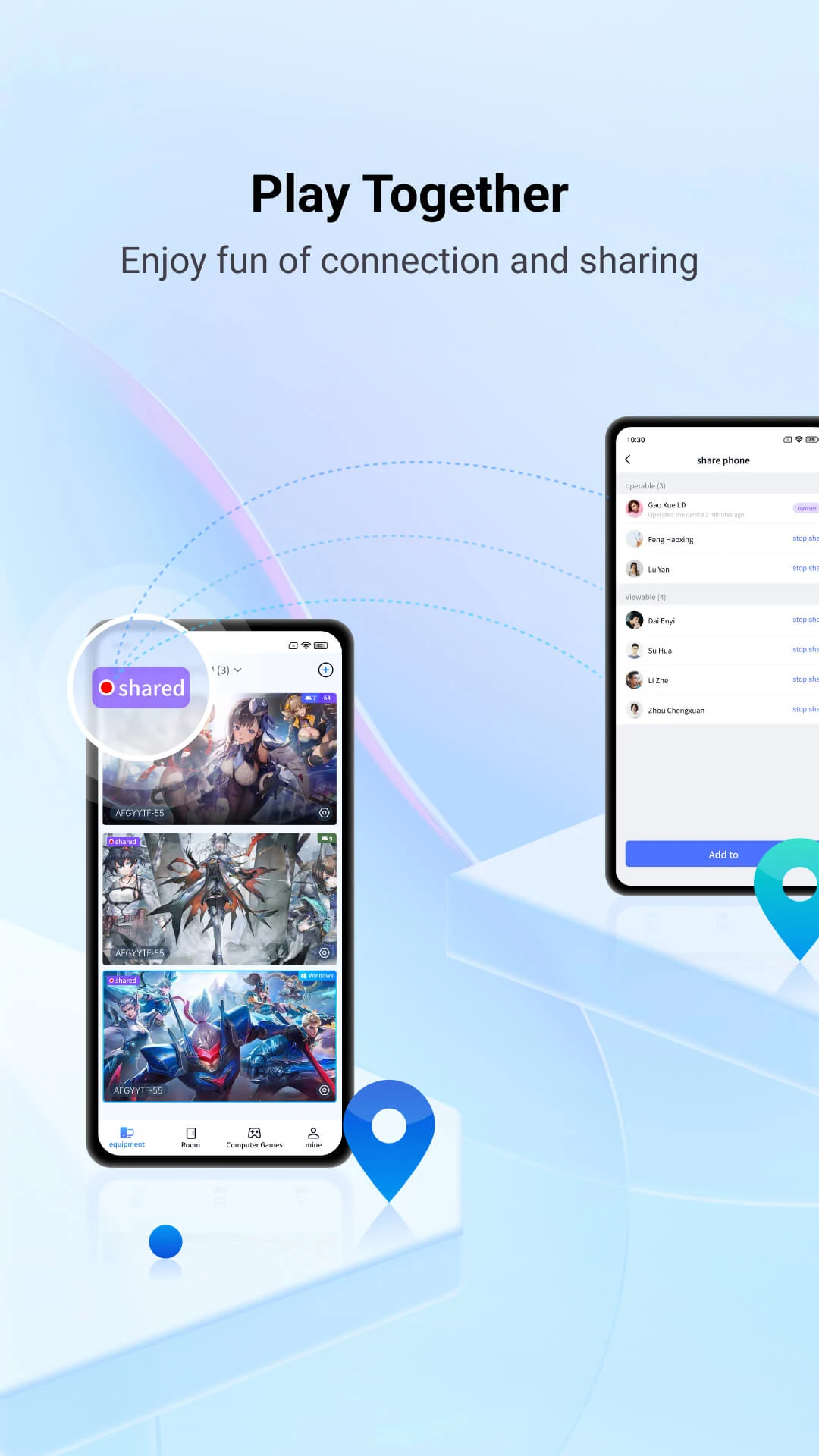
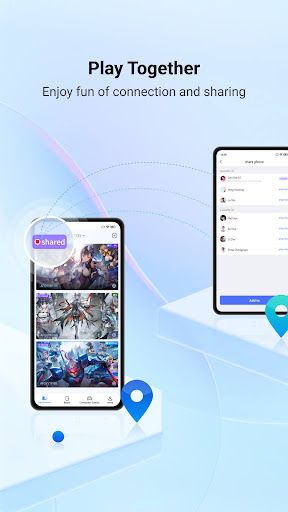
A new online multiplayer mode is added, allowing you to share your computer desktop and LDPlayer with friends. Come and play with your friends!
Contact us
Official website: https://www.nicooapp.com/
Facebook:https://www.facebook.com/oslink.io
Remote Access Tutorial
1. Open Google Play on your mobile device and search for "OSLink" to install it. After installation, log in to your account.
2. Open the official OSLink website on the computer, download the Windows version, log in with the same account as your mobile phone to connect them.
OSLink achieves the following functions through the use of the Accessibility Service API:
1. Simulated clicks and swipes: We can simulate click and swipe operations to remotely control your device. This allows you to perform various actions remotely, such as opening applications, browsing the web, or using other app functionalities.
2. Typing text on the screen: We can detect your input focus status and type text on the screen. This enables you to input text on your device through remote control, such as sending messages or filling out forms.
3. Displaying a floating icon indicating remote control: We will display a special floating icon on your device screen to indicate that the device is currently under remote control. This helps you be aware of the remote operation and maintain visibility of the control.
4. Displaying a floating icon indicating smart locked screen to prevent screen-off: To keep the device active, we will display a smart locked screen floating icon. This prevents your phone from automatically entering sleep mode during remote control, ensuring you can remotely operate the device at any time.
Please note that OSLink can only perform remote control with your consent. We will also check if you are in an input focus state to facilitate typing text on the screen. If you wish to disable functions related to the Accessibility Service after a successful screen mirroring, you can do so in the OSLink settings page. We promise not to store or share any data during the connection, respecting your privacy and data security. We are committed to respecting your privacy and data security, and strictly adhere to relevant privacy policies and regulations.
Show more

1. Download MEmu installer and finish the setup

2. Start MEmu then open Google Play on the desktop

3. Search OSLink in Google Play
Install
4. Download and Install OSLink
5. On install completion click the icon to start

6. Enjoy using OSLink on PC with MEmu
MEmu Play is the best Android emulator, and 100 million users already enjoy its superb Android app experience. Powered by advanced virtualization technology, it lets you enjoy thousands of Android apps smoothly on your PC—including the most graphics-intensive ones.
Bigger screen with better graphics; Long duration, without limitation of battery or mobile data.
Full Keymapping support for precise control of keyboard and mouse or gamepad.
Multiple game accounts or tasks on single PC at one time with Multi-Instance manager.
Use OSLink on PC by following steps: