Parental Control Kroha
Updated
Current Version
3.10.4
Offered By

Stop worrying about high battery drain when using Parental Control Kroha on your phone. Free yourself from the tiny screen and enjoy the app on a much larger display. From now on, get a full-screen experience of your app with the convenience of a keyboard and mouse. MEmu offers you all the surprising features you’d expect: quick installation and easy setup, intuitive controls, and no more worries about battery life, mobile data, or unexpected calls. The all-new MEmu 9 is the choice for using Parental Control Kroha on your computer. With the MEmu multi-instance manager, you can run two or more accounts at the same time. Most importantly, our exclusive emulation engine unlocks your PC’s full potential, delivering smooth and enjoyable performance.
Show more
Enjoy superb experience of using Parental Control Kroha on PC with MEMU App Player. It's a powerful free Android emulator which provides you with thousands of android apps for their desktop version. Enjoy connecting with friends and polishing your work with higher efficiency! The parental control app for android is created to protect kids and provides supervision to keep kids safe online.
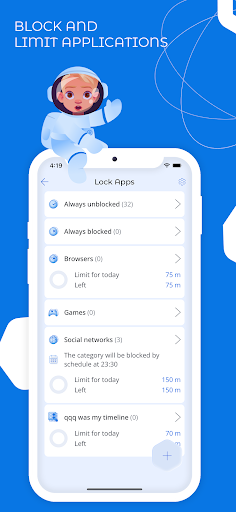
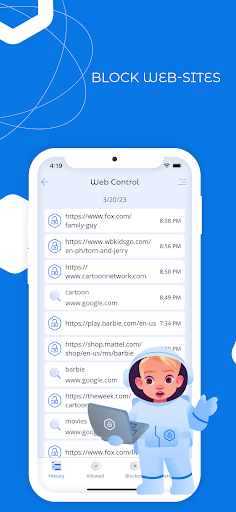
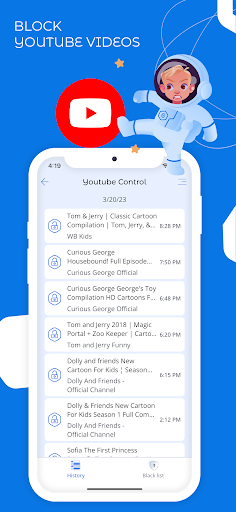
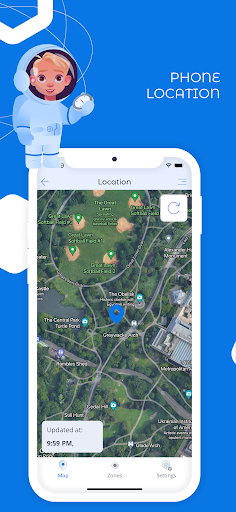
The parental control app for android is created to protect kids and provides supervision to keep kids safe online. The app is a powerful child control app for screen time, tracking location, tracking application usage time, limit app usage, limit phone usage, website control, YouTube monitoring. You can block apps, set daily app time limit, limit screen time, block inappropriate content.
The application has unique features such as monitoring social media chats and eyes protection. Use night mode and eyes protection features to form healthy habits for your kids’ eyes.
★ App lock & Phone lock:
• Block apps and block games
• Block social media apps
• Limit app usage time and limit usage time remotely
• Set schedules and limit phone usage for family time, bedtime and study time
★ Device screen time management:
• Screen time app shows a detailed view of the daily phone usage
• Set and manage a specific daily app time limit
• Screen time tracker allows you to monitor apps usage statistics
★ Social media chat monitoring:
• Monitoring messengers (WhatsApp, Viber)
• YouTube Monitoring
★ Eyes protection & Night mode:
• Use Night Mode to protect the child’s eyes from intense blue light in the evening
• Use eyes protection to keep your child’s phone screen at the correct distance from your eyes
★ Family Locator & GPS tracking:
• Monitor your child’s location on the map in real-time
• Set geo-zone and get notifications if a child leaves this zone
★ Block websites & Block Youtube videos:
• Monitor websites which your child visited
• Web filters allow you to safe kids from harmful sites and content
• Monitor YouTube videos which your child was watched
• Block YouTube videos and channels
• Turn on Safe Search function to protect your kid’s searches online
also app gives you an opportunity to:
• Monitor and manage your kid’s phonebook
• Monitor the latest kid’s photos
• Monitor the battery level of the kids’ phone
Use "Parental Control apps Kroha - Screen time & Kids Mode" to improve your family links. Spend more family time without mobile phones.
Please install this application on your mobile smartphone and then on your child’s one(s) to perform remote child control of a child’s device.
Link all your family devices to the account. Both smartphones should have network data capability, as the app uses data to send and receive configuration commands.
The application is designed exclusively for children's protection and child safety. If the application is used inappropriately, the company disclaims responsibility for the consequences.
Price for the one-year license includes controlling of five different family devices, which can be activated in any mode (Parent mode / Kids mode). Use one account for the whole family.
Check out the subscription price: https://parental-control.net
Feedback
If you have any issues or questions, you can always contact our support team: support@parental-control.net
Troubleshooting notes:
For all parental control apps and screen time apps users should set up Battery Saving Settings on your child’s phone.
Permissions
• This app requires the VPN permission to block and filter inappropriate websites.
• This app uses the Device Administrator permission
• This app requires the Accessibility Service permission to save browsing history, website visits, and YouTube browsing history, as well as instant messengers history, which allows provide you with reports on your child's device usage. The Accessibility Service permission is also used to detect attempts to uninstall the app.
Show more

1. Download MEmu installer and finish the setup

2. Start MEmu then open Google Play on the desktop

3. Search Parental Control Kroha in Google Play
Install
4. Download and Install Parental Control Kroha
5. On install completion click the icon to start

6. Enjoy using Parental Control Kroha on PC with MEmu
MEmu Play is the best Android emulator, and 100 million users already enjoy its superb Android app experience. Powered by advanced virtualization technology, it lets you enjoy thousands of Android apps smoothly on your PC—including the most graphics-intensive ones.
Bigger screen with better graphics; Long duration, without limitation of battery or mobile data.
Full Keymapping support for precise control of keyboard and mouse or gamepad.
Multiple game accounts or tasks on single PC at one time with Multi-Instance manager.
Use Parental Control Kroha on PC by following steps: