Screen Time - Parental Control
Updated
Current Version
3.11.71
Offered By

Stop worrying about high battery drain when using Screen Time - Parental Control on your phone. Free yourself from the tiny screen and enjoy the app on a much larger display. From now on, get a full-screen experience of your app with the convenience of a keyboard and mouse. MEmu offers you all the surprising features you’d expect: quick installation and easy setup, intuitive controls, and no more worries about battery life, mobile data, or unexpected calls. The all-new MEmu 9 is the choice for using Screen Time - Parental Control on your computer. With the MEmu multi-instance manager, you can run two or more accounts at the same time. Most importantly, our exclusive emulation engine unlocks your PC’s full potential, delivering smooth and enjoyable performance.
Show more
Enjoy superb experience of using Screen Time - Parental Control on PC with MEMU App Player. It's a powerful free Android emulator which provides you with thousands of android apps for their desktop version. Enjoy connecting with friends and polishing your work with higher efficiency! Manage your children’s screen time and app usage on both Android and iOS mobile devices with amazing Parental Control App.
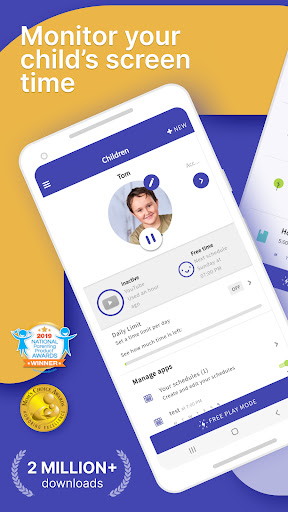
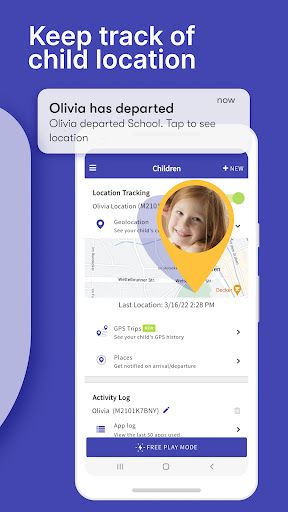
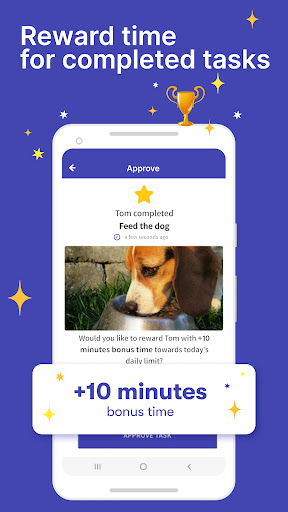
Manage your children’s screen time and app usage on both Android and iOS mobile devices with amazing Parental Control App. Set time limits, use content blocker and location tracker, and more.
Kids who have a smartphone spend an average of 7.5 hours on their devices per day. Screen Time was developed to help parents get their children to put the phones down and engage in outdoor activities, family chats at the dinner table, concentrate on their homework, and get a good night’s sleep.
Screen Time provides parents with information about their children's’ smartphone and tablet usage. With our screen time tracker, you are able to:
▪ Monitor your kids’ screen time
▪ See which apps are being used and for how long
▪ See what websites they have visited
▪ Monitor which social media platforms are used and for how long
▪ See which YouTube videos they have watched
▪ Receive a notification when your kids try to install a new app
▪ Receive a daily summary of your kids app and web usage
If you decide you need to proactively manage your children's’ screen time on their Android or Amazon devices, the Premium version of our app gives parents greater control over their kids’ devices. With Premium, you can:
▪ Set a specific daily time limit for your kids’ screen time
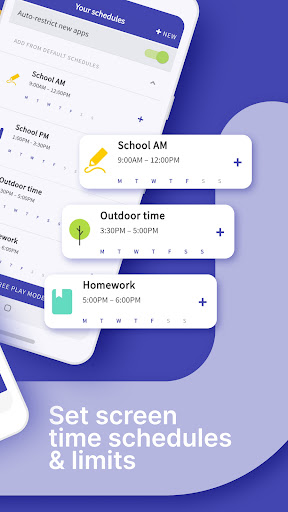
▪ Set schedules of when they can and can’t use their device
▪ Instantly pause your kids’ devices at the push of a button
▪ Block app activity during bedtime
▪ Block certain apps from being accessed at all
▪ View your children’s web history and search history
▪ Block websites from being accessed
▪ See exactly where your children are with GPS phone location tracking
▪ Get an alert when your child arrives or leaves a specific location
▪ Receive a daily email summary of your kids app and web usage
▪ Set tasks and chores for your kids to complete, allowing them to earn additional screen time when they’re done
▪ Use Free Play mode to temporarily override settings, like during long trips
▪ Share app management with other adults in your kids’ lives
▪ Have up to 5 devices per account, so you can track multiple kids and devices
All new users will get a 7 day free trial of the Premium version of Screen Time. No credit card information is needed for this free trial, and you will not be automatically charged unless you decide to sign up for a membership.
See our Premium pricing here https://screentimelabs.com/pricing
Feedback
If you have any problems please take a look at our help pages, or contact us via the contact page of our website.
Screen Time Parental Control App Help: https://screentimelabs.com/help
Screen Time Parental Control App Contact: https://screentimelabs.com/contact
Ready to take control of your kid’s screen time? Download our child lock and location tracker app now.
Show more

1. Download MEmu installer and finish the setup

2. Start MEmu then open Google Play on the desktop

3. Search Screen Time - Parental Control in Google Play
Install
4. Download and Install Screen Time - Parental Control
5. On install completion click the icon to start

6. Enjoy using Screen Time - Parental Control on PC with MEmu
MEmu Play is the best Android emulator, and 100 million users already enjoy its superb Android app experience. Powered by advanced virtualization technology, it lets you enjoy thousands of Android apps smoothly on your PC—including the most graphics-intensive ones.
Bigger screen with better graphics; Long duration, without limitation of battery or mobile data.
Full Keymapping support for precise control of keyboard and mouse or gamepad.
Multiple game accounts or tasks on single PC at one time with Multi-Instance manager.
Use Screen Time - Parental Control on PC by following steps: