How to Solve MEmu Installation Failure
 |
|
How to Solve MEmu Installation Failure
If you encounter installation issues with MEmu Play, try the following solutions to fix the problem.
1. Check System Requirements
Make sure your PC meets the minimum requirements:
-
OS: Windows 7 / 8 / 10 / 11 (64-bit recommended)
-
RAM: At least 4 GB (8 GB recommended)
-
CPU: Processor that supports virtualization (Intel VT-x / AMD-V)
-
Storage: At least 5 GB of free disk space
2. Enable Virtualization (VT)
Hardware virtualization greatly improves emulator compatibility and installation success.
Enter BIOS/UEFI and enable:
-
Intel Virtualization Technology (VT-x) for Intel CPUs
-
SVM Mode / AMD-V for AMD CPUs
3. Run the Installer as Administrator
Right-click the MEmu installer and select Run as administrator to avoid permission issues.
4. Disable Antivirus Temporarily
Some antivirus software may block emulator installation. Temporarily disable your antivirus or add MEmu to the exceptions list.
5. Clear Temporary Files
Old or corrupted files may cause installation failure:
-
Press Win + R
-
Type %temp%
-
Delete temporary files and restart the installation.
6. Install Using the Offline Installer
If the online installer fails, download and install the offline installer from the official website.
7. Install to a Different Directory
Avoid installing in folders with special characters.
Example: C:\MEmu\
8. Update Graphics Drivers
Ensure your NVIDIA, AMD, or Intel GPU drivers are updated to the latest version.
If the problem still persists, create a diagnostic report in MEmu and contact support for further assistance.
How to Get Installation Failure Log
If you’ve finished all the steps above and the installation still fails, please submit the log file back to us. Here’s the way to get it:
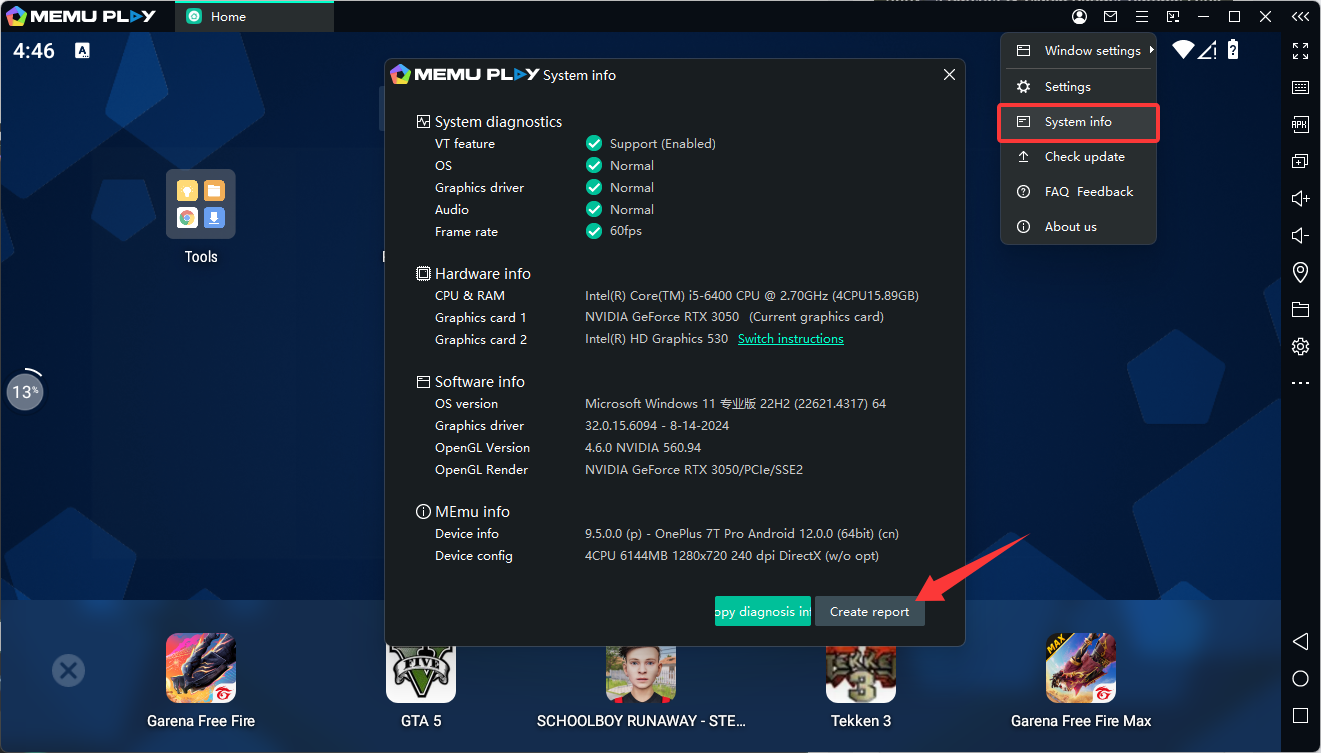
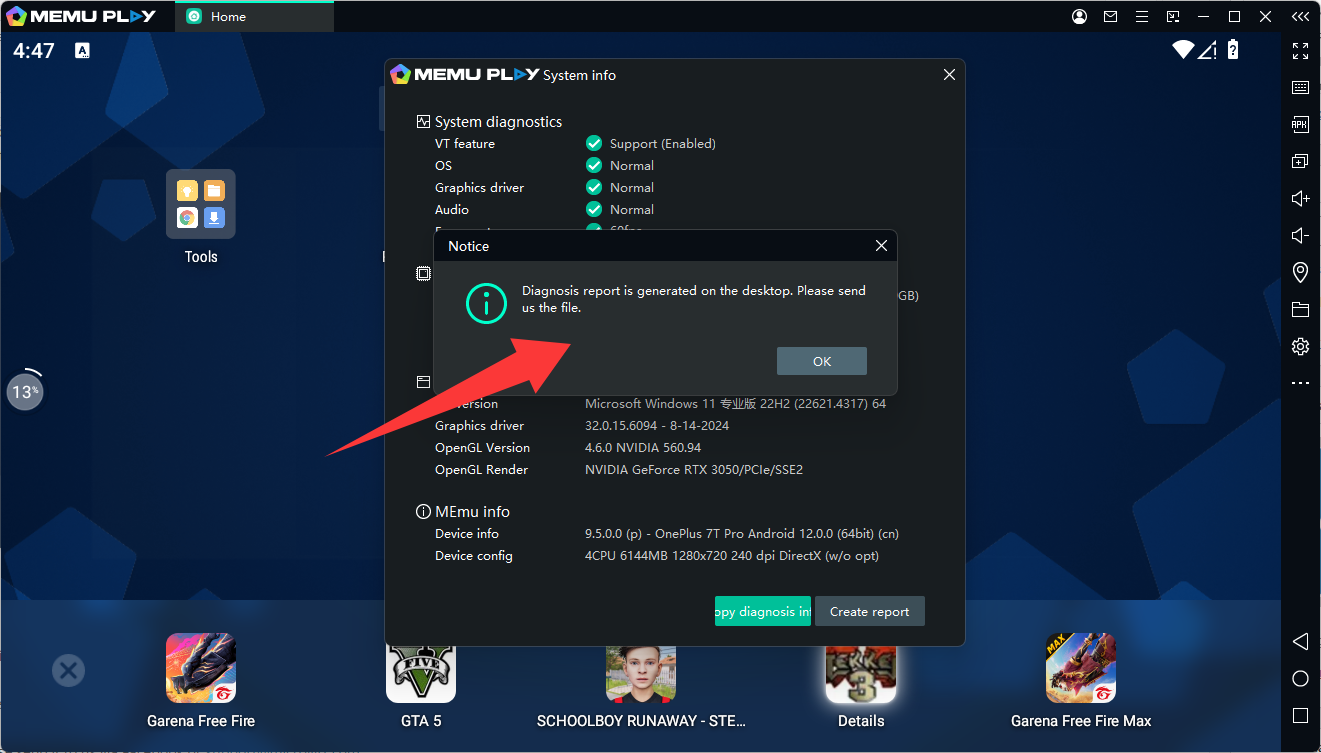
1. If you can open MEmu despite installation failure, you can find the install log path in system info. Click the "Create Report" button and the failure log will be generated on the desktop, and then you are able to send it to us.
2. If you cannot open MEmu, here is its path. C:\Users\xxxx\AppData\Local\Microvirt\setup\ “xxxx” is your Windows login name. Btw, the AppData folder defaults to be hidden. After you find the log, please send it to us via Facebook or support@microvirt.com
> Back to MEmu 101, everything you need to know about MEmu <<
- Official Website: https://www.memuplay.com
- Official Twitter: https://twitter.com/MicrovirtMEmu
- Facebook Page: https://www.facebook.com/memuplayer
- MEmu User Group: https://www.facebook.com/groups/memuplayer
- Discord: https://discord.gg/gA4GWV9