Kids Educational Game 5
Updated
Current Version
3.4
Offered By

With your passion for Kids Educational Game 5, you shouldn’t have to limit yourself to the small screen of a phone. Play like a pro and take full control of the game using a keyboard and mouse. MEmu gives you everything you’re looking for. Download and play Kids Educational Game 5 on PC. Play as long as you want — no more worries about battery life, mobile data, or unexpected calls. The all-new MEmu 9 is the best way to play Kids Educational Game 5 on PC. With our expertly designed keymapping system, Kids Educational Game 5 feels just like a real PC game. The MEmu multi-instance manager lets you run two or more accounts on the same device at the same time. Most importantly, our exclusive emulation engine unlocks your PC’s full potential, delivering smooth and seamless performance.
Show more
Download Kids Educational Game 5 on PC with MEmu Android Emulator. Enjoy playing on big screen. New pescAPPs educational game!
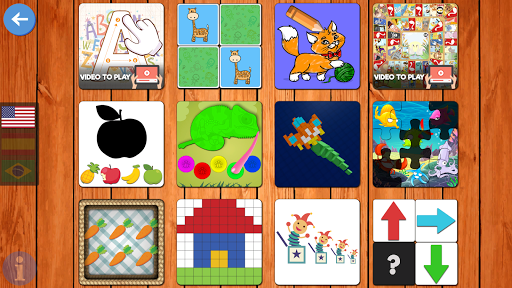
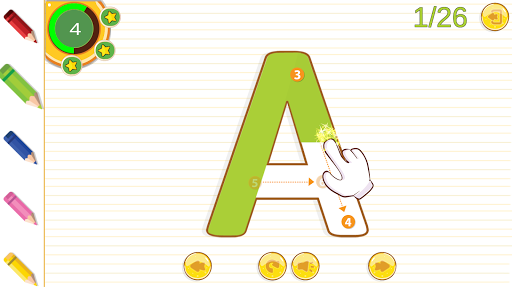
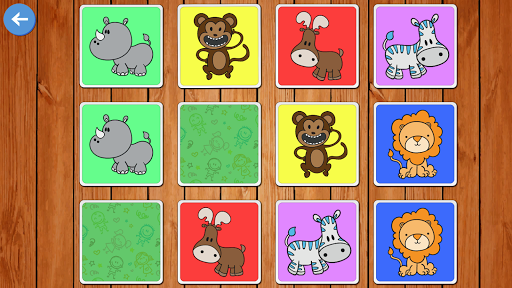
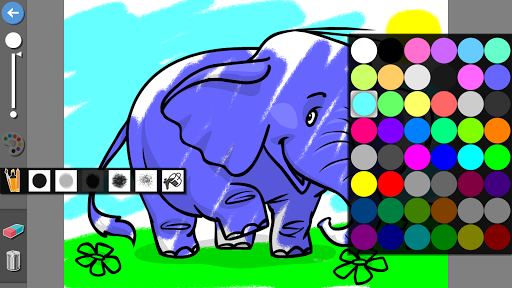
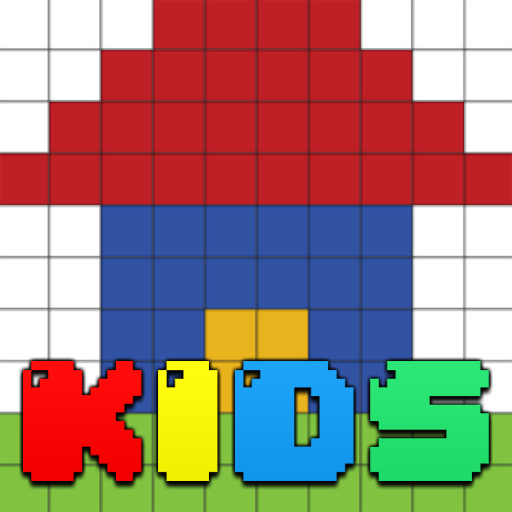
New pescAPPs educational game! This fun application contains 12 games designed for kids. In English, Spanish and Portuguese. With this game kids will learn:
- The alphabet, draw letters
- Improve their memory, logic and concentration
- Distinguish shapes
- Order by size
- Solve logical patterns
- Learn to paint and colors
- Distinguish colors
- Play table games
- Solve logic paints
- Count objects and the numbers
- Solve puzzles
- Motor skills and spatial vision.
Perfect for preschoolers!
Thank you for download pescAPPs games, with our games children can learn while having fun. If you have any questions or suggestions please contact us.
Show more

1. Download MEmu installer and finish the setup

2. Start MEmu then open Google Play on the desktop

3. Search Kids Educational Game 5 in Google Play
Install
4. Download and Install Kids Educational Game 5
5. On install completion click the icon to start

6. Enjoy playing Kids Educational Game 5 on PC with MEmu
MEmu Play is the best Android emulator and 100 million people already enjoy its superb Android gaming experience. The MEmu virtualization technology empowers you to play thousands of Android games smoothly on your PC, even the most graphic-intensive ones.
Bigger screen with better graphics; Long duration, without limitation of battery or mobile data.
Full Keymapping support for precise control of keyboard and mouse or gamepad.
Multiple game accounts or tasks on single PC at one time with Multi-Instance manager.
Play Kids Educational Game 5 on PC by following steps: