JS USB OTG
Updated
Current Version
1727950472
Offered By

Stop worrying about high battery drain when using JS USB OTG on your phone. Free yourself from the tiny screen and enjoy the app on a much larger display. From now on, get a full-screen experience of your app with the convenience of a keyboard and mouse. MEmu offers you all the surprising features you’d expect: quick installation and easy setup, intuitive controls, and no more worries about battery life, mobile data, or unexpected calls. The all-new MEmu 9 is the choice for using JS USB OTG on your computer. With the MEmu multi-instance manager, you can run two or more accounts at the same time. Most importantly, our exclusive emulation engine unlocks your PC’s full potential, delivering smooth and enjoyable performance.
Show more
Enjoy superb experience of using JS USB OTG on PC with MEMU App Player. It's a powerful free Android emulator which provides you with thousands of android apps for their desktop version. Enjoy connecting with friends and polishing your work with higher efficiency! ● Does not need rooting.
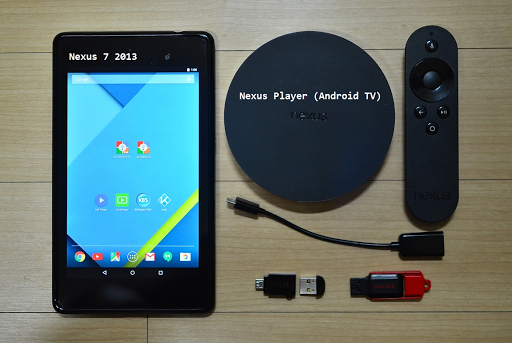
● Does not need rooting.
● NTFS, ExFAT, FAT32 filesystem are supported. (Read-Only)
● USB drive, flash card should be formatted by NTFS or ExFAT or FAT32 filesystem. (Less than 2TB)
● Before buying this official version app, please try JS USB OTG trial version.
- You can check if your mobile device supports USB Host mode and app compatibility.
● There is no trial version for the Android TV.
● After installing the app, connect the USB drive and it will be recognized automatically (Plug and Play).
【 Video Streaming 】
ㆍ Without the need to save video files in the mobile device, you can directly watch a video by streaming. (http streaming)
ㆍ mp4, mkv, avi, mov, wmv, mpg, mpeg, flv, m4v, webm, 3gp, ts, mts, m2ts, iso streaming.
ㆍ Internal streaming. Does not need to turn on the Wifi or LTE / 5G network.
ㆍ By streaming, Play, Pause, Jump, Resume are possible for a video file which is over 4GB size.
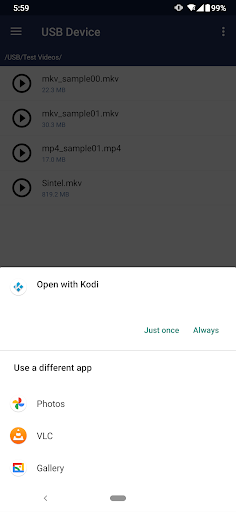
ㆍ Recommend KODI(XBMC), VLC Player as a video player that support http streaming.
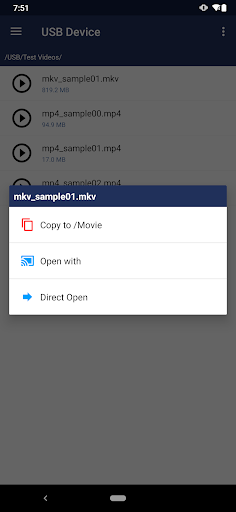
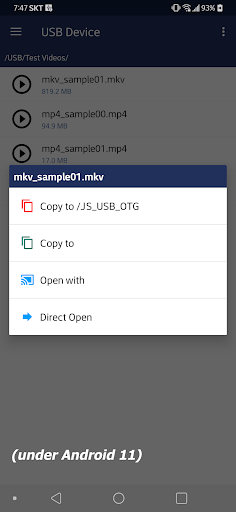
ㆍ Click video file and select ‘Open With’.
【 Built-in Video Player 】
ㆍ In addition to the 3rd party video player mentioned above, you can also use the built-in video player.
ㆍ No need to save the video file to your mobile device.
ㆍ Based on Google ExoPlayer.
ㆍ Supported container extensions: mp4, mkv, mov, ts, mpg, mpeg, webm.
ㆍ Supports Fast Rewind and Fast Forward with left and right double tap (Left and Right buttons for Android TV).
ㆍ Supports selection of multi-audio and multi-subtitles embedded in video file.
ㆍ External subtitle is automatically read when saved with the same file name in the ‘Download’ folder of the local storage. subrip (srt), substation alpha (ssa) format. encoded UTF8.
ㆍ Click video file and select ‘Direct Open’.
【 Built-in Image Viewer 】
ㆍ No need to save the image file to your mobile device.
ㆍ Supported image formats : png, jpg/jpeg, bmp, gif
ㆍ Full screen slideshow through the swiping right/left (for image files in the same folder)
ㆍ Pinch to zoom in/out
ㆍ Fit an image to screen by double tap.
ㆍ Click image file and select ‘Direct Open’.
【 Built-in Music Player 】
ㆍ No need to save audio files in the mobile device.
ㆍ Supported audio formats : mp3, flac, ogg
ㆍ Audio files in the same folder.
ㆍ Play, Pause, Stop, Prev, Next, Shuffle, Repeat.
ㆍ Background play by Home Button.
ㆍ Click audio file and select ‘Direct Open’.
【 Android TV version 】
ㆍ Functions are same with mobile version. UI is different.
ㆍ Built-in music player : click left or right button on the list for moving focus to the control panel.
【 Changes on Android 11 or higher devices related to local storage 】
ㆍFrom Android 11 or higher devices, the local storage security has been strengthened, and the app function has been changed to show media files (Video, Audio, Image) in the local storage.
- When you copy a file from USB to your mobile device, video file is added to the video collection in local storage, audio file is added to the audio collection, and image file is added to the image collection (Shared concept)
- If you copy a file other than the media file type, it is added to the download collection. Only files copied from JS USB OTG are visible (Private concept)
- Devices under Android 11 are the same as before without the above restrictions. (Multi-copy with Long Click / Copy to the selected folder in local storage / Local storage file manager functions)
Show more

1. Download MEmu installer and finish the setup

2. Start MEmu then open Google Play on the desktop

3. Search JS USB OTG in Google Play
Install
4. Download and Install JS USB OTG
5. On install completion click the icon to start

6. Enjoy using JS USB OTG on PC with MEmu
MEmu Play is the best Android emulator, and 100 million users already enjoy its superb Android app experience. Powered by advanced virtualization technology, it lets you enjoy thousands of Android apps smoothly on your PC—including the most graphics-intensive ones.
Bigger screen with better graphics; Long duration, without limitation of battery or mobile data.
Full Keymapping support for precise control of keyboard and mouse or gamepad.
Multiple game accounts or tasks on single PC at one time with Multi-Instance manager.
Use JS USB OTG on PC by following steps: