
Blue Iris
Updated
Current Version
3.0.46
Offered By

Stop worrying about high battery drain when using Blue Iris on your phone. Free yourself from the tiny screen and enjoy the app on a much larger display. From now on, get a full-screen experience of your app with the convenience of a keyboard and mouse. MEmu offers you all the surprising features you’d expect: quick installation and easy setup, intuitive controls, and no more worries about battery life, mobile data, or unexpected calls. The all-new MEmu 9 is the choice for using Blue Iris on your computer. With the MEmu multi-instance manager, you can run two or more accounts at the same time. Most importantly, our exclusive emulation engine unlocks your PC’s full potential, delivering smooth and enjoyable performance.
Show more
Enjoy superb experience of using Blue Iris on PC with MEMU App Player. It's a powerful free Android emulator which provides you with thousands of android apps for their desktop version. Enjoy connecting with friends and polishing your work with higher efficiency! This app is a CLIENT for the Blue Iris Windows PC software.

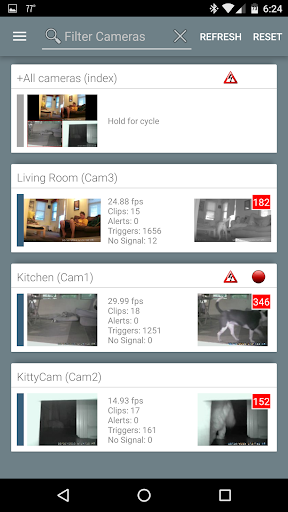

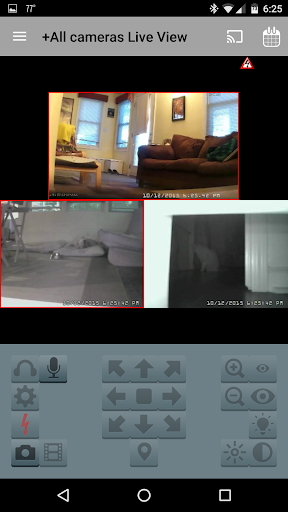
This app is a CLIENT for the Blue Iris Windows PC software. In order to make use of this app, you must have Blue Iris version 5.x installed and running on a Windows PC. Instructions for connecting this app to the PC software are found in the Networking topic of its Help file.
This app provides a single point of contact to your home camera network. There is no need to insecurely open individual cameras to the Internet. This app connects using a secure and session-based protocol--no passwords are transmitted in plain text.
Key features include:
- Manage multiple Blue Iris installations
- Control the traffic signal icon, schedule and profile selection
- Receive Android push alerts when a Blue Iris camera is triggered or there is a critical status message
- Fast H.264 streaming
- Control PTZ, IR and more for any camera that’s also controllable at the Blue Iris PC
- Listen to and talk to any camera that’s also supported at the Blue Iris PC
- Navigate cameras by tapping and swiping
- Review recordings as stored on the Blue Iris PC, up to 64x speed
- Selectively delete recordings from the Blue Iris PC
- Remote control DIO output signals on compatible devices
Show more

1. Download MEmu installer and finish the setup

2. Start MEmu then open Google Play on the desktop

3. Search Blue Iris in Google Play
Install
4. Download and Install Blue Iris
5. On install completion click the icon to start

6. Enjoy using Blue Iris on PC with MEmu
MEmu Play is the best Android emulator, and 100 million users already enjoy its superb Android app experience. Powered by advanced virtualization technology, it lets you enjoy thousands of Android apps smoothly on your PC—including the most graphics-intensive ones.
Bigger screen with better graphics; Long duration, without limitation of battery or mobile data.
Full Keymapping support for precise control of keyboard and mouse or gamepad.
Multiple game accounts or tasks on single PC at one time with Multi-Instance manager.
Use Blue Iris on PC by following steps: