How to Reduce CPU Usage in MEmu
 |
|
How to Reduce CPU Usage in MEmu Emulator
If MEmu is using too much CPU, try these optimizations to keep it running smoother and cooler:
⚙️ 1. Lower CPU Allocation
- Go to Settings → Engine
- Set CPU to 2 cores (or lower if needed)
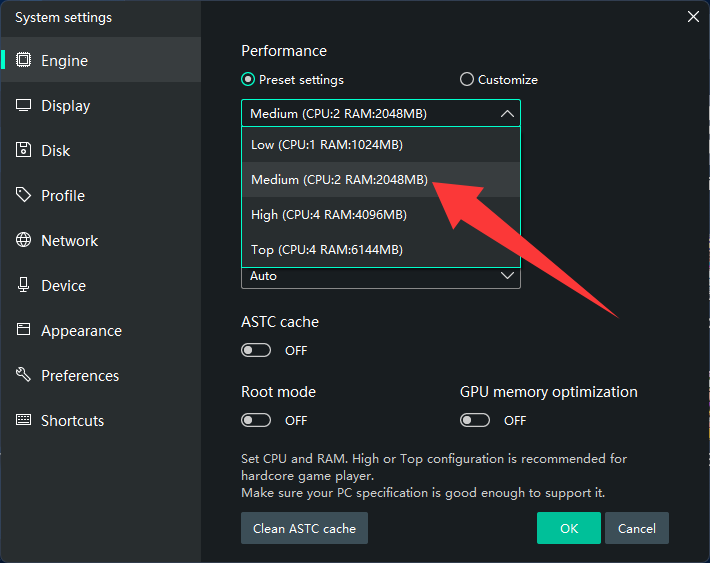
🧠 2. Reduce RAM & Performance Mode
- RAM: 2–4 GB
- Performance: Medium (instead of High)
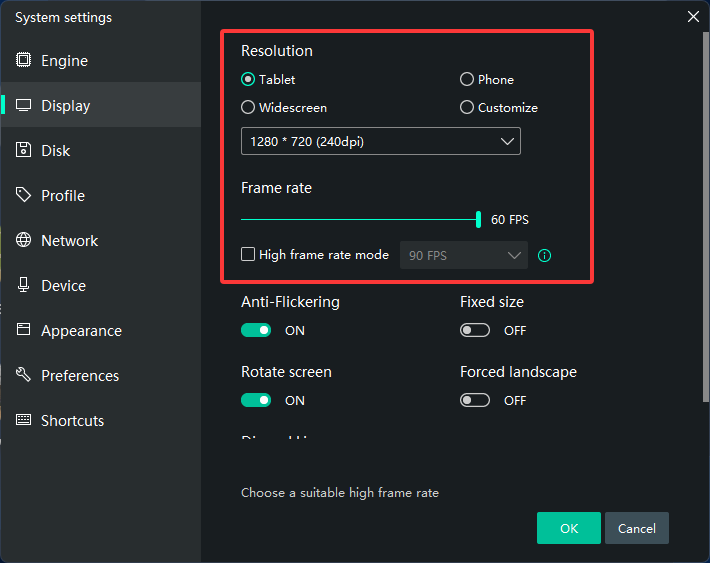
🎮 3. Lower Resolution & FPS
- Resolution: 1280×720 or lower
- FPS: 30–60
- Lower DPI (e.g., 160)
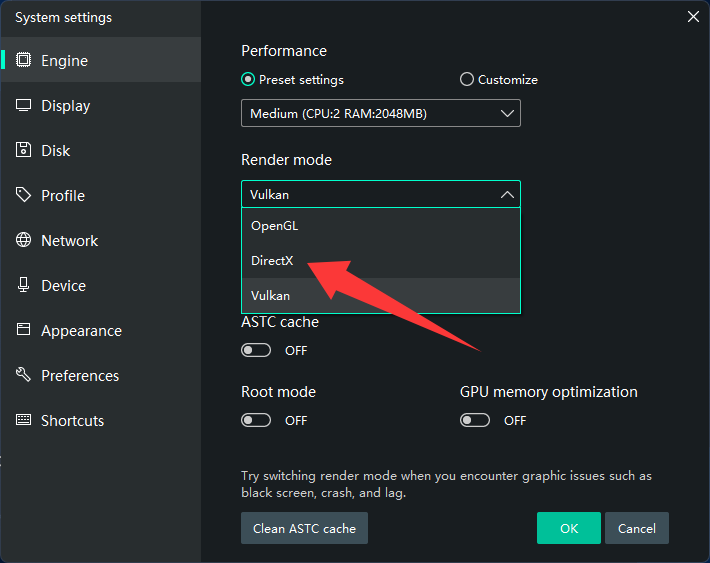
🖥️ 4. Switch Graphics Mode
- Try DirectX (usually uses less CPU)
- Disable unnecessary rendering features
🧹 5. Close Background Apps
- Shut down browsers, other emulators, and heavy programs
🔄 6. Enable VT (Virtualization)
- Reduces CPU overhead significantly
🔋 7. Adjust Power Settings
- Set Windows to Balanced or Power Saver (to limit CPU usage)
🛠️ 8. Disable Multi-Instance
- Run only one instance of MEmu
🎯 9. Lower In-Game Settings
- Reduce graphics quality, shadows, and effects
🧼 10. Keep MEmu Updated
- New versions often include performance optimizations
⚠️ Extra Tips
- Avoid overheating (clean fans)
- Use SSD for better performance
- Disable Hyper-V if not needed