How to Enable High FPS Mode in MEmu Emulator
 |
|
How to Enable High FPS Mode in MEmu Emulator
Want smoother gameplay beyond 60 FPS? Here’s how to enable and optimize High FPS Mode in MEmu:
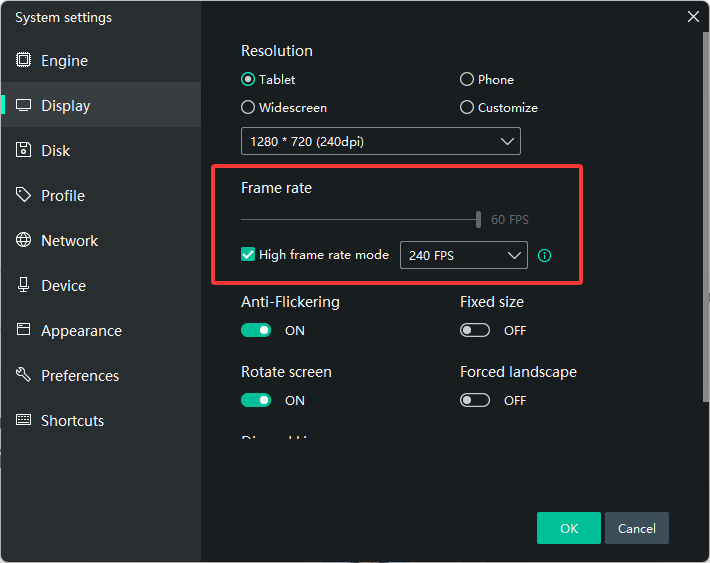
⚙️ 1. Increase FPS Limit in Settings
- Open MEmu
- Click Settings (gear icon)
- Go to Display
- Set FPS to:
- 60 (stable)
- 90 / 120 (high FPS, requires strong PC)
- Click Save and restart MEmu
🎮 2. Enable High FPS in-Game
- Some games have their own FPS settings
- Go to in-game settings → enable:
- High FPS Mode / 60FPS+ / Ultra FPS
🧠 3. Optimize Performance Settings
- Settings → Engine:
- CPU: 4 cores
- RAM: 4–8 GB
- Performance: High
🖥️ 4. Use Dedicated GPU
- Set MEmu to High Performance GPU (NVIDIA/AMD control panel)
🔄 5. Choose Best Graphics Mode
- Try:
- OpenGL (often better for higher FPS)
- DirectX (more stable if issues occur)
- Vuklan (more compatible)
🚀 6. Enable VT (Virtualization)
- Turn on Intel VT-x / AMD-V in BIOS
- Essential for stable high FPS
🔋 7. Set Windows to High Performance
- Power Options → High Performance
⚠️ Important Notes
- Not all games support 90/120 FPS
- Higher FPS = more CPU/GPU usage
- If unstable, drop back to 60 FPS
💡 Pro Tip
- Combine:
- 120 FPS + OpenGL + High Performance mode
- For best results on powerful PCs