How to Fix MEmu Blue Screen Error
 |
|
How to Fix MEmu Blue Screen Error (BSOD)
A blue screen while running MEmu is usually caused by virtualization conflicts, driver issues, or system misconfiguration. Here’s how to fix it:
1. Disable Hyper-V (Most Common Cause)
Conflicts with Hyper-V often trigger BSOD:
- Press Win + R → type
optionalfeatures - Uncheck:
- Hyper-V
- Windows Hypervisor Platform
- Virtual Machine Platform
- Restart your PC
Or run (Admin CMD):
bcdedit /set hypervisorlaunchtype off
2. Turn Off Memory Integrity
- Open Windows Security
- Go to Device Security → Core Isolation
- Disable Memory Integrity
- Restart
3. Update or Reinstall GPU Drivers
Faulty graphics drivers can crash the system:
- Update via GeForce Experience
- Or AMD Software: Adrenalin Edition
- Intel users → Intel Driver & Support Assistant
If needed, clean reinstall using Display Driver Uninstaller
4. Check CPU Virtualization (VT)
- Ensure VT-x / AMD-V is enabled in BIOS
- Without it, MEmu may crash or fail to start
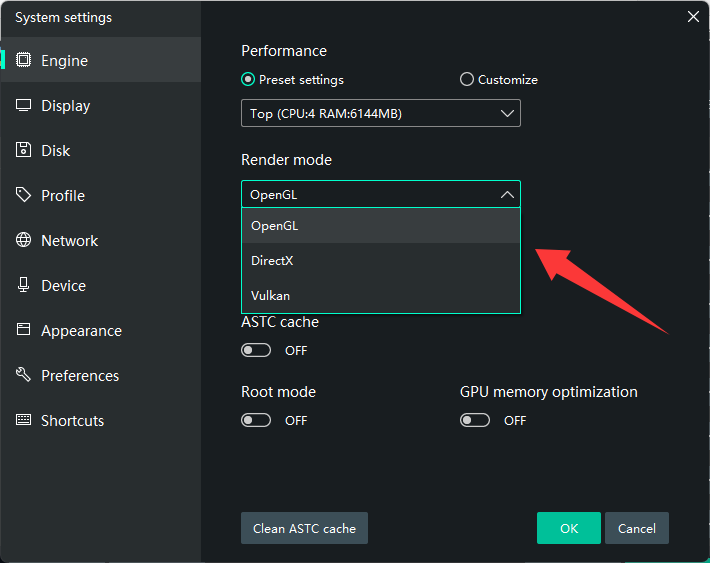
5. Change Graphics Rendering Mode
In MEmu Settings → Engine:
- Switch between DirectX,Vulkan and OpenGL
- DirectX is usually more stable
6. Update MEmu Version
Older versions may cause system crashes:
- Install the latest version of MEmu
7. Reduce Resource Allocation
Over-allocation can trigger instability:
- CPU: 2–4 cores
- RAM: 2–4 GB (adjust based on system)
8. Check for Conflicting Software
These may cause BSOD:
- Virtual machines (VMware, VirtualBox)
- Android subsystems
- Some antivirus programs
Common BSOD Causes
- SYSTEM_SERVICE_EXCEPTION → driver conflict
- IRQL_NOT_LESS_OR_EQUAL → memory/driver issue
- HYPERVISOR_ERROR → Hyper-V conflict
Quick Fix (Recommended Setup)
- Disable Hyper-V
- Enable VT in BIOS
- Update GPU drivers
- Use DirectX mode