How to Fix MEmu Not Compatible with Your Device Fix
 |
|
How to Fix “MEmu Not Compatible with Your Device”
If MEmu shows “Your device isn’t compatible with this version” in Google Play, it’s usually due to device profile, Android version, or Play Store filtering. Here are the effective fixes:
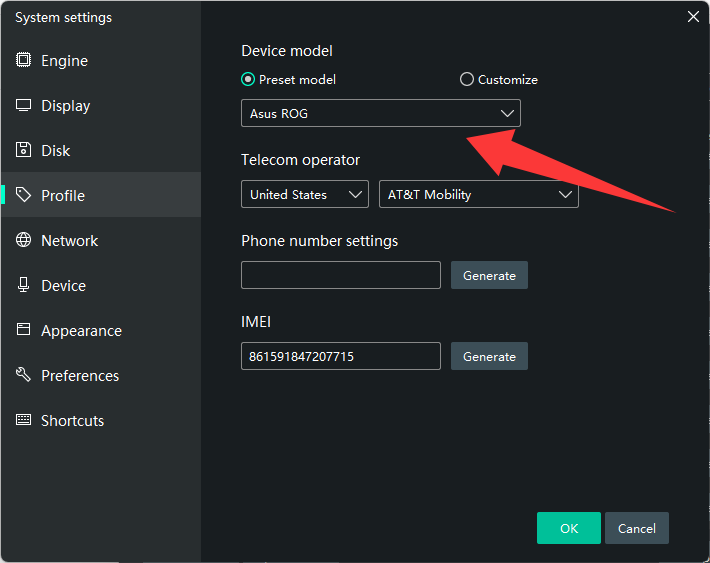
1. Change Device Model (Most Effective)
- Open MEmu → Settings → General
- Find Device Model
- Switch to a popular model (e.g., Samsung / Pixel)
- Save and restart MEmu
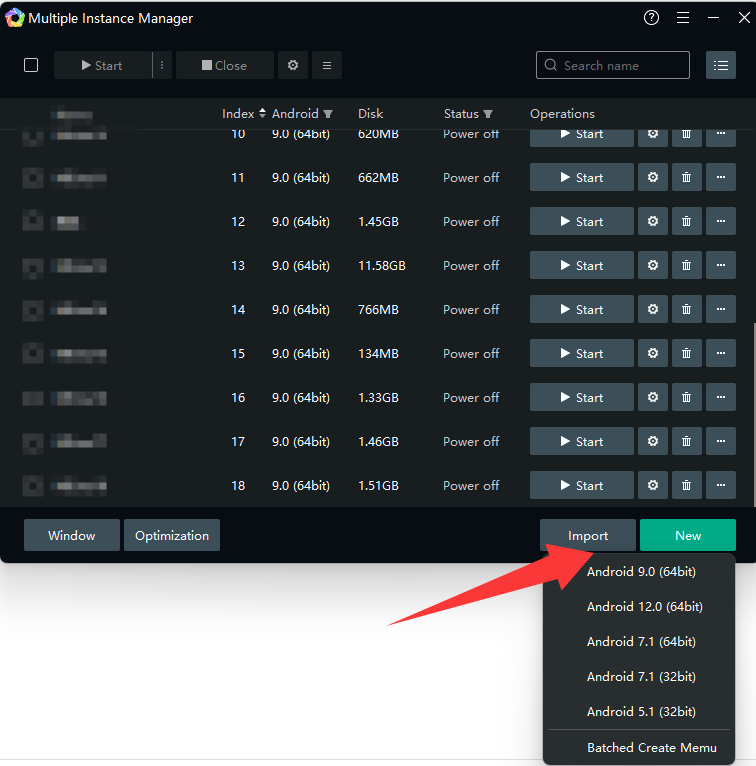
2. Create a New Android Instance
Some apps require a newer Android version:
- Open Multi-MEmu
- Create a new instance (Android 7 / 9 / 12 if available)
- Install the app again
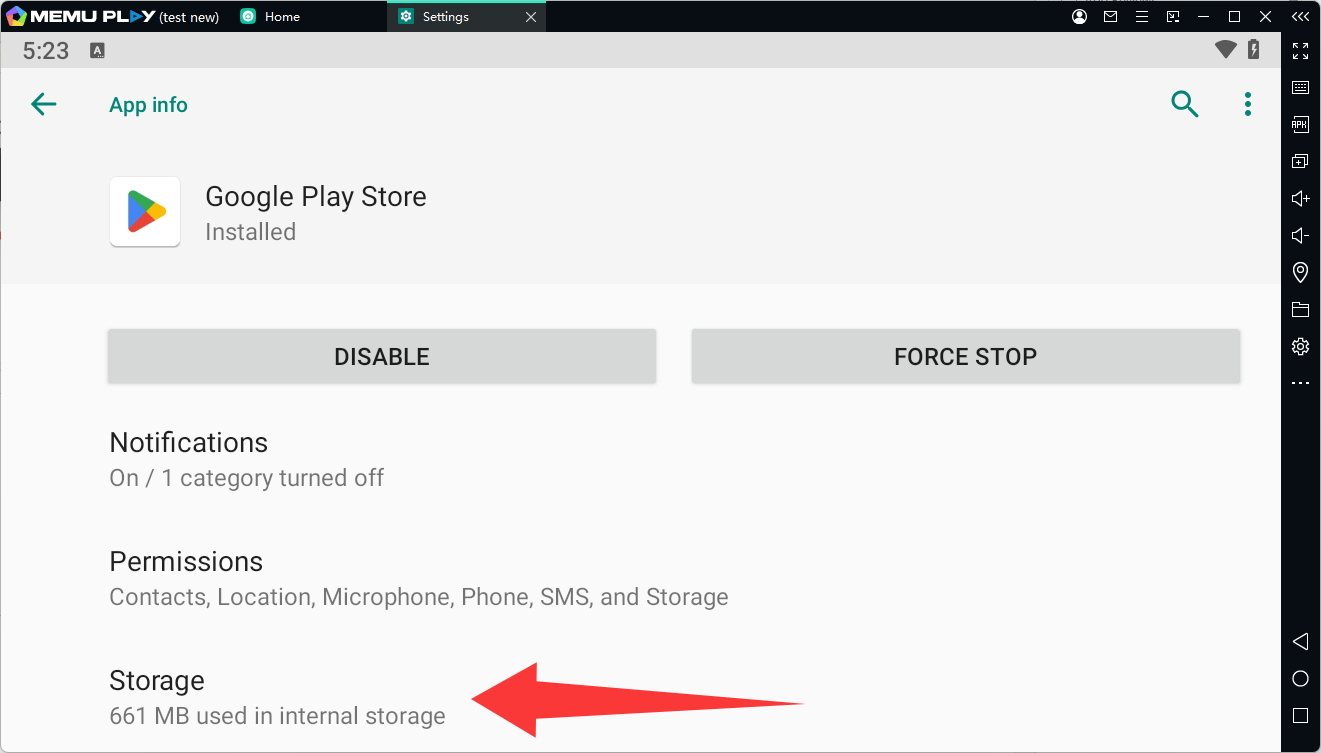
3. Clear Google Play Store Data
- Open Settings → Apps → Google Play Store
- Tap Storage → Clear Data & Cache
- Restart MEmu and reopen Play Store
4. Install APK Manually
If Play Store blocks installation:
- Download APK from trusted sources
- Drag and drop into MEmu to install
5. Update Google Services
Make sure:
- Google Play Services is up to date
- Google Play Store is updated
6. Check CPU Architecture (x86 / ARM)
Some apps require specific architecture:
- Try enabling ARM compatibility (if available)
- Or use a different instance type
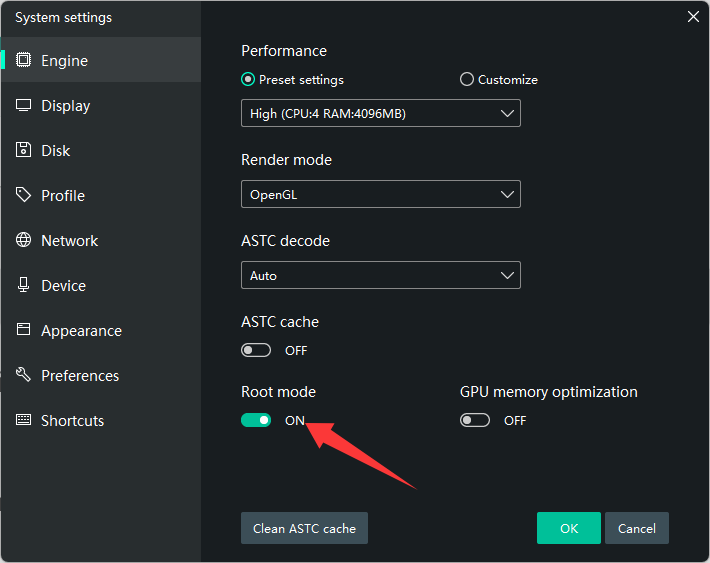
7. Enable Root Mode (Optional)
Some apps check device status:
- Enable Root Mode in settings
- Restart emulator
Common Causes
- App not supported on emulator profiles
- Android version too low/high
- Play Store device filtering
- Missing hardware features (GPS, sensors, etc.)
Quick Fix (Recommended)
- Change device model + use newer Android instance + clear Play Store data