How to Fix Emulator Not Detecting GPU
 |
|
How to Fix “Emulator Not Detecting GPU”
If an Android emulator like MEmu is not detecting your GPU, it usually means a driver issue, virtualization conflict, or the emulator is falling back to software rendering.
1. Update GPU Drivers (Most Important)
Outdated or broken drivers are the main cause:
- NVIDIA → GeForce Experience
- AMD → AMD Software: Adrenalin Edition
- Intel → Intel Driver & Support Assistant
👉 Restart PC after updating
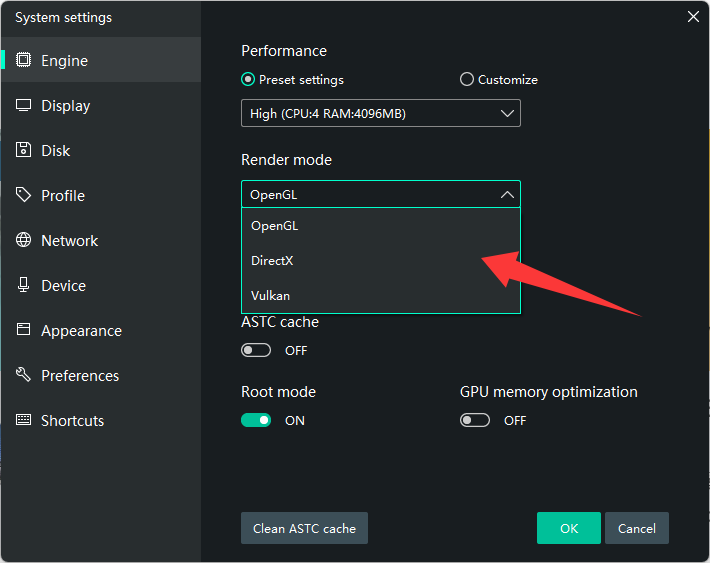
2. Check Rendering Mode in Emulator
Open MEmu → Settings → Engine:
- Try DirectX
- Try OpenGL
- Try Vulkan (if supported — often fastest when stable)
👉 If one mode fails, switch to another and restart
3. Force Dedicated GPU (Laptop Users)
- Open Windows Settings → System → Display → Graphics
- Add MEmu
- Set to High Performance GPU
4. Disable Conflicting Virtualization
- Turn off Hyper-V
- Disable Virtual Machine Platform
- Disable Memory Integrity (Core Isolation)
👉 These can force software rendering instead of GPU usage
5. Clean Reinstall GPU Driver (Advanced Fix)
If GPU is still not detected:
- Use Display Driver Uninstaller
- Reinstall latest driver cleanly
6. Check GPU Recognition in Windows
- Press Win + R → dxdiag
- Check if GPU is listed under Display tab
👉 If missing, it's a driver or hardware issue
7. Update Emulator Version
Older builds of MEmu may not support newer GPUs or Vulkan properly.
MEmu - The Best Android Emulator for PC - Free Download
Common Causes
- Missing or corrupted GPU drivers
- Emulator stuck in software rendering mode
- Hyper-V enabled
- Laptop using integrated GPU instead of dedicated GPU
Quick Fix Summary
- Update GPU driver
- Switch rendering mode (DirectX / OpenGL / Vulkan)
- Disable Hyper-V
- Force high-performance GPU