How to Use GPU Acceleration in MEmu
 |
|
How to Use GPU Acceleration in MEmu Emulator
GPU acceleration helps improve FPS, graphics quality, and overall performance. Here’s how to enable and optimize it:
⚙️ 1. Enable GPU Acceleration in MEmu
- Open MEmu
- Click Settings (gear icon)
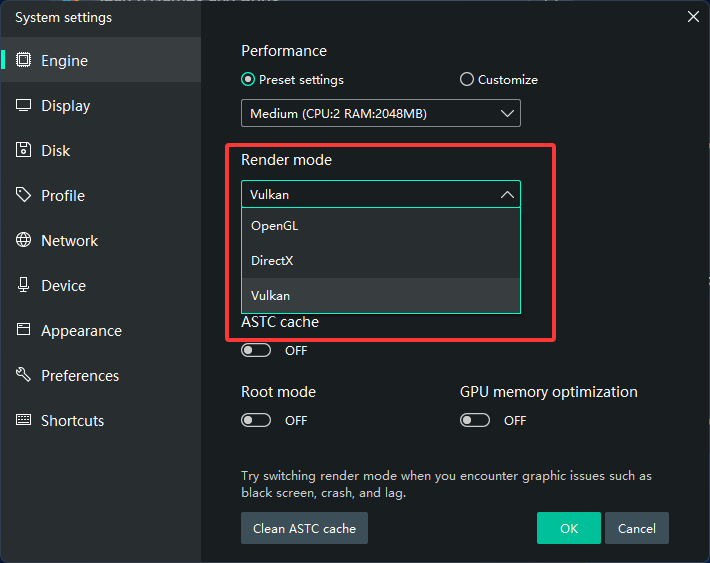
- Go to Engine
- Under Graphics:
- Enable Use Dedicated GPU (if available)
- Choose rendering mode:
- DirectX (better compatibility)
- OpenGL (better performance on some GPUs)
- Vulkan (better compatibility)
- Click Save and restart MEmu
🖥️ 2. Force MEmu to Use Dedicated GPU (Laptop)
If you have dual graphics (Intel + NVIDIA/AMD):
- NVIDIA:
- Open NVIDIA Control Panel
- Manage 3D settings → Program Settings
- Add MEmu → Select High-performance NVIDIA processor
- AMD:
- Open AMD Software
- Set MEmu to High Performance
🔄 3. Update Graphics Drivers
- Install latest drivers from:
- NVIDIA / AMD / Intel official websites
- Avoid outdated Windows default drivers
🎮 4. Optimize Graphics Settings
- Try DirectX/OpenGL/Vulkan to see which gives better FPS
- Enable High Performance mode in MEmu
- Increase FPS limit (60/90/120 if supported)
⚠️ 5. Disable Conflicts
- Turn off Hyper-V
- Close other emulators or virtual machines
🚀 Extra Tips
- Use an SSD for better performance
- Keep your PC cool (avoid thermal throttling)
- Lower in-game graphics if needed for stable FPS