MEmu Performance Optimization Guide
 |
|
MEmu Performance Optimization Guide
Want the best performance on MEmu? Follow this complete guide to boost FPS, stability, and smooth gameplay:
🚀 1. Enable VT (Virtualization)
- Enter BIOS → Enable Intel VT-x / AMD-V
- This gives the biggest performance boost
⚙️ 2. Optimize Engine Settings
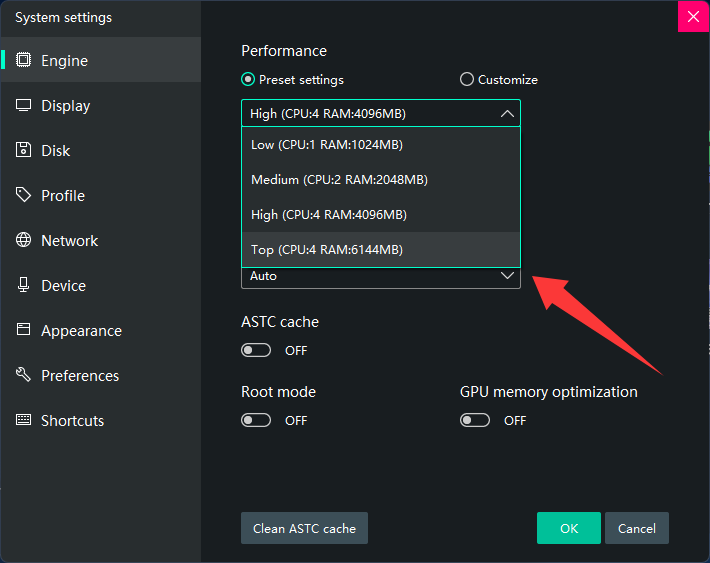
Go to Settings → Engine:
- CPU: 4 cores (or half of your CPU)
- RAM: 4–8 GB
- Performance Mode: High
🎮 3. Choose the Best Rendering Mode
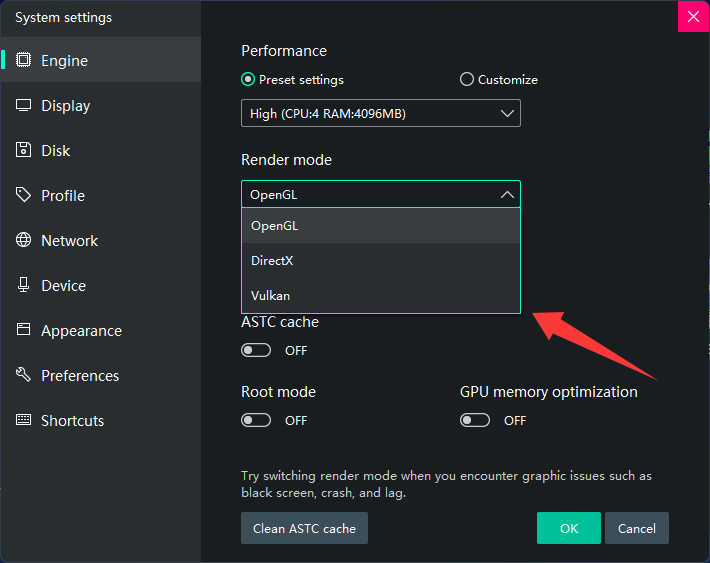
- DirectX → Best stability (recommended)
- OpenGL → Higher FPS on some setups
- Vulkan → Best for modern GPUs, lower CPU usage
👉 Test all three to find what works best for your system
🖥️ 4. Optimize Display Settings
- Resolution: 1280×720 (best performance)
- DPI: 160–240
- FPS: 60 (or 90/120 for high-end PCs)
🧠 5. Use Dedicated GPU
- Set MEmu to High Performance GPU (NVIDIA/AMD settings)
🔄 6. Update Drivers & System
- Install latest:
- GPU drivers
- Windows updates
- DirectX / Visual C++
🧹 7. Close Background Apps
- Free CPU & RAM (close browser, Discord, etc.)
🛠️ 8. Disable Hyper-V
- Turn off:
- Hyper-V
- Windows Hypervisor Platform
- Virtual Machine Platform
🔋 9. Set Windows to High Performance
- Power Options → High Performance
💾 10. Install on SSD
- Faster loading and less stutter
🎯 11. Optimize In-Game Settings
- Set graphics to Medium/Low
- Disable shadows & effects
- Enable High FPS mode (if supported)
⚠️ Pro Tips
- Avoid running multiple instances
- Keep your PC cool (prevent thermal throttling)
- Restart MEmu regularly for stability
✅ Recommended Presets
Low-End PC:
- 2 CPU / 2GB RAM / 720p / 30 FPS / DirectX
Mid-Range PC:
- 4 CPU / 4GB RAM / 720p / 60 FPS / DirectX/OpenGL
High-End PC:
- 6–8 CPU / 8GB RAM / 1080p / 90–120 FPS / Vulkan