How to Sign in to Google Play on MEmu
 |
|
How to Sign in to Google Play Store on MEmu Play
Signing in to Google Play on MEmu allows you to download and install Android apps and games just like on a real mobile device. Follow these steps to log in:
Step 1: Launch MEmu
Open MEmu Play on your PC and wait for the Android system to finish loading.

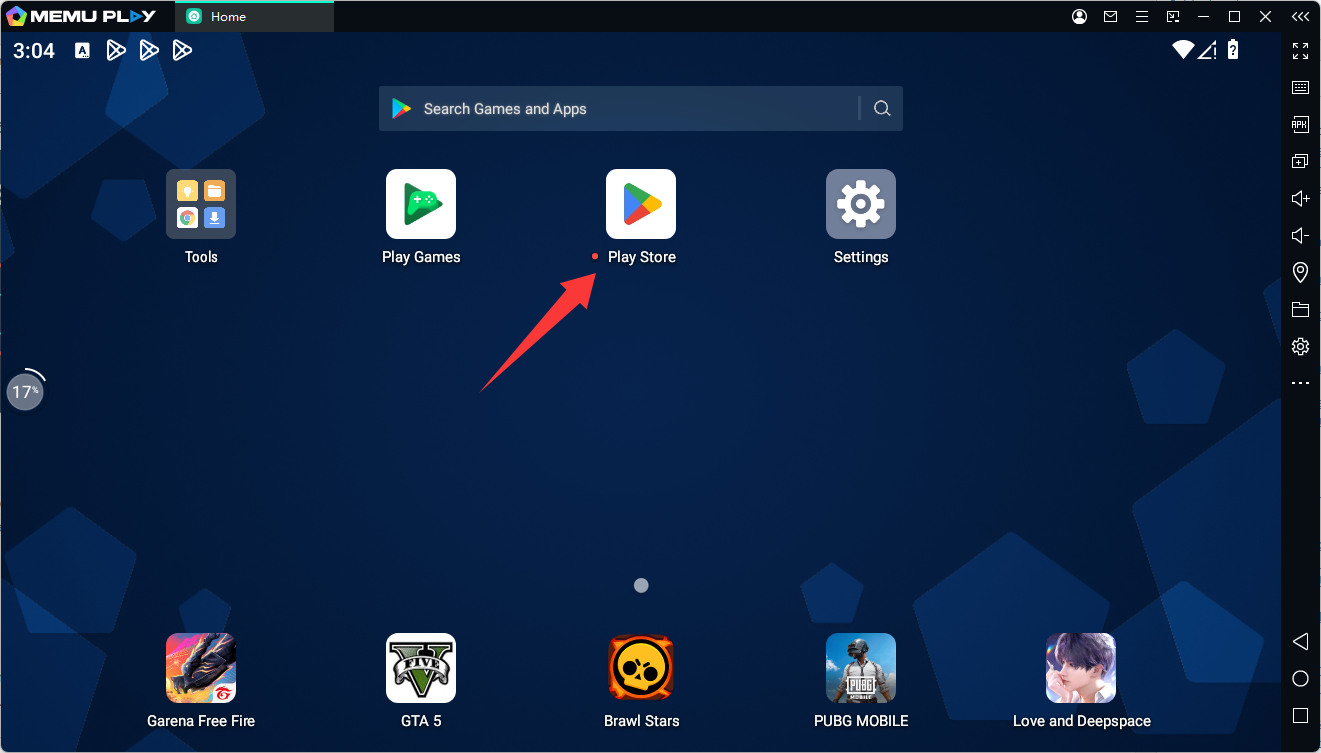
Step 2: Open Google Play Store
On the emulator home screen, click the Google Play Store icon.
Step 3: Sign in with Your Google Account
Enter your Google account email and password, then click Next to continue.

Step 4: Accept Google Terms
Review and accept the Google Terms of Service and privacy policy.
Step 5: Complete Setup
Once the login process is finished, you will have full access to the Google Play Store, allowing you to search for and install apps or games.

Troubleshooting Tips
If you cannot sign in:
-
Check that your internet connection is stable.
-
Restart the emulator and try again.
-
Clear the cache of Google Play Store in Android settings.
-
Update MEmu to the latest version.
After signing in successfully, you can start downloading your favorite apps and games directly from the Play Store.